
Why Voice Dictation in GitHub Saves Developer Time
Voice dictation in GitHub helps developers cut the time they spend on text that is not code. Developers spend a surprising amount of time writing text that is not code. Issue descriptions, pull request summaries, code review comments, wiki documentation, discussion threads — these communication tasks consume 40 to 50 percent of a typical developer’s working day. And yet most developers type every word at keyboard speed, roughly 40 words per minute.
Voice dictation in GitHub changes this. With a browser-based tool like Genie 007, you can dictate directly into any GitHub text field at 150 words per minute. That means pull request descriptions, issue reports, and code review feedback get written three to four times faster — without sacrificing detail or clarity.
This guide shows you how to set up voice dictation in GitHub, the specific developer workflows it accelerates, and practical tips for dictating technical content accurately.
How Voice Dictation in GitHub Works
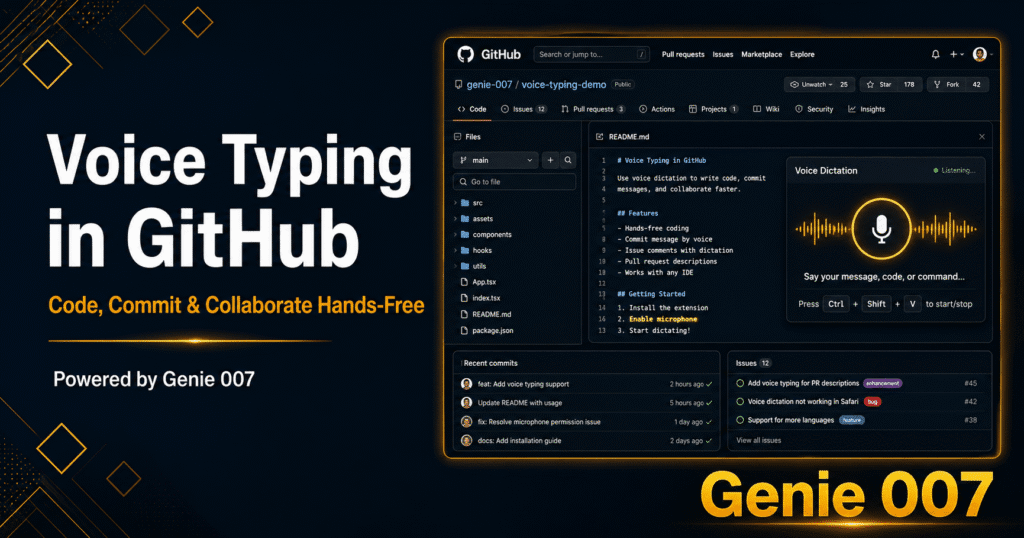
Voice dictation in GitHub works because GitHub runs entirely in the browser. Every text input — issue bodies, PR descriptions, review comments, wiki pages, discussion posts — is a standard web text field. A Chrome extension like Genie 007 sits on top of any web page and captures your speech in real time, streaming the transcribed text directly into whichever input field is active.
That means voice dictation in GitHub requires no special setup. There is no GitHub integration to configure, no API token to generate, and no repository settings to change. The extension operates at the browser level, which means it works on github.com, GitHub Enterprise, and any GitHub-hosted interface without modification.
When you click into a text field on GitHub and activate Genie 007, your spoken words appear in that field as you speak them. The transcription is real-time — there is no recording step and no processing delay. You speak, you see text, you submit.
GitHub Text Fields That Support Voice Typing
Because Genie 007 works at the browser level, it supports every text input GitHub presents. Here are the areas where developers get the most value:
Issue descriptions are where voice typing makes the biggest difference. A well-written issue includes context, steps to reproduce, expected behaviour, actual behaviour, and environment details. Typing all of that takes three to five minutes. Dictating it takes under ninety seconds.
Pull request descriptions explain what changed and why. Many developers leave these blank or write a single sentence because typing a thorough explanation feels like overhead. With voice dictation, you can speak a comprehensive summary — the motivation, the approach, the trade-offs, and the testing strategy — in under a minute.
Code review comments are critical for team collaboration. Voice typing lets you provide detailed, constructive feedback quickly. Instead of typing a careful explanation of why a particular approach might cause issues, you speak it naturally: “This query runs inside a loop, which will cause N plus one queries in production. Consider eager-loading the associations or moving the query outside the loop.”
Discussion threads on GitHub Discussions benefit from the same speed advantage. Technical discussions require nuanced, detailed responses — exactly the kind of writing that voice dictation accelerates.
Wiki pages and documentation hosted on GitHub are often neglected because writing documentation is tedious. Voice typing lowers the barrier significantly. You can dictate a page of architecture documentation in a few minutes rather than spending half an hour typing it.
Commit message bodies written in the GitHub web interface also support dictation. When you commit through the browser, you can dictate a detailed commit message explaining the reasoning behind the change.
Setting Up Voice Dictation in GitHub
Setup takes under two minutes and requires zero changes to your GitHub account or repositories.
Step 1: Install Genie 007. Go to the Chrome Web Store, search for Genie 007, and click “Add to Chrome.” The extension works on all Chromium-based browsers including Edge, Brave, and Arc — the browsers most developers already use.
Step 2: Grant microphone permission. The first activation prompts a microphone permission request. Click “Allow.” This permission persists across sessions.
Step 3: Open GitHub. Navigate to github.com and open any repository. No additional configuration is needed.
Step 4: Click into any text field and start dictating. Use the keyboard shortcut or toolbar icon to activate Genie 007. Your words appear in the GitHub text field in real time.
Step 5: Use voice commands for technical content. Say “new line” for line breaks, “period” for full stops, and “dash” for hyphens. For code references, you can spell out function names or say them naturally — Genie 007 handles camelCase and technical terminology well.
Five Workflows Where Voice Dictation in GitHub Accelerates
Voice dictation is not about replacing your keyboard for writing code — it is about speeding up the substantial amount of communication that surrounds code. Here are the five workflows where the impact is greatest.
1. Writing Detailed Issue Reports
A good issue report saves debugging time for everyone who works on it. But writing one thoroughly — with context, reproduction steps, environment details, and screenshots — takes effort. Voice dictation lets you capture all of that detail quickly while the problem is fresh in your mind.
“The user profile page throws a 500 error when the bio field contains emoji characters. Steps to reproduce: navigate to settings, enter an emoji in the bio field, click save. Expected behaviour: profile saves successfully. Actual behaviour: internal server error. This affects the production environment running Node 20 on Ubuntu 22. I have confirmed the issue is in the character encoding layer of the database adapter.”
That is a complete, actionable issue report dictated in about twenty seconds.
2. Writing Pull Request Descriptions
Pull request descriptions serve as the historical record of why a change was made. Future developers rely on them when investigating bugs or understanding design decisions. Voice typing makes writing thorough PR descriptions effortless.
“This PR refactors the authentication middleware to support both JWT and session-based authentication. The motivation is to support our new mobile API clients while maintaining backward compatibility with the existing web application. The approach uses a strategy pattern to select the authentication method based on the request headers. I have added unit tests for both authentication paths and integration tests for the fallback behaviour. No breaking changes. The feature flag AUTH_DUAL_MODE controls the rollout.”
Dictated in under thirty seconds, that description gives reviewers everything they need.
3. Providing Thorough Code Reviews
Good code reviews require detailed, constructive feedback. Typing that feedback is slow, which is why many reviews end up as terse approvals or vague suggestions. Voice typing lets you provide the kind of feedback that actually helps your teammates grow.
“This function is doing too much — it handles validation, transformation, and persistence in a single method. Consider splitting it into three separate functions. The validation logic could be extracted into a validatePayload function that returns either a valid payload or an error. The transformation step is straightforward and could be a pure function. The persistence layer should handle its own error cases.”
That level of detail takes eight seconds to speak. It would take forty seconds to type.
4. Contributing to GitHub Discussions
GitHub Discussions is where teams debate technical approaches, propose features, and share knowledge. These conversations benefit from thoughtful, detailed responses — but typing long responses in a discussion thread feels laborious. Voice typing removes that friction.
You can dictate a thorough response to an architecture question, explain the trade-offs of a proposed approach, or share your experience with a particular technology stack, all at conversational speed.
5. Writing Documentation and Wiki Pages
Documentation is the part of software development that most teams know they should do more of but rarely find the time for. Voice typing dramatically lowers the effort required. Instead of staring at a blank wiki page trying to type out an explanation of your system architecture, you speak it as if you were explaining it to a new team member.
“The payment processing service handles all financial transactions for the platform. It receives payment requests from the API gateway, validates them against our fraud detection rules, and forwards approved transactions to our payment provider. The service uses an event-driven architecture with a message queue for reliability. Failed transactions are automatically retried up to three times with exponential backoff.”
A documentation paragraph that would take two minutes to type takes twenty seconds to dictate.
Tips for Voice Dictation in GitHub Technical Content
Technical writing has its own challenges for voice dictation — function names, file paths, code snippets, and specialised terminology. Here are practical tips for getting accurate results.
Speak technical terms confidently. Modern speech recognition engines have been trained on technical vocabulary. Terms like “API,” “middleware,” “endpoint,” “JSON,” “PostgreSQL,” and “Kubernetes” are transcribed accurately when spoken clearly.
Spell out unusual identifiers. For custom function names or variable names that are not common English words, you can spell them out letter by letter or say them phonetically. Genie 007 handles both approaches.
Use Markdown formatting commands. When writing GitHub-flavoured Markdown, you can say “backtick” to insert inline code markers, “hash” for headings, and “dash” for list items. With practice, you can dictate formatted Markdown almost as fast as plain text.
Dictate the prose, type the code. For mixed content — like an issue that includes both a description and a code snippet — dictate the prose sections and switch to the keyboard for code blocks. This hybrid approach gives you the speed of dictation for narrative text and the precision of typing for syntax-sensitive content.
Use custom voice commands. If you frequently write the same phrases in GitHub — “Fixes issue number,” “Ready for review,” “Blocked by upstream dependency” — set them up as custom voice commands in Genie 007. A single trigger word expands into the full phrase.
Voice Dictation in GitHub vs. Copilot and AI Assistants
GitHub Copilot generates code suggestions, but it does not help with the communication layer of development — issue reports, PR descriptions, review comments, and documentation. Voice typing fills exactly that gap. The two tools complement each other: Copilot helps you write code faster, and voice dictation helps you write about code faster.
Some developers use AI assistants to generate PR descriptions or issue templates, but these auto-generated texts often lack the specific context and nuance that a developer can provide. Dictating your own descriptions ensures the information is accurate, detailed, and reflects your actual thought process — while still being dramatically faster than typing.
Privacy and Security for Voice Dictation in GitHub
Developers work with sensitive code and proprietary information. Genie 007 processes your speech and delivers text to the active input field without storing audio recordings, logging transcriptions, or accessing your GitHub repositories. The extension has no visibility into your code — it only interacts with the text input field that is currently active.
For developers working on private repositories or enterprise projects, this separation is important. Your dictated text enters GitHub through the same input fields you would use when typing, meaning GitHub’s own security controls — repository permissions, branch protections, and audit logs — apply to all dictated content.
Accessibility Benefits of Voice Dictation in GitHub
Voice typing makes GitHub more accessible to developers with repetitive strain injuries, carpal tunnel syndrome, or other conditions that make extended typing painful. Given that software development is a profession that demands thousands of keystrokes per day, these conditions are common.
By enabling voice input for the communication aspects of development — which represent a significant portion of daily typing — developers can reduce keyboard strain while maintaining full participation in code reviews, discussions, and documentation.
Get Started with Voice Dictation in GitHub Today
Voice typing in GitHub requires no repository configuration, no admin permissions, and no changes to your development workflow. Install a browser extension, open GitHub, and start speaking. Every issue you file, every PR you describe, and every code review comment you write becomes faster.
Your privacy matters. Genie 007 processes all audio locally on your device — no recordings are stored, no data is sent to external servers. For full details, see our security and privacy page.
Try Genie 007 free today and experience what development feels like when your communication keeps pace with your code.
Explore all voice typing integrations on our integrations hub.
Frequently Asked Questions
Does voice typing work in this app?
Yes. Genie 007 works in any text field in this app. Install the Chrome extension, click any text input, activate Genie 007, and start speaking. Your words appear instantly with automatic punctuation and formatting.
Is voice typing in this app accurate?
Genie 007 delivers 99.5% accuracy across 140+ languages. It handles technical terms, proper nouns, and context-specific vocabulary. The AI understands the context of this app to format output appropriately.
Can I use voice commands in this app?
Yes. With Genie Mode, you can give high-level commands like “reply professionally” or “summarise this thread” and Genie 007 generates context-aware responses — not just transcription, but complete actions.
Ready to Try Voice-to-Action?
Install Genie 007 free — no credit card required. Works on any website, any text field.
Install Genie 007 Free →Written by Bill Kiani, founder of Genie 007.
Related: Best Voice Assistant for Business in 2026: Buyer’s Guide