

What Is Voice Typing for Jira?
Imagine creating a Jira ticket without touching your keyboard. Voice typing for Jira powered by Genie 007 lets you dictate ticket descriptions, comments, and sprint notes using natural speech. Instead of wrestling with keyboard and mouse, you speak your thoughts directly into Jira—and Genie Mode formats everything automatically.
According to the Atlassian State of Developer Experience 2025, developers lose more than 10 hours per week to inefficiencies in ticketing, context switching, and manual data entry. Voice typing for Jira eliminates that friction. You’re not just typing faster—you’re freeing your hands, reducing repetitive strain, and keeping your attention on the problem you’re solving.
Genie 007 is a Chrome extension that adds voice updates Jira capability to your browser. Open any Jira field, activate voice mode, and speak. Your words appear instantly, formatted and ready to submit. No training required. No API keys. Just your voice and Jira.
Why Use Voice Typing for Jira?
Three concrete reasons make voice typing for Jira worth your attention:
1. Speed: 3x Faster Ticket Creation
Human speech averages 130 words per minute. Typing averages 40 words per minute. That’s a 3-to-1 advantage for speaking. When you create a detailed bug report in Jira, voice typing compresses 10 minutes of typing into 3. Across a sprint, that adds up. One developer using voice to dictate Jira tickets saves 5 hours per week just on typing time alone.
2. Better Detail in Every Ticket
People write less when they type. They write more when they speak. Speaking is natural; typing is work. Genie 007 helps you articulate the full context of a problem without the friction of hunting for keys. More detailed tickets mean fewer back-and-forth comments, fewer clarifications, and fewer misunderstandings.
3. Genie Mode Understands Jira Context
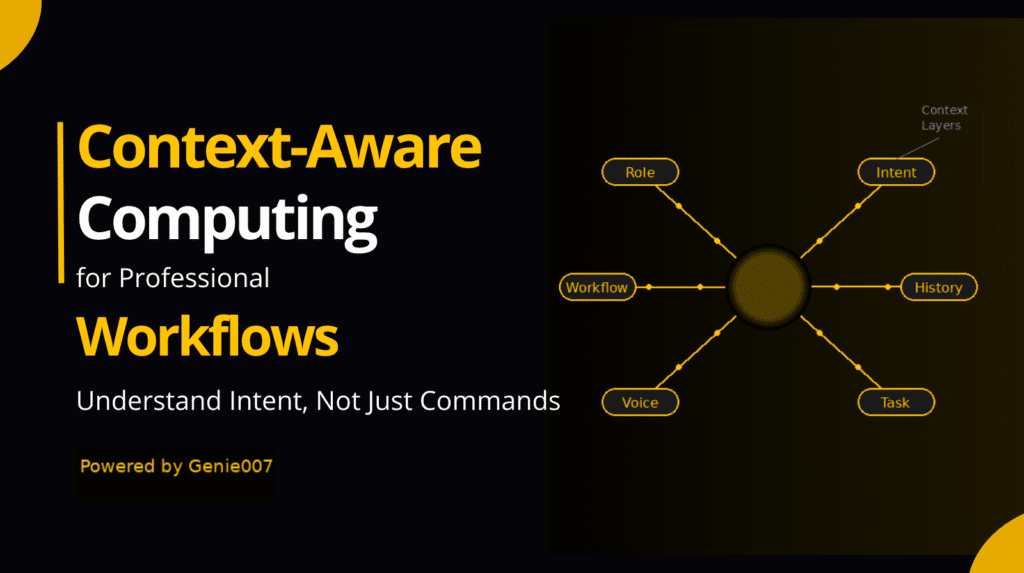
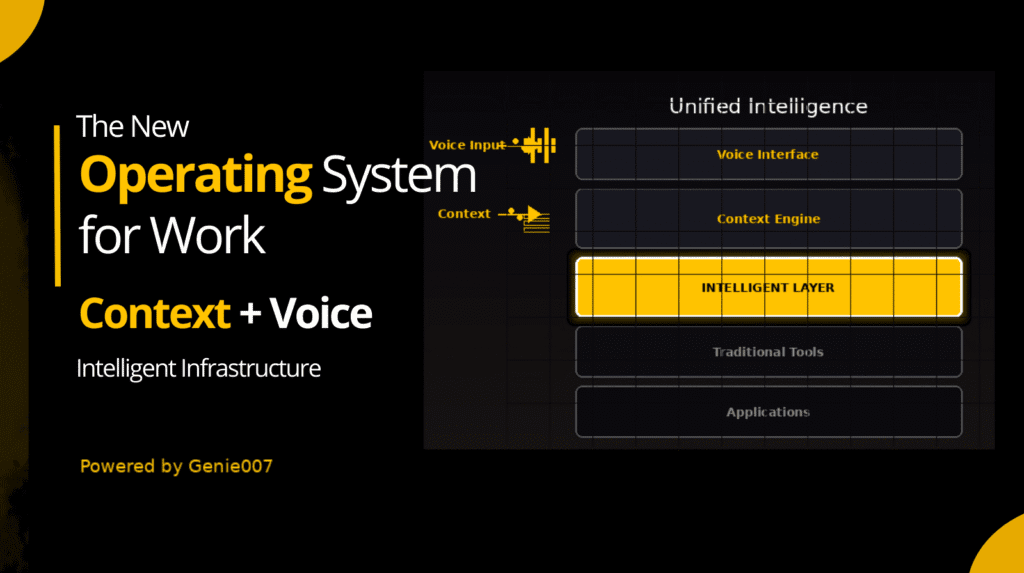
Genie Mode is the intelligent layer inside Genie 007. Say “create a bug report for the login timeout issue with a critical priority” and Genie Mode doesn’t just transcribe your words—it structures them. It formats the title, identifies the issue type, sets the priority field, and generates the description. You can also dictate Jira tickets with technical jargon, and Genie 007 handles terms like “OAuth”, “null pointer exception”, and “database timeout” with 99.5% accuracy.
How to Set Up Genie 007 in Jira
Getting voice speech to text working in Jira takes less than two minutes:
Step 1: Install the Chrome Extension – Visit the Chrome Web Store and install Genie 007 for free. No payment required, no trial limitations.
Step 2: Open Jira in Your Browser – Load your Jira Cloud or Data Center instance. Genie 007 works with any modern Jira deployment.
Step 3: Click Any Text Field – Activate voice mode by clicking on a ticket title, description field, comment box, or any other text input in Jira.
Step 4: Activate Genie 007 – Press the hotkey (or click the microphone icon) to start listening. Genie 007 will request microphone permission the first time (standard browser security).
Step 5: Speak Naturally – Talk as you would to a colleague. Describe the issue, list the steps to reproduce, explain the expected behavior. When you stop speaking, Genie 007 inserts the text and stops listening. Review, edit if needed, and submit.
Jira Voice Workflows That Save Time
Here’s what real voice typing in Jira looks like:
Example 1: Creating a Detailed Bug Report
What you say: “Login timeout occurs after 15 minutes of inactivity. User presses submit on the authentication form and receives a timeout error instead of session token. Chrome 124 on Mac OS. Reproducible on first login and after session refresh.”
What appears in Jira: Title auto-generated as “Login timeout on authentication form” with the full description captured verbatim. Priority and issue type intelligently suggested by Genie Mode.
Example 2: Adding Sprint Retrospective Notes
What you say: “Sprint 47 retro: The team shipped 13 story points on schedule. We identified three blockers in the deployment pipeline that added 2 hours to release. Next sprint, we’ll pair two engineers on CI-CD improvements to reduce friction. Team morale is high.”
What appears in Jira: Formatted as a comment on the sprint retrospective ticket, with clear sections for accomplishments, blockers, and next steps. No manual paragraph breaks needed.
Example 3: Commenting With a Status Update
What you say: “Completed the refactor of the user authentication module. All 12 unit tests pass. Ready for code review in PR 487. Please assign Elena for review.”
What appears in Jira: A professional comment on the ticket with @mentions triggered automatically if you say a name Genie 007 recognizes from your Jira team.
Common Problems and Fixes
A few issues might arise when you start using voice typing in Jira. Here are the solutions:
Microphone Permission Not Granted: Chrome will ask for microphone access on first use. Click “Allow” and ensure your system microphone works. Test it in another app (Zoom, Teams) if needed.
Genie Mode Not Formatting Correctly: Make sure you’re clicking inside the Jira text field before activating voice mode. The rich text editor needs focus. If it still doesn’t work, refresh the page and try again.
Background Noise Interference: Voice typing for Jira is resilient to moderate background noise, but very loud environments (open offices during meetings) reduce accuracy. Move to a quieter space, use a noise-canceling microphone, or wait until the meeting ends.
Technical Terms Not Recognized: Genie 007 learns from your speech patterns. Say technical terms clearly and slowly on first use. The 99.5% accuracy rate applies to all supported languages and industry terminology, including development jargon.
Privacy for Development Teams
Your code and Jira tickets are sensitive. Genie 007 respects that completely. All voice processing happens locally on your device—no audio files or transcripts are uploaded to servers. Your ticket descriptions never leave your browser. We don’t store, log, or analyze your Jira data.
Genie 007 is fully GDPR compliant. For teams handling regulated workloads, read our detailed security and privacy documentation to understand exactly how your data stays protected.
FAQ
Can I dictate Jira tickets hands-free?
Yes. Once you activate voice mode in a Jira text field, you can keep your hands entirely off the keyboard. Speak your ticket description, press stop, and Genie 007 inserts the text. You can also navigate through Jira using voice commands if you pair Genie 007 with a voice assistant, though basic voice typing for Jira requires only your voice and microphone.
Does voice typing work with Jira Cloud and Data Center?
Yes. Genie 007 works seamlessly with Jira Cloud and all supported versions of Jira Data Center. It also works with the full list of integrations including Asana, Notion, GitHub, and 140+ other platforms. The voice speech to text technology is universal across all supported apps.
How accurate is voice typing for technical terms?
Genie 007 achieves 99.5% accuracy on technical vocabulary. Development terminology like “OAuth”, “API endpoint”, “null pointer”, “database query”, and “REST client” are recognized reliably. If a rare term is misheard, the correction takes seconds—faster than typing from scratch.
How much faster is voice typing than keyboard in Jira?
Most developers see a 3-4x speed improvement. A detailed bug report that takes 10 minutes to type takes 3 minutes to voice dictate and review. The time savings grow as you add more tickets—by the end of a sprint, one engineer using voice updates Jira will have reclaimed 5-8 hours of productive time. For teams, the multiplication effect is significant.
Getting Started With Voice Typing for Jira Today
You don’t need to overhaul your Jira workflow. Install Genie 007 and use voice typing for Jira on one ticket. Experience the speed and clarity. Within a week, you’ll wonder how you ever created tickets without it.
Genie 007 supports 140+ languages and works on Chrome, Windows, and Mac. It’s free to install and free to use. Whether you want to create bug reports faster, add sprint notes hands-free, or simply reduce typing fatigue, developer tools like Genie 007 are built for your productivity.
Learn more about how developers are shipping faster with voice dictation. Read the Atlassian State of Developer Experience 2025 study on productivity barriers.
Ship faster with your voice. Install Genie 007 Free →
Written by Bill Kiani, founder of Genie 007.