
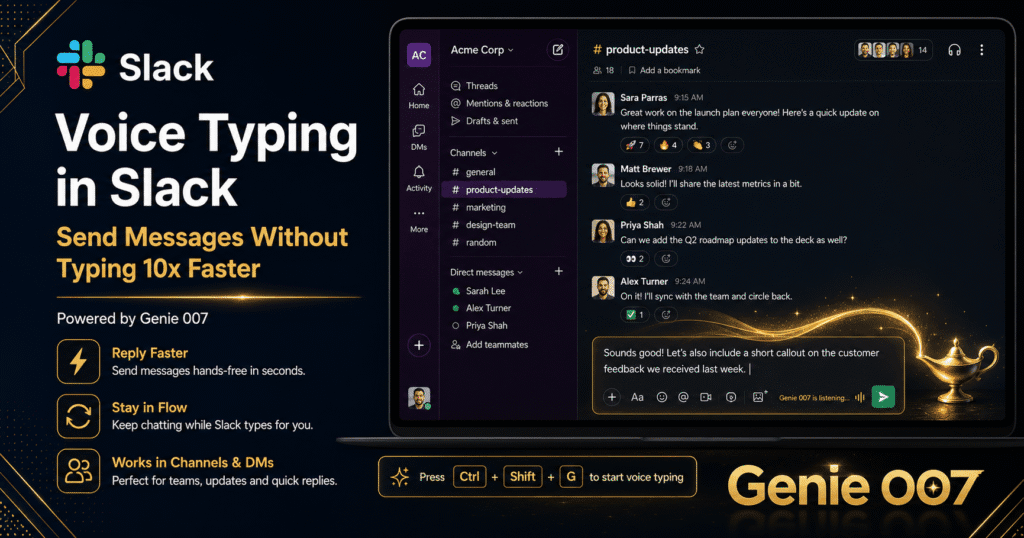
Your team lives in Slack. Every day, you send dozens of messages, respond to threads, update channels, and share status updates. But all that typing adds up — especially when you’re switching between conversations, meetings, and deep work. Voice typing for Slack changes that equation entirely. With Genie 007, you speak your message once, and it appears in the right channel, thread, or direct message — formatted, punctuated, and ready to send. No more hunt-and-peck responses between meetings. No more losing your train of thought while your fingers catch up to your brain.
This guide covers how to set up voice typing for Slack using Genie 007, the specific workflows where it saves the most time, and the technical details that matter for teams handling sensitive communications. Whether you use Slack on the web, the desktop app, or both, voice typing for Slack works wherever you type — and it’s faster than you think.
Why Voice Typing for Slack Makes a Measurable Difference
Most people type at 40 words per minute. When you speak naturally, you hit 130–150 words per minute. That’s roughly 3x faster at the raw input level. But in Slack, the gap is even wider, because Slack communication involves constant context switching: reading a thread, composing a reply, jumping to another channel, responding there, then returning to the original conversation. Every switch costs cognitive load and time.
Dictate in Slack and you eliminate the slowest part of that cycle — the typing itself. You read a thread, speak your response, and move on. Your eyes stay on the screen. Your hands stay free to scroll, click, or reference other documents. The result is that a task which previously took 90 seconds (read thread → think → type → review → send) now takes 30 seconds (read thread → speak → review → send). Across 50 Slack messages per day, that’s 50 minutes recovered. Per week, that’s over four hours of typing you never have to do.
There’s a second benefit that’s harder to quantify but equally important: message quality. When you type in Slack, you abbreviate. You skip punctuation. You send three short messages instead of one clear one. When you speak, your thoughts flow in complete sentences. The output is more articulate, more professional, and easier for your teammates to understand. Slack speech to text powered by Genie 007 captures your natural communication style and turns it into clean, well-punctuated text — every time.
For managers and team leads who spend 2–3 hours daily in Slack, voice typing is not a convenience — it’s a productivity multiplier. For engineers who need to stay in flow state while still responding to team messages, it’s a way to participate without breaking concentration. For remote teams spread across time zones, it means faster async responses and fewer misunderstandings caused by rushed typing.
How to Set Up Genie 007 for Voice Typing in Slack
Setting up voice typing for Slack takes less than two minutes. Genie 007 is a Chrome extension that activates in any text field on any website — including Slack’s web interface at app.slack.com. There’s no Slack-specific plugin to install, no admin approval needed, and no configuration required beyond the initial Chrome extension setup.
Step 1: Install Genie 007 from the Chrome Web Store
Open the Chrome Web Store and search for Genie 007, or click the link directly. Click “Add to Chrome” and confirm the permissions. The extension installs in under 10 seconds and appears as a small icon in your Chrome toolbar. No credit card required. No account creation needed for the free tier.
Step 2: Open Slack in Your Browser
Navigate to app.slack.com and sign into your workspace. If you typically use the Slack desktop app, you can still use the web version alongside it — many teams keep the web version open specifically for voice typing. Click into any message input field: a channel, a thread, or a direct message. You’ll see the Genie 007 microphone icon appear near the text input area.
Step 3: Activate Voice Input
Click the microphone icon or use the keyboard shortcut to start listening. A visual indicator confirms that Genie 007 is capturing your speech. Speak naturally at your normal conversational pace. Say what you’d say if the person were standing in front of you. Genie 007 handles punctuation, capitalisation, and formatting automatically. When you pause for more than two seconds, the input finalises.
Step 4: Review and Send
Your dictated text appears in the Slack message field, ready to send. Give it a quick glance — in most cases, it’s exactly what you intended. Press Enter to send. The entire process, from clicking the mic to hitting send, takes 5–10 seconds for a typical Slack message. Compare that to 30–60 seconds of typing the same message manually.
For teams using the Slack desktop app on Windows or Mac, Genie 007’s desktop application provides the same voice typing capability system-wide. Install the Windows or Mac app, and voice typing works in the native Slack client, not just the web version. This gives you full flexibility regardless of how your team accesses Slack.
Slack Voice Typing Workflows That Save Real Time
The time savings from voice typing for Slack compound when you apply it to specific, repeatable workflows. Here are the scenarios where teams report the biggest impact.
Workflow 1: Thread Replies During Meetings
You’re in a video call, but a critical thread in your engineering channel needs a response. With voice typing, you can whisper or speak your reply without unmuting on the call. Open the Slack web tab, click into the thread, activate Genie 007, and speak your response quietly. The AI captures even low-volume speech with high accuracy. Your teammates get a timely reply, and you never leave the meeting. This is especially valuable for engineering leads and project managers who juggle live meetings and async communication simultaneously.
What you say: “Hey team, I checked the staging deployment and the auth service is throwing a 502 on the health check endpoint. Sarah, can you look at the load balancer config? I think the target group might be pointing to the old container. Let’s sync after the standup if it’s still broken.”
What appears in Slack: A clear, complete status update with specific technical details, a direct ask, and a proposed next step — sent in 15 seconds instead of 60.
Workflow 2: Daily Standups in Slack Channels
Many teams run async standups in dedicated Slack channels. Each person posts what they did yesterday, what they’re doing today, and any blockers. Typing this out feels tedious, so updates tend to be terse and uninformative. With hands free Slack messaging, you dictate your standup while pouring your morning coffee.
What you say: “Yesterday I finished the database migration script for the user table refactor and got it reviewed by Marcus. Today I’m working on the API endpoint changes for the new search feature. No blockers, but I’ll need a design review from the UX team by Thursday for the results page layout.”
What appears in Slack: A detailed, well-structured standup update that gives your team actual context — not just “worked on stuff, no blockers.” Voice naturally encourages more complete communication because speaking in full sentences is easier than typing them.
Workflow 3: Quick Acknowledgements and Approvals
Half of Slack messages are short responses: “Sounds good,” “I’ll take a look,” “Approved, go ahead.” These are fast to type, but when you have 30 of them to send across different channels, the switching cost adds up. With voice typing, you can rapid-fire through your unread messages, speaking each reply as you scroll. Your hands handle navigation while your voice handles the responses.
What you say: “Looks good to me, ship it. Just make sure we update the changelog before the release goes out.”
What appears in Slack: A quick approval with an actionable reminder — sent in 4 seconds.
Workflow 4: Detailed Project Updates
When you need to brief a channel on a project’s status, the message is often 3–5 paragraphs. Typing that in Slack feels like writing an email. Speaking it takes a fraction of the time and produces better output because you’re explaining, not composing.
What you say: “Quick update on the Q2 launch. We’re on track for the April 28th target. The backend team finished the payment integration yesterday and it’s in QA now. Frontend is about 80 percent done, with the checkout flow and order confirmation pages left. The main risk is the third-party shipping API, which has been flaky in sandbox. I’ve asked ops to set up a fallback mock so we can test the happy path independently. I’ll post another update Friday after the QA results come in.”
What appears in Slack: A comprehensive project update that would have taken 3–4 minutes to type, delivered in under 40 seconds of speaking. Your team knows exactly where things stand without a meeting.
Workflow 5: Cross-Channel Coordination
Team leads often coordinate across multiple Slack channels: posting updates in the engineering channel, flagging items in the design channel, and confirming timelines in the project management channel. Voice dictation teams use to stay in sync across these contexts. With Genie 007, you move between channels and speak a message in each one without breaking your flow. The AI adapts to each context because it’s processing your natural speech, not expecting formatted commands.
Voice Typing for Slack vs. Slack’s Built-In Audio Features
Slack offers audio and video Clips — short recordings you can send in channels and DMs. These include basic transcription so recipients can read instead of listen. But Clips and voice typing serve fundamentally different purposes.
Slack Clips are audio messages. The recipient hears your voice or reads an auto-generated transcript. The transcript is basic, often lacks punctuation, and can’t be edited before sending. Clips are useful when tone matters — explaining a nuanced decision, giving feedback with empathy, or walking someone through a complex topic.
Voice typing for Slack with Genie 007 is different. You speak, and the output is text — polished, punctuated, professional text that looks exactly like a typed message. Recipients don’t know you dictated it. They see a clean Slack message, not an audio clip with a rough transcript underneath. This matters because text messages are searchable, scannable, and faster to consume than audio. When someone scrolls through a channel catching up on 50 messages, they can read your text in 3 seconds. Listening to an audio clip takes 30 seconds minimum.
The other critical difference is editing. With voice typing, you see the text before you send it. You can modify a word, add a link, or restructure a sentence. With Clips, the audio is the audio — you can re-record, but you can’t edit mid-stream. For teams that value clear, professional written communication in Slack, voice typing produces better output than audio clips.
Slack’s native transcription is also limited to one language and doesn’t handle technical vocabulary well. Genie 007 supports 140+ languages with 99.5% accuracy, handles technical terms, code references, and industry jargon, and auto-punctuates correctly. For multilingual teams or technical organisations, the accuracy gap is significant.
Common Problems and Fixes for Voice Typing in Slack
Voice typing in Slack works out of the box for most users, but a few setup issues can surface depending on your browser configuration and Slack workspace settings.
Microphone Icon Not Showing in Slack Web
If you don’t see the Genie 007 microphone icon when you click into a Slack message field, the extension may not have permission to run on app.slack.com. Right-click the Genie 007 icon in your Chrome toolbar, select “Manage extension,” and check that site access is set to “On all sites” or that app.slack.com is explicitly allowed. Reload the Slack tab after making changes.
Browser Microphone Permission Blocked
Chrome requires per-site microphone permission. If you’ve never granted mic access to app.slack.com, the first activation will trigger a permission prompt. Click “Allow.” If you accidentally blocked it, go to Chrome Settings → Privacy and Security → Site Settings → Microphone, find app.slack.com in the blocked list, and change it to “Allow.” Refresh Slack.
Voice Input Cuts Off Mid-Sentence
Genie 007 interprets a pause of roughly two seconds as the end of your input. If you naturally pause while thinking, the system may finalise your text prematurely. The fix is simple: keep a steady pace. If you need a moment to think, say “um” or “and” as a filler — Genie 007 will filter these out of the final text while keeping your input session active. Alternatively, you can immediately click the mic again to append more text.
Text Appears in Wrong Slack Field
Slack’s interface has multiple text inputs: the main message composer, thread reply boxes, search bars, and channel topic fields. Make sure your cursor is blinking in the exact field where you want the text to appear before activating voice input. If you click the mic while the search bar is focused, your dictation will go there instead of the message box.
Formatting Differences Between Slack Web and Desktop
Voice typing via the Chrome extension works natively in Slack’s web interface. For the Slack desktop app, use Genie 007’s Windows or Mac desktop application instead. The desktop app provides system-wide voice typing that works in any native application, including Slack’s desktop client. Both produce the same high-quality output.
Privacy and Security for Voice Typing in Slack
Slack conversations often contain proprietary business information, customer data, and strategic discussions. Any tool that processes your Slack messages needs to handle that data responsibly. Genie 007 was designed with enterprise privacy requirements from the start.
When you use voice typing in Slack, your audio is processed locally on your device. The speech recognition model runs inside your browser or desktop app — your voice never leaves your machine. No audio recordings are created, stored, or transmitted. The only data that moves is the final text output, which goes directly into the Slack message field on your screen. Genie 007’s servers never see your voice, never see your Slack messages, and never have access to your workspace.
This local-first architecture means your team’s Slack communications remain private by default. For organisations subject to GDPR, HIPAA, or SOC 2 requirements, local voice processing eliminates the compliance risk that comes with sending audio data to third-party cloud services. Your IT and security teams can verify this architecture independently — Genie 007 publishes its security and privacy practices publicly, including data handling procedures, encryption standards, and audit results.
For enterprise teams that need additional verification, Genie 007 does not access your Slack workspace API, does not read your message history, and does not require OAuth tokens or workspace admin permissions. It’s a browser-level input tool, not a Slack integration — which means it has zero access to your Slack data beyond the text field you’re currently typing in.
Frequently Asked Questions About Voice Typing for Slack
Does voice typing work in Slack threads or just main channels?
Voice typing with Genie 007 works in every text input field in Slack: main channel messages, thread replies, direct messages, group DMs, channel topic fields, and even the search bar (though you’d rarely need it there). Anywhere you see a text cursor in Slack, you can activate Genie 007 and speak. Thread replies are where voice typing saves the most time, because threads tend to involve longer, more detailed responses than channel messages.
Can I use voice typing in Slack on my phone?
Currently, Genie 007’s voice typing works in Slack’s web interface via Chrome and in the desktop app via Genie 007’s Windows and Mac applications. Mobile support for Genie 007 is coming soon. In the meantime, your phone’s built-in voice keyboard (available on both iOS and Android) provides basic dictation in the Slack mobile app, though without the AI-powered punctuation and context awareness that Genie 007 provides.
Will my teammates know I used voice typing?
No. Voice typing produces standard text that appears identical to a typed message. There’s no indicator, badge, or metadata that reveals the message was dictated. Your teammates see a clean, well-punctuated message — exactly the same as if you’d typed it manually. The output quality is often higher than typical typed messages because spoken language tends to be more complete and articulate than hurried typing.
How accurate is voice typing for technical terms and code references?
Genie 007 achieves 99.5% accuracy across general speech and handles technical vocabulary well, including programming terms, framework names, and industry jargon. If you say “check the Kubernetes pod logs for the nginx ingress controller,” it captures those terms correctly. For highly specialised terminology unique to your organisation (internal project codenames, custom acronyms), accuracy may be slightly lower on first use but improves as you establish patterns.
Does voice typing work with Slack Connect channels?
Yes. Slack Connect channels function identically to regular channels from a text input perspective. Genie 007 works in the message composer regardless of whether the channel is internal-only or shared with an external organisation. The same privacy guarantees apply — your voice is processed locally and never transmitted, regardless of channel type.
Getting Started With Voice Typing in Slack Today
If your team relies on Slack for daily communication, voice typing is the single fastest way to reduce the time you spend typing messages. The setup takes two minutes. The first time you dictate a detailed thread reply in 15 seconds instead of typing it out over a minute, you’ll feel the difference immediately.
Start with your busiest Slack channel. Use voice typing for your next five messages and time the difference. Most users find they save 5–10 seconds per message, which adds up to 30–60 minutes per day for heavy Slack users. That’s time you get back for actual work instead of keyboard input.
Explore how Genie 007 works across your other tools at our integrations hub, including workflows for Discord, Figma, and voice dictation across every application. For details on how your data stays private, read our security and privacy guide.
Try Voice Typing in Slack — Free, No Credit Card
Stop typing every Slack message. Start speaking them. Install Genie 007 from the Chrome Web Store and send your next Slack message in under 10 seconds. Works in channels, threads, DMs, and every other text field in Slack.
Get Genie 007 for Chrome — Free, forever. No credit card. Works on every website, including Slack.
Written by Bill Kiani, founder of Genie 007.