
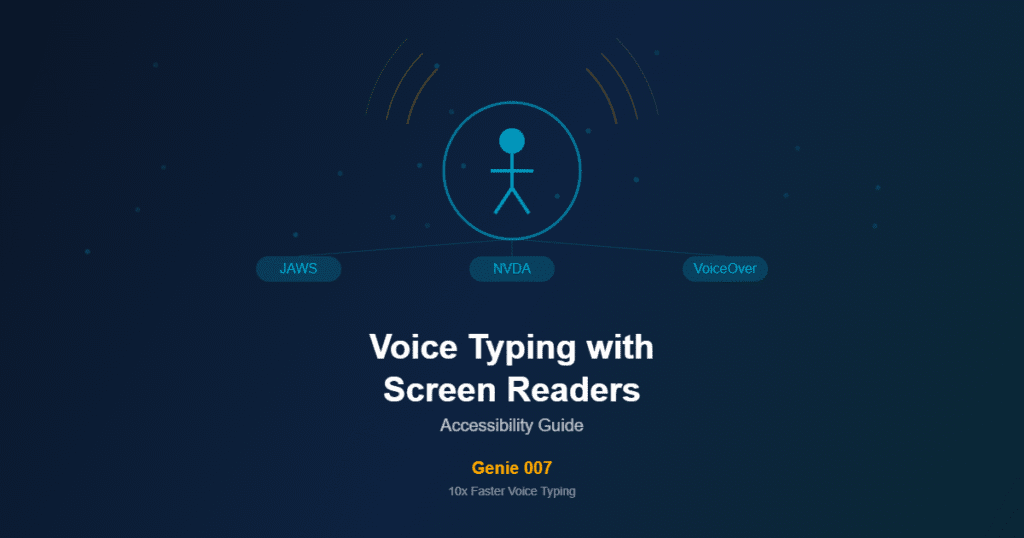
If you use a screen reader, you already know that text input is one of the most time-consuming parts of your computer workflow. Navigating to a text field, confirming focus, and typing content — all while your screen reader announces each keystroke and element — takes significantly longer than it does for sighted users. Voice dictation should be the solution: speak your text instead of typing it, and skip the keystroke-by-keystroke process entirely. But most voice typing tools weren’t built for voice typing with screen readers in mind. They rely on visual microphone buttons, don’t announce their status changes, and inject text in ways that confuse screen reader output. Voice typing with screen readers requires a tool that works alongside assistive technology rather than fighting against it.

This guide covers how to use voice typing with screen readers like JAWS, NVDA, and VoiceOver through Genie 007, specific setup instructions for each screen reader, keyboard-first workflows that don’t require visual interaction, and how voice dictation complements screen reader navigation to create a faster, more comfortable input experience.
Why Voice Typing with Screen Readers Matters for Accessibility
Screen reader users spend more time on text input than sighted users because every interaction requires additional cognitive and navigational steps. Finding and focusing a text field, confirming the cursor position, typing content, and reviewing what was entered all happen through auditory feedback that adds time to every step.
Voice dictation reduces this friction dramatically. Instead of navigating to a text field, typing character by character, and listening to each keystroke announcement, you navigate to the field, activate dictation with a keyboard shortcut, speak your text, and it appears in the field. With voice typing with screen readers, the screen reader confirms the inserted text and you move to the next task. For emails, documents, form fields, and chat messages, voice dictation cuts input time by 50–70% compared to keyboard typing — and this advantage is even larger for screen reader users because it eliminates the keystroke-announcement overhead.
The challenge is finding a voice typing tool that integrates cleanly with screen reader workflows. Many dictation tools use floating visual interfaces, mouse-dependent activation, and text injection methods that don’t trigger proper screen reader announcements. Genie 007 is designed differently — it activates via keyboard shortcut, operates without any visual interaction, and injects text using standard system input methods that screen readers handle natively.
How Genie 007 Makes Voice Typing with Screen Readers Work
Genie 007’s desktop application provides system-wide voice typing that operates at the operating system level. When you activate Genie 007 and speak, it converts your speech to text and injects it into whatever text field currently has keyboard focus — exactly as if you had typed it. This system-level text injection is key to screen reader compatibility because the screen reader sees Genie 007’s text input the same way it sees keyboard input: as characters appearing in the focused field.
Keyboard-first activation. Genie 007 activates and deactivates with a configurable keyboard shortcut — no mouse interaction required. You set your preferred shortcut once (for example, Ctrl+Shift+D or a function key combination), and from that point forward, all interaction with Genie 007 happens through the keyboard. Press the shortcut to start dictating, speak your text, press the shortcut again to stop. Your hands never leave the keyboard, and no visual elements need to be located or clicked.
No floating UI elements. Many dictation tools display floating microphone buttons, status indicators, or text previews that overlay page content. These visual elements are meaningless to screen reader users and can interfere with screen reader navigation by adding extra elements to the page’s accessibility tree. Genie 007’s desktop application runs in the system tray and doesn’t inject any visual elements into web pages or applications. The only interaction is the keyboard shortcut — everything else happens invisibly at the system level.
Standard text injection. Genie 007 injects dictated text using the operating system’s standard text input mechanism. This means screen readers detect and announce the text insertion naturally, just as they would for keyboard-typed text. There’s no clipboard manipulation, no JavaScript-based text insertion that might bypass accessibility APIs, and no custom input method that confuses the screen reader’s text tracking.
Setup Guide: Voice Typing with Screen Readers — JAWS
JAWS (Job Access With Speech) is the most widely used commercial screen reader on Windows. Genie 007 integrates cleanly with JAWS because both operate at the system level without conflicting with each other’s input handling.
Installation. Download and install the Genie 007 desktop application from genie007.co.uk. The installer is a standard Windows application installer that JAWS navigates normally. After installation, Genie 007 runs in the system tray.
Configure the keyboard shortcut. Open Genie 007’s settings (accessible via the system tray icon — right-click, then Settings). Navigate to the Hotkey section and set your preferred activation shortcut. Choose a combination that doesn’t conflict with JAWS’ own shortcuts. Safe options include Ctrl+Alt+Space, Ctrl+Shift+D, or a function key like F9. JAWS uses the Insert key as its modifier, so any shortcut that doesn’t include Insert will work without conflicts.
Using dictation with JAWS. Navigate to any text field using standard JAWS navigation. Once the field has focus, press your Genie 007 shortcut to start dictating. Speak your text naturally — Genie 007’s AI handles punctuation automatically. Press the shortcut again to stop. JAWS will announce the inserted text as it appears in the field, exactly as it would for typed text. You can then review, edit, or move to the next field using standard JAWS commands.
Tip for JAWS users. If JAWS’ speech output overlaps with your dictation (your voice triggers both Genie 007 and audible feedback from JAWS), consider using earbuds for JAWS output while dictating through your computer’s built-in microphone or a headset mic. This separates the input and output channels cleanly.
Setup Guide: Voice Typing with Screen Readers — NVDA
NVDA (NonVisual Desktop Access) is the most popular free screen reader for Windows. Like JAWS, it operates at the system level and works alongside Genie 007 without conflicts.
Installation. Install Genie 007’s desktop application normally. NVDA will announce the installation steps. After installation, Genie 007 appears in the system tray.
Configure the keyboard shortcut. Access Genie 007’s settings through the system tray. Set your activation shortcut to a combination that avoids NVDA’s shortcuts. NVDA uses Insert (or CapsLock) as its modifier key. Good options include Ctrl+Alt+Space, Ctrl+Shift+D, or F8. Avoid any combination starting with Insert or CapsLock if you use CapsLock as your NVDA modifier.
Using dictation with NVDA. The workflow is identical to JAWS: navigate to a text field, press your shortcut, speak, press the shortcut again. NVDA announces inserted text normally. For long dictation sessions, you may want to temporarily reduce NVDA’s verbosity (NVDA+P to cycle punctuation levels) to avoid having every punctuation mark announced as Genie 007 inserts text.
Tip for NVDA users. NVDA’s Speech Viewer (NVDA+F2 during setup) can help sighted helpers verify that dictated text is being correctly inserted and announced. For portable NVDA installations on USB drives, Genie 007’s desktop application needs to be installed on the host computer — it can’t run from a portable drive because it requires system-level input access.
Setup Guide: Voice Typing with Screen Readers — VoiceOver (Mac)
VoiceOver is macOS’s built-in screen reader. Genie 007’s desktop application for Mac works alongside VoiceOver with the same keyboard-first approach.
Installation. Download Genie 007 for Mac from genie007.co.uk. Install it by dragging to the Applications folder — VoiceOver navigates this process using standard Finder commands. Grant microphone access when prompted (System Settings → Privacy and Security → Microphone → enable Genie 007).
Configure the keyboard shortcut. Set your activation shortcut in Genie 007’s preferences. VoiceOver uses Control+Option (VO) as its modifier. Choose a shortcut that doesn’t start with Control+Option — options like Cmd+Shift+D, Ctrl+Space, or a function key work well. Check that your chosen shortcut doesn’t conflict with any global macOS shortcuts in System Settings → Keyboard → Keyboard Shortcuts.
Using dictation with VoiceOver. Navigate to a text field using VO commands. Once the insertion point is active in the field, press your Genie 007 shortcut. Speak naturally. Press the shortcut to stop. VoiceOver will announce the inserted text. Use VO+Shift+Home/End to review the full field content if needed.
Note on macOS dictation. macOS has its own built-in dictation feature (activated with a double-press of the Fn key by default). If you find conflicts between macOS dictation and Genie 007, disable macOS’s built-in dictation in System Settings → Keyboard → Dictation, or change its activation shortcut to avoid overlap.
Voice Typing with Screen Readers: Accessibility-Optimised Workflows
Email Composition
Email is one of the highest-value use cases for voice typing with a screen reader. Navigate to the compose window, Tab to the body field, activate Genie 007, and speak your entire email. The AI handles punctuation and formatting, so you get a clean, professional email without typing a single character in the body. Use the keyboard to Tab to Send when you’re done.
Form Filling
Web forms — contact forms, registration pages, support tickets — require repeated text field navigation and input. With Genie 007, Tab to each field, activate dictation, speak the content (your name, address, description), deactivate, and Tab to the next field. The dictation-Tab-dictation rhythm is significantly faster than the type-review-Tab cycle.
Document Writing
For long-form writing in Word, Google Docs, or any text editor, activate Genie 007 and speak continuously. The AI handles paragraph breaks based on your natural speech pauses. When you need to review, deactivate dictation and use your screen reader’s reading commands to navigate through the content. This separation — voice for input, screen reader for review — creates an efficient writing workflow.
Chat and Messaging
Slack, Teams, Discord, and other messaging platforms benefit enormously from voice dictation because messages are typically short and conversational — exactly the kind of content that’s fastest to speak. Navigate to the message input, dictate your message, and press Enter to send. The entire interaction takes seconds.
Privacy and Security for Voice Typing with Screen Readers
Genie 007 processes all speech locally on your device. No audio recordings are created, stored, or transmitted to external servers. The speech recognition model runs entirely on your computer, and the only output is text injected into your active text field through standard OS input methods.
This local processing is particularly important for accessibility users who may be dictating sensitive personal information — medical details, financial data, or accessibility-related accommodation requests. None of this information leaves your device. For full technical details, read the security and privacy guide.
Frequently Asked Questions About Voice Typing with Screen Readers
Does voice typing with screen readers work with braille displays?
Yes. Genie 007 injects text using standard system input methods, so braille displays connected through JAWS, NVDA, or VoiceOver will display dictated text exactly as they display typed text. There’s no special configuration needed — the braille display reads whatever appears in the focused text field.
Will my screen reader’s speech interfere with dictation accuracy?
If your screen reader’s audio output comes through speakers (rather than headphones), there’s a small chance it could be picked up by your microphone. Using headphones or earbuds for screen reader output eliminates this possibility entirely. Most screen reader users already use headphones for privacy, so this typically isn’t an issue.
Can I use voice commands to navigate, or only dictate text?
Genie 007 is a dictation tool — it converts speech to text input. Navigation commands (moving between fields, clicking buttons, opening menus) are handled by your screen reader’s keyboard commands, which continue to work exactly as before. The recommended workflow is: screen reader navigation via keyboard, text input via voice dictation.
Does it work with Dragon NaturallySpeaking?
Genie 007 and Dragon serve different purposes. Dragon provides voice commands for system control and navigation in addition to dictation. Genie 007 focuses on fast, accurate text dictation with AI-powered punctuation and 140+ language support. They can coexist on the same system if you use Dragon for navigation commands and Genie 007 for text input, though most users find one tool sufficient.
Start Voice Typing with Your Screen Reader
Voice dictation and screen readers are complementary technologies — one handles input, the other handles output. Genie 007 is designed to work alongside JAWS, NVDA, and VoiceOver without conflicts, using keyboard shortcuts for activation and standard system input for text injection. The result is faster text input with less fatigue, while your screen reader continues to work exactly as expected.
Download Genie 007 from genie007.co.uk or install the Chrome extension for browser-based voice typing. For more on how it works, read the technology overview and security and privacy guide.
Try Genie 007 — Accessible Voice Typing
Keyboard-first. Screen reader compatible. 140+ languages. Install Genie 007 from the Chrome Web Store.
Get Genie 007 for Chrome — Free, forever. No credit card. Works with JAWS, NVDA, and VoiceOver.
Written by Bill Kiani, founder of Genie 007.
Related: Best Dictation Software for Writers and Authors 2026