
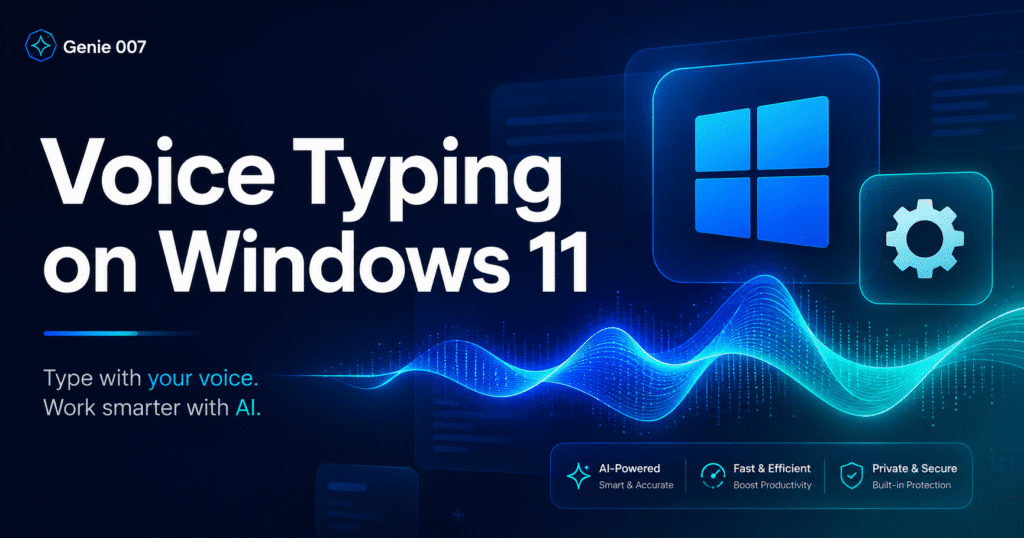
Voice typing on Windows 11 is built into the operating system at no extra cost — and voice typing Windows 11 users can access right now by pressing Win + H. Most Windows users have never turned it on. This guide covers exactly how to activate and configure it, what the built-in tool can and cannot do, and how Genie 007 provides the AI upgrade for anyone who needs more than basic transcription. Whether you are new to voice typing or frustrated with the Windows built-in limitations, this is the complete 2026 setup guide.
How Voice Typing Windows 11 Works: Built-In vs Genie 007
Windows 11 includes a native voice typing feature accessible from any text input field. It uses Microsoft’s cloud-based speech recognition and is free with no additional setup for most Windows 11 users. Here is how to activate and configure it.
Step 1 — Open any text field. Click into any text input area on your computer — a Word document, a Notepad file, an email in Outlook, a browser address bar, or any other text input. The voice typing shortcut only works when a text field is active.
Step 2 — Press Win + H. Hold the Windows key and press H. A small floating toolbar will appear near the top of the screen with a microphone icon. This is the Windows 11 voice typing launcher. On some systems, you may need to enable online speech recognition first — go to Settings > Privacy & Security > Speech and toggle “Online speech recognition” to On.
Step 3 — Enable auto-punctuation (recommended). Click the settings icon (gear) on the voice typing toolbar and toggle “Auto-punctuation” to On. Without this, Windows voice typing produces a continuous stream of words with no commas, full stops, or paragraph breaks. Auto-punctuation adds basic punctuation based on speech patterns.
Step 4 — Start speaking. Click the microphone icon to begin. Windows will display a waveform indicating it is listening. Speak naturally at a moderate pace. Words appear in the text field as you speak. Click the microphone again to stop, or say “stop listening.”
Step 5 — Use voice commands. Windows 11 voice typing responds to a limited set of voice commands. “New line” inserts a line break. “Delete that” removes the last phrase. “Select [word]” selects the named word for editing. A full list of commands is available in Microsoft’s official voice typing documentation.
Windows 11 Built-In Voice Typing: What It Cannot Do
The built-in voice typing feature is a capable basic dictation tool, but it has meaningful limitations for professional use. Understanding these limitations helps clarify why many Windows 11 users upgrade to a dedicated voice AI tool.
It stops mid-sentence. Windows voice typing times out after a few seconds of silence or slow speech. This is one of the most common complaints — the tool stops listening unexpectedly, especially during natural thinking pauses. You have to reactivate it manually each time, which interrupts the flow of dictation significantly.
It only transcribes — it does not understand intent. Windows voice typing writes what you say, word for word. It has no AI layer to interpret commands. If you say “reply to this email professionally,” nothing happens except those words appearing in your document. There is no ability to instruct the tool, only to dictate to it.
Cross-application limitations. While Windows voice typing technically works across applications, performance varies. In browser-based applications, third-party software, and some enterprise tools, the toolbar may behave inconsistently or fail to appear in specific text fields.
No custom vocabulary. Windows voice typing cannot be trained on specialist terminology. Names, technical terms, medical vocabulary, or industry jargon are frequently misrecognised with no way to correct the underlying model for your use case.
Requires cloud processing. The “Online speech recognition” setting means your audio is sent to Microsoft’s servers for processing. For users with privacy requirements — healthcare, legal, executive communications — this is a meaningful limitation.
| Feature | Windows 11 Built-In | Genie 007 |
|---|---|---|
| Basic transcription | Yes | Yes |
| Auto-punctuation | Yes (optional) | Yes (automatic) |
| AI intent understanding | No | Yes — Genie Mode |
| Command-based output | No | Yes |
| Custom vocabulary | No | Yes |
| Local processing (no cloud) | No | Yes |
| Works in all apps | Partial | Yes — all text fields |
| 140 language support | Limited languages | Yes |
| Stays listening | Times out | Continuous |
| Agent Mode (multi-app actions) | No | Yes |
How to Set Up Genie 007 on Windows 11
Genie 007 is available as a dedicated Windows app and as a Chrome extension, giving full voice-to-action capability across every application on your Windows 11 machine. The Windows app works in every application — including native Windows apps, desktop software, and browser-based tools. The Chrome extension covers all web-based work. Here is the setup process.
Step 1 — Download and install. Visit genie007.co.uk and download the Genie 007 Windows app. Alternatively, install the Chrome extension from the Chrome Web Store for browser-based work. You can run both simultaneously for full system coverage.
Step 2 — Configure your microphone. Genie 007 uses the default Windows audio input device. To check your microphone settings: right-click the speaker icon in the taskbar, select “Sound settings,” and verify your preferred microphone is set as the default input. Test the input level by speaking — the input meter should show activity. If you use a dedicated USB or Bluetooth microphone, ensure it is selected as the default input before opening Genie 007.
Step 3 — Set your keyboard shortcut. Genie 007 activates via a customisable keyboard shortcut. The default is typically a double-press or a designated key combination — set this in Genie 007 preferences to match your workflow. Choose a shortcut that does not conflict with shortcuts already in your most-used applications.
Step 4 — Configure voice modes. Genie 007 offers two primary modes. Dictation Mode transcribes your speech accurately into the active text field — similar to Windows built-in but more accurate, continuously listening, and with 140-language support. Genie Mode accepts natural language commands and produces completed outputs. Set the default mode and switch as needed for different tasks.
Step 5 — Add custom vocabulary. In Genie 007 preferences, add specialist terms, names, and jargon relevant to your work. This is particularly important for fields with high proper noun density — medicine, law, engineering, finance. Custom vocabulary ensures 99.5% accuracy on the terms your work depends on.
Step 6 — Test in your main applications. Open your most-used applications — your email client, your document editor, your CRM or project management tool. Activate Genie 007 in each and test both Dictation Mode and Genie Mode. Confirm the microphone is capturing correctly and output is appearing as expected in each application.
For a broader comparison of Genie 007 with other Windows voice typing tools, the Genie 007 AI voice assistant overview covers the capability differences in detail.
Microphone Setup for Best Voice Typing Results on Windows 11
The single biggest factor determining voice typing accuracy on Windows 11 — for both the built-in tool and Genie 007 — is microphone quality and positioning. The built-in laptop microphone picks up keyboard sounds, background noise, and room echo. In noisy environments, this significantly degrades accuracy and causes frequent re-listening pauses. For occasional casual dictation, the built-in microphone is adequate. For professional daily voice typing, a dedicated microphone makes a material difference.
The most practical microphone upgrade for desk-based voice typing is a USB cardioid condenser microphone positioned 15 to 30 centimetres from your mouth, slightly to one side to reduce plosive sounds on words beginning with P and B. Options range from under £30 to mid-range at £80 to £150 — all of which produce dramatically cleaner voice input than laptop built-in microphones, and directly improve both accuracy and consistency of output from any voice typing tool. For voice typing on the go or away from a desk, a wired headset microphone keeps the microphone consistently positioned relative to your mouth regardless of movement, which is more important than the absolute microphone quality in mobile contexts.
Windows 11 includes basic microphone enhancement features. In Settings > System > Sound > Input, select your microphone and click the arrow to access microphone properties. Enable “Enhance audio” if the option is available on your hardware — this applies noise suppression and acoustic echo cancellation, which meaningfully improves voice typing accuracy in environments with background noise. For Genie 007 specifically, these system-level enhancements apply before the audio reaches Genie 007’s processing layer, so configuring them correctly benefits both tools.
Troubleshooting Windows 11 Voice Typing Problems
Voice typing not starting (Win + H not working). First, ensure a text field is active — click into a text input before pressing the shortcut. If the toolbar still does not appear, check that Online Speech Recognition is enabled in Settings > Privacy & Security > Speech. On some enterprise-managed Windows 11 machines, this feature may be disabled by group policy — contact your IT department if the setting is greyed out.
Microphone not detected. Open Settings > System > Sound and check that your microphone appears under Input devices and shows audio activity when you speak. Right-click the Start button, open Device Manager, expand “Audio inputs and outputs” and check for any device with a warning icon. Update audio drivers if any errors appear. For Bluetooth microphones, ensure the device is connected and selected as the default input before opening voice typing.
Voice typing stops mid-sentence. This is a known limitation of the Windows 11 built-in tool — it times out after a few seconds of silence. The workaround is to speak continuously with minimal pauses. Alternatively, use Genie 007, which maintains continuous listening without timeout interruptions.
Poor accuracy on names and technical terms. Windows 11 built-in voice typing has no custom vocabulary option. If accuracy on specific terms is critical to your work, the practical solution is to add those terms to Genie 007’s custom vocabulary rather than attempting to work around the Windows built-in limitations.
Voice typing not working in specific applications. Some applications — particularly those running with administrator privileges — may not accept input from the Windows voice typing toolbar. Run the application at standard privilege level if possible, or use the Genie 007 Windows app, which is specifically designed to work across privilege boundaries and in applications where the built-in tool fails.
When to Use Genie 007 vs Windows 11 Built-In Voice Typing
Both tools have valid use cases, and understanding the boundary helps you deploy each appropriately. Windows 11 built-in voice typing (Win + H) is best suited for quick incidental dictation — a short note, a search query, a brief message where the full AI capability of Genie 007 is more than needed. It is always available, requires no additional software, and for these low-stakes inputs it is perfectly adequate.
Genie 007 is the right choice whenever the writing task is structured, professional, or high-volume. Replying to emails by voice command rather than dictating word for word. Writing documents, reports, and proposals from spoken briefs. Updating CRM fields with AI-structured notes rather than free-form transcription. Generating social posts, code snippets, or formatted content from short instructions. The AI intent layer is what makes these tasks fundamentally different — not just faster, but qualitatively better — than the Windows 11 built-in tool can achieve.
For Windows 11 users who type heavily for professional work, the practical recommendation is to keep the Windows built-in shortcut for convenience inputs and install Genie 007 for professional writing. The total setup cost is minimal — Genie 007 installs in under two minutes — and the workflow becomes a natural division between quick voice input (Win + H) and professional voice output (Genie 007). For users experiencing wrist or arm discomfort from heavy keyboard use, shifting the majority of input to voice using Genie 007 reduces physical keyboard demand across all application types, not just in browser windows.
Frequently Asked Questions
Does Windows 11 voice typing work offline?
The built-in Windows 11 voice typing requires an internet connection because it processes audio through Microsoft’s online speech recognition servers. If you need offline voice typing, Genie 007 processes audio locally on your device — no internet connection required for voice input. This makes Genie 007 reliable in environments with unreliable connectivity, and ensures voice processing continues when your network connection drops.
Why does my Windows 11 voice typing keep stopping?
The Windows 11 voice typing toolbar is designed to stop listening after a short period of silence or inactivity. This prevents unintended input but interrupts the dictation flow significantly. There is no setting to extend the timeout in the built-in tool. Genie 007 maintains continuous listening without timeout, which is why users who dictate at length typically find it significantly more practical for real work.
How do I turn off voice typing on Windows 11?
Press Win + H again to close the voice typing toolbar if it is open. To disable automatic voice typing launch: go to Settings > Accessibility > Speech and toggle off “Voice access.” To prevent voice typing from activating with the keyboard shortcut, you can disable the shortcut under Settings > Accessibility > Speech settings, or simply avoid pressing Win + H. The feature does not run in the background unless explicitly activated.
What is the best voice typing app for Windows 11?
The built-in Windows tool is adequate for basic transcription. For professional use — particularly if you need AI-powered intent understanding, consistent cross-application performance, custom vocabulary, local processing, or the ability to issue commands rather than just dictate — Genie 007 is the leading voice-to-action option for Windows 11. It works across every application, processes audio locally, and understands what you are trying to produce rather than simply writing what you say.
Is Windows 11 voice typing GDPR compliant?
Windows 11 built-in voice typing sends audio to Microsoft’s cloud for processing, which raises questions for GDPR compliance depending on your data classification and jurisdiction. Genie 007 processes all audio locally — no data leaves your device — making it GDPR compliant and HIPAA ready by design. For organisations handling sensitive personal data, Genie 007 is the appropriate choice. See Genie 007 security and privacy for full details.
Ready to go beyond basic Windows transcription and use a voice tool that actually thinks? Install Genie 007 Free →
Related reading: voice typing for journalists, voice typing for sales reps, voice typing for executives.