
Voice dictation is already faster than typing — but most people only scratch the surface of what’s possible. They activate dictation, speak, and stop. That’s like using a keyboard without learning keyboard shortcuts: functional, but slow. The power users who get the most out of voice typing combine it with dictation hotkeys, text snippets, and automation triggers that eliminate the repetitive parts of their workflow. Instead of dictating the same email sign-off, meeting template, or code boilerplate every time, they speak a trigger word and the full text expands instantly. Instead of reaching for the mouse to activate dictation, they press a hotkey without breaking their train of thought. These small optimisations compound — what starts as a few seconds saved per interaction becomes 30–60 minutes saved per day.
This guide covers how to configure dictation hotkeys in Genie 007, how to create text snippets and expansion triggers for voice typing, advanced workflows that combine voice input with keyboard shortcuts, and specific setups for developers, writers, and business professionals.
If you already use voice dictation daily, these techniques will make you dramatically faster.
Why Dictation Hotkeys Matter for Voice Typing
The activation step is the biggest friction point in any voice typing workflow. Without a hotkey, you need to click a microphone icon, find a menu option, or navigate to a toolbar button.
Each activation takes 2–3 seconds and requires moving your hand to the mouse — which breaks your flow, especially during rapid-fire tasks like coding, email, or chat.
A well-configured hotkey eliminates this friction entirely. You press a key combination, speak, and press it again to stop. Your hands never leave the keyboard.
The transition from typing to dictating and back becomes seamless — as natural as pressing Shift to capitalise a letter. Over the course of a day with dozens or hundreds of dictation sessions, this small improvement produces a significant cumulative time savings.
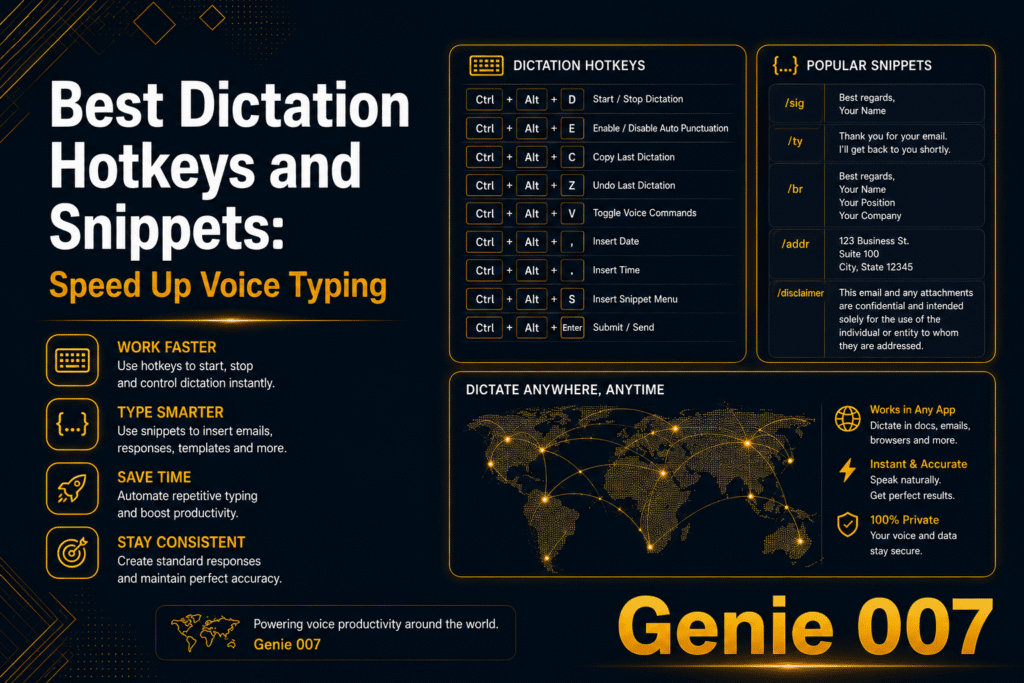
Genie 007 supports customisable hotkeys for both the Chrome extension and the desktop application. You can set different shortcuts for different contexts — one for activating dictation, one for cancelling, and one for switching languages.
The default shortcuts work well for most users, but power users benefit from customising them to fit their specific keyboard layout and workflow.
Setting Up Your Dictation Hotkeys
Chrome Extension Hotkeys
The Genie 007 Chrome extension uses dictation hotkeys to activate voice typing in any browser text field. To configure it:
To configure your dictation hotkeys, open Chrome and navigate to chrome://extensions/shortcuts. Find Genie 007 in the list.
Set your preferred keyboard shortcut — the default is typically Ctrl+Shift+S (Windows) or Cmd+Shift+S (Mac), but you can change it to any available combination. This shortcut works on every website where Genie 007 is active.
Best practice: Choose a shortcut that doesn’t conflict with the websites and tools you use most. Avoid combinations already used by Gmail (Ctrl+Shift+C for CC), Google Docs (Ctrl+Shift+V for paste without formatting), or your most-used web applications.
A safe choice is a combination using a function key — F8 or F9 — which rarely conflicts with web application shortcuts.
Desktop Application Hotkeys
The Genie 007 desktop application provides system-wide voice typing with configurable dictation hotkeys that work in every application on your computer — IDEs, terminals, desktop apps, and browsers.
The hotkey configuration works at the OS level, so it’s available regardless of which application has focus.
To set up your dictation hotkeys in the desktop app, open the Genie 007 desktop settings. Navigate to the hotkeys section. Set your activation shortcut — a global key combination that works across all applications.
Because this is a system-level shortcut, choose one that doesn’t conflict with any application’s built-in shortcuts. Options like Ctrl+Alt+Space, Ctrl+Shift+D, or a dedicated key on a programmable keyboard work well.
For developers who frequently switch between an IDE and a browser, using dictation hotkeys in both the Chrome extension shortcut and the desktop shortcut configured gives you seamless dictation regardless of which window is active.
Text Snippets and Voice Expansion
Text snippets transform your dictation hotkeys workflow from a one-to-one input method (you say words, words appear) into a one-to-many amplifier (you say a trigger, a full block of text appears). This is where the real speed gains happen.
What Are Voice-Triggered Snippets?
A voice-triggered snippet is a short phrase you speak that expands into a longer piece of pre-written text. Instead of dictating your full email signature every time, you say “insert signature” and the complete signature — name, title, company, phone number, links — appears instantly.
Instead of dictating a meeting agenda template, you say “meeting template” and the full formatted template appears.
The concept extends your dictation hotkeys setup using text expansion tools like TextExpander or Espanso, but triggered by voice instead of typed abbreviations. For voice dictation users, this means you can combine the speed of speaking with the consistency of pre-written templates.
Common Snippet Categories
Email and communication snippets. Email sign-offs, out-of-office templates, frequently sent responses, meeting request templates, and follow-up messages. If you type the same response more than twice a week, it should be a snippet. “Thanks for reaching out” becomes a full paragraph explaining next steps. “Schedule a call” becomes a complete calendar link with available time slots.
Code boilerplate snippets. React component templates, API endpoint scaffolding, test file structures, configuration file templates, and common code patterns. Developers who combine voice dictation with code snippets can scaffold an entire file structure in seconds: “new React component” expands to a complete functional component with TypeScript types, styled-components import, and a basic test file.
Documentation templates. Function documentation blocks, README sections, changelog entries, API documentation templates, and release notes formats. “Add docs” expands to a JSDoc template with placeholders for description, parameters, return type, and examples.
Meeting and project management snippets. Standup update templates, sprint retrospective formats, bug report structures, feature request templates, and status update frameworks. “Standup update” expands to “Yesterday I worked on [blank]. Today I’m focusing on [blank]. Blocked by [blank].”
Advanced Hotkey Workflows
Workflow 1: The Voice-Keyboard Combo
The most productive dictation hotkeys users alternate rapidly between voice and keyboard, using each for what it does best. The pattern is: keyboard for navigation and selection, voice for text input, keyboard for formatting and commands.
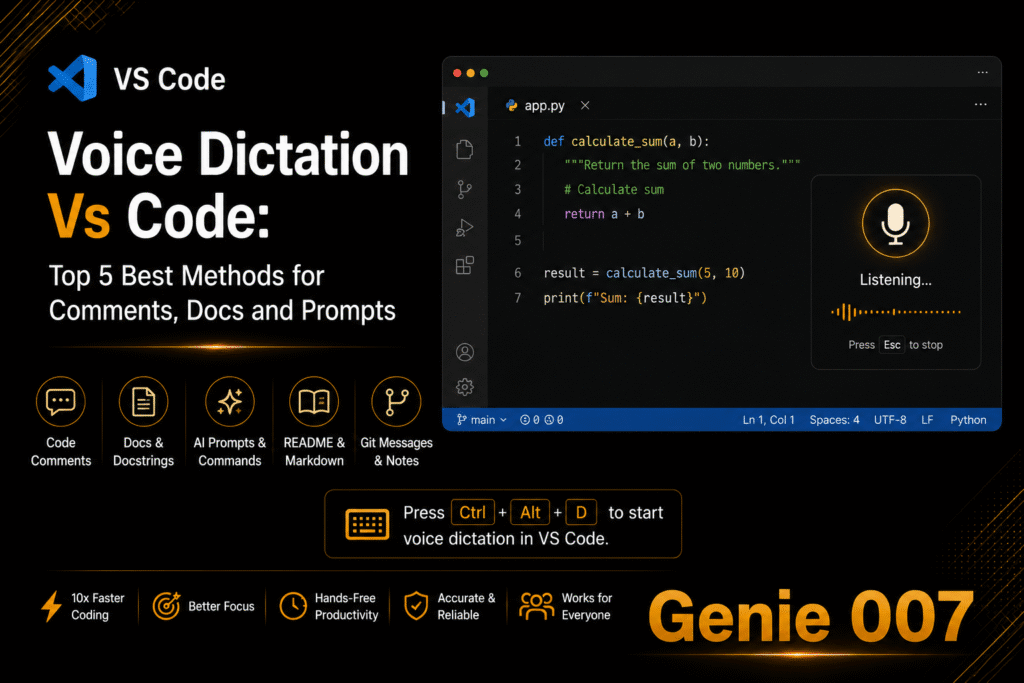
Example in VS Code: Cmd+K (open inline edit), speak your prompt (“add error handling for the database connection timeout”), Enter (submit). Three actions, five seconds, hands never leave the keyboard except for the voice prompt.
Without a hotkey, the same sequence requires clicking the microphone, speaking, clicking again, and clicking submit — taking three times as long.
Example in Gmail: Cmd+Shift+C (add CC), type an email address, Tab (move to body), activate dictation hotkey, speak the email content, deactivate dictation, Cmd+Enter (send). The entire email composition — recipients, subject, body, send — happens in under 30 seconds with the right hotkey setup.
Workflow 2: Context-Specific Hotkey Profiles
Power users configure different dictation hotkeys behaviours for different applications or contexts. The desktop application allows you to create profiles that activate automatically based on which application is in focus.
In your IDE: The hotkey activates dictation with technical vocabulary priority and no auto-punctuation (because you’re dictating into a code context where the AI handles formatting). In your email client: The same hotkey activates with business vocabulary and full auto-punctuation.
In your terminal: The hotkey activates with command syntax awareness, converting spoken flag names to proper CLI format.
Workflow 3: Chained Voice Commands
Instead of using your dictation hotkeys to activate and deactivate dictation for each piece of text, maintain a continuous voice session and use verbal triggers to control the flow: “New paragraph” starts a new paragraph. “Next field” moves to the next form input.
“Select all” highlights the current text. “Undo that” removes the last dictated phrase.
This continuous dictation hotkeys mode is particularly effective for long-form writing in Google Docs, Notion, or any document editor.
You start dictation once and speak for minutes at a time, using verbal commands for structure and formatting, rather than constantly toggling between voice and keyboard.
Developer-Specific Hotkey Setups
Developers benefit from dictation hotkeys optimised for the rapid context-switching that coding requires.
Cursor/VS Code Copilot Chat: Map dictation activation to a shortcut adjacent to Cmd+I (Copilot inline) or Cmd+L (Copilot Chat). This way, opening the AI panel and activating voice input is a two-keystroke sequence. You open Copilot Chat, immediately start speaking your prompt, and submit — all without touching the mouse.
Terminal commands: For the integrated terminal, a dedicated hotkey that activates dictation with command-mode settings prevents the AI from adding punctuation to your CLI commands. “git commit minus m fix authentication timeout” produces git commit -m "fix authentication timeout" with proper quoting.
Code review comments: When reviewing pull requests, map a hotkey that activates dictation and positions the cursor in the comment field. This turns code review from a tedious typing exercise into a conversational activity where you speak your feedback naturally.
Writer-Specific Hotkey Setups
Writers and content creators benefit from dictation hotkeys that minimise interruptions to creative flow.
Continuous dictation mode: Configure a hotkey that starts dictation and keeps it active until explicitly stopped — no timeout, no auto-stop after silence. This is essential for writers who pause to think mid-sentence. Standard dictation that stops after a few seconds of silence forces you to reactivate constantly, breaking your flow.
Format-as-you-go shortcuts: Pair dictation with formatting hotkeys. Speak a heading, press Ctrl+Shift+1 to format as H1, continue speaking body text. Dictate a quote, press Ctrl+Shift+Q to format as a blockquote, continue to the next paragraph. The combination of voice content and keyboard formatting is faster than either method alone.
Research-to-draft workflow: Use a hotkey to activate dictation in your notes tool (Notion, Obsidian) while reading research in another window. Speak your observations and ideas as you read, building a rough draft from live reactions. This produces more authentic, insight-driven writing than the traditional read-then-write approach.
Measuring Your Speed Gains
To understand the impact of dictation hotkeys on your productivity, track two metrics for a week:
Activation count. How many times per day do you activate dictation? Most daily users activate 30–100 times. At 2 seconds saved per activation with a hotkey versus mouse-clicking, that’s 1–3 minutes saved on activation alone.
Snippet usage. How many times per day do you use a text snippet? If you have 10 commonly used snippets that each save 20 seconds of dictation, and you use each one twice per day, that’s over 6 minutes saved on snippets alone.
Combined with the base speed advantage of voice over typing (3x faster), optimised dictation hotkeys and snippets push the total time savings to 45–90 minutes per day for heavy text-input users.
Privacy and Security
All dictation through Genie 007 — whether activated by hotkey, mouse click, or snippet trigger — processes audio locally on your device. No recordings are created, stored, or transmitted to external servers. Hotkey configurations and text snippets are stored locally as well. Your voice data and custom configurations remain on your machine. For full details, read the security and privacy guide.
Frequently Asked Questions
Can I use the same hotkey across Chrome and desktop applications?
The Chrome extension and desktop application use separate dictation hotkeys configurations because they operate at different levels (browser versus system). You can set them to the same key combination, but the desktop application’s system-level shortcut will take priority.
Most users set different shortcuts — one for browser and one for desktop — to avoid conflicts.
Do text snippets work with every application?
Text snippets used with dictation hotkeys expand as typed text, so they work in any application that accepts text input — browsers, IDEs, email clients, chat applications, document editors, and terminals. The snippet expansion is application-agnostic because it operates at the system text-input level.
Will dictation hotkeys conflict with my existing keyboard shortcuts?
Your dictation hotkeys can conflict if you choose a combination already used by an application. Genie 007 lets you customise your shortcuts to avoid conflicts.
Check your most-used applications’ shortcut lists before setting your dictation hotkey. Function keys (F7, F8, F9) combined with a modifier (Ctrl, Alt) are usually safe choices.
Can I create snippets that include formatting (bold, links, headers)?
Text snippets expand as plain text by default. For formatted content, you can create snippets that include HTML or Markdown syntax — the receiving application handles the rendering. In Google Docs, you can pair snippet expansion with formatting hotkeys for rich text output.
Start Optimising Your Voice Workflow
Voice dictation without hotkeys and snippets is like driving a car without using the mirrors — you’ll get where you’re going, but you’re working harder than you need to. Hotkeys eliminate the friction of activation.
Snippets eliminate the repetition of common text. Together, they transform voice dictation from a typing replacement into a productivity system that’s significantly faster than either voice or keyboard alone.
To get started with dictation hotkeys, set a comfortable shortcut and create five snippets for your most-repeated text. Within a week, you’ll find yourself adding more snippets and refining your shortcuts as you discover new patterns in your workflow.
The optimisation is ongoing, and each improvement compounds.
Explore the full developer toolkit for voice-powered development, including voice typing for every application on your computer. For privacy details, read our security and privacy guide.
Try Genie 007 — Free, No Credit Card
Hotkeys. Snippets. System-wide voice typing. Install Genie 007 from the Chrome Web Store and start optimising your voice dictation workflow.
Get Genie 007 for Chrome — Free, forever. No credit card. Desktop app for system-wide voice typing with customisable hotkeys.
Written by Bill Kiani, founder of Genie 007.
Related: Best Speech-to-Text Chrome Extensions 2026: Top 10
Hotkeys and snippets are just one layer of the stack. The full guide to voice dictation for developers covers how to dictate prompts, PR descriptions and code comments across Cursor, VS Code and GitHub.
Hotkeys and snippets are one layer — the full guide to voice dictation for developers covers dictating prompts, PR descriptions and code comments across Cursor, VS Code and GitHub.