
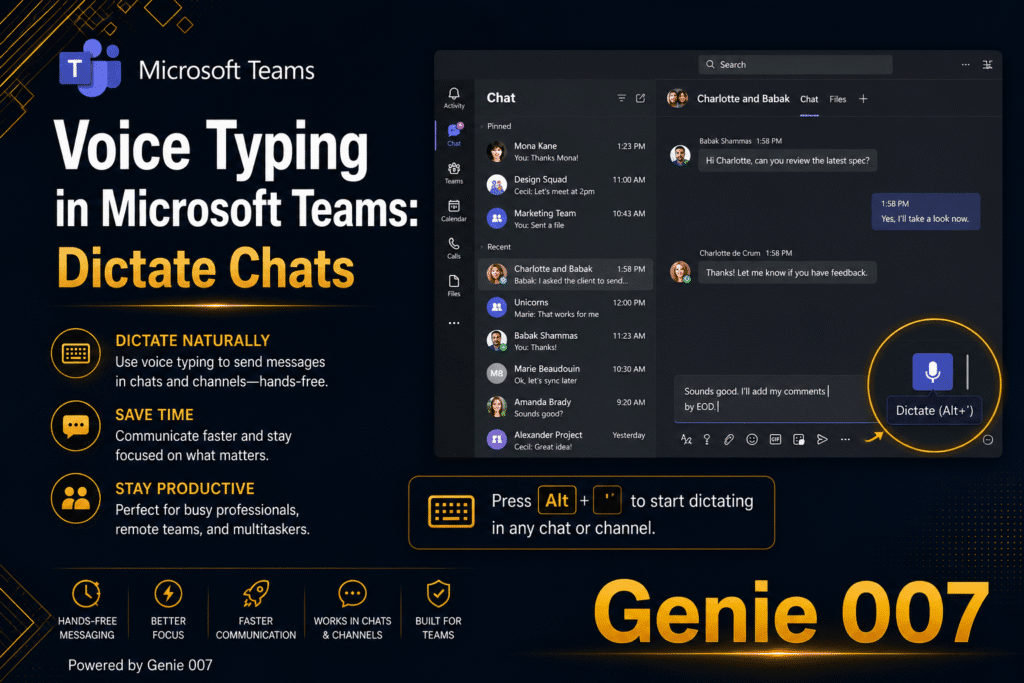
Microsoft Teams is where millions of professionals communicate every day — sending messages, replying to threads, posting updates in channels, and coordinating across departments. But Teams still lacks a built-in dictation feature for chat messages. Unlike Word and Outlook, where Microsoft has added native dictation, voice typing in Microsoft Teams requires either a workaround or a dedicated tool. That’s exactly where Genie 007 fills the gap. With Genie 007, you speak your message, and it appears in your Teams chat — formatted, punctuated, and ready to send. No Windows shortcuts to memorise, no clunky third-party integrations, just natural voice input that works.
This guide covers how to set up voice typing in Microsoft Teams, why the existing workarounds fall short, the specific workflows where voice dictation delivers the biggest time savings, and how to keep your communications private while dictating. Whether you use Teams on the web or the desktop app, Genie 007 makes dictation simple and fast.
Why Voice Typing in Microsoft Teams Matters for Productivity
The average knowledge worker sends 30–50 Teams messages per day. For managers and team leads coordinating across multiple channels, that number can exceed 100. Each message requires typing, which means constant context switching: read a message, think about the response, type it out, scan for errors, hit send. That process takes 30–90 seconds per message depending on length and complexity.
Teams speech to text with Genie 007 cuts the typing step out entirely. You read the message, speak your reply, glance at the output, and send. A 60-second typing task becomes a 15-second speaking task. Across 50 messages per day, that’s roughly 35 minutes of typing eliminated. Per week, you reclaim nearly three hours — time that goes back into focused work, strategic thinking, or simply fewer hours at your desk.
The productivity gain is even larger for longer messages. Project updates, meeting summaries, and technical explanations that take 2–3 minutes to type take 30–45 seconds to speak. Your brain works faster than your fingers, and voice input lets your communication match the speed of your thinking. Dictate in Teams and your messages become more complete, more articulate, and more professional — because speaking in full sentences is natural, while typing often encourages shortcuts and abbreviations.
For organisations that have standardised on Microsoft Teams as their primary communication platform, adding voice typing isn’t just a convenience — it’s a measurable productivity improvement that scales across every team member.
How to Set Up Genie 007 for Voice Typing in Microsoft Teams
Setting up voice typing in Microsoft Teams takes less than two minutes. Genie 007 works as a Chrome extension for Teams on the web, and as a desktop application for the native Teams client on Windows and Mac. No IT admin approval is needed, and no Microsoft 365 configuration changes are required.
Step 1: Install Genie 007
For Teams in the browser, visit the Chrome Web Store and install Genie 007. Click “Add to Chrome,” confirm permissions, and the extension appears in your toolbar. For the native Teams desktop app, download Genie 007’s Windows or Mac application from genie007.co.uk. Both options are free — no credit card required.
Step 2: Open Microsoft Teams
If using the web version, navigate to teams.microsoft.com in Chrome. If using the desktop app, open Teams as you normally would. Click into any chat message field, channel post composer, or thread reply box. You’ll see the Genie 007 microphone icon appear near the text input area (browser version) or in your system tray (desktop app).
Step 3: Start Speaking
Click the microphone icon or use the keyboard shortcut to activate voice input. A visual indicator confirms Genie 007 is listening. Speak naturally — describe what you want to say as if the person were sitting across from you. Genie 007 handles punctuation, grammar, and capitalisation automatically. A pause of about two seconds finalises the input.
Step 4: Review and Send
Your dictated text appears in the Teams message field, looking exactly like a typed message. Review it quickly — accuracy is typically 99.5% — and press Enter to send. The entire process takes 5–10 seconds for a standard message, compared to 30–60 seconds of manual typing.
Voice Typing in Microsoft Teams vs. Windows Dictation (Win+H)
The most common workaround for voice dictation Microsoft teams users rely on is Windows’ built-in dictation feature, activated by pressing Windows Key + H. This opens a small dictation toolbar that transcribes your speech into whatever text field is active. It works, but it has significant limitations compared to a purpose-built solution like Genie 007.
First, Windows dictation requires you to remember and activate the keyboard shortcut every time. It doesn’t integrate visually with Teams — there’s no microphone icon in the message field, no visual indicator within the Teams interface. You have to manage a separate floating toolbar, which is disruptive when you’re switching between multiple chats and channels.
Second, Windows dictation accuracy is adequate for simple sentences but struggles with technical vocabulary, industry jargon, and multi-clause sentences. Genie 007 achieves 99.5% accuracy across 140+ languages and handles technical terms, product names, and complex sentence structures with higher reliability. For teams in engineering, finance, healthcare, or legal — where precise terminology matters — this accuracy difference is meaningful.
Third, Windows dictation is platform-locked. It only works on Windows 10 and 11. If your team includes Mac users, Linux users, or anyone who accesses Teams via the web browser, they cannot use Windows dictation. Genie 007 works on Chrome (any operating system), Windows, and Mac, giving every team member the same voice typing capability regardless of their device.
Fourth, Windows dictation provides basic speech-to-text. Genie 007 offers context-aware AI that understands you’re composing a Teams message and formats the output accordingly. When you use Genie Mode, a single voice command can produce a complete, structured response — not just transcribed words, but intelligent output that matches the context of your conversation.
Microsoft Teams Voice Typing Workflows That Save Hours
The time savings from teams voice typing are most visible in repetitive, high-volume communication tasks. Here are the workflows where teams report the biggest impact.
Workflow 1: Rapid Chat Responses Between Meetings
You have five minutes between back-to-back meetings. Your Teams inbox has 12 unread messages across six chats. Typing responses to all 12 would take 8–10 minutes — more time than you have. With voice typing, you click into each chat, speak your reply, and move on. Twelve responses in under four minutes. You walk into your next meeting with a clear inbox and no communication debt.
What you say: “Thanks for the update on the Q3 numbers. The revenue figures look strong but I’m concerned about the churn rate in the enterprise segment. Can you pull a breakdown by account size for our Thursday review? Let’s also add 15 minutes to discuss retention strategies.”
What appears in Teams: A thoughtful, detailed response that would have taken 90 seconds to type — delivered in 20 seconds of speaking.
Workflow 2: Channel Updates and Announcements
Posting project updates to team channels often requires multi-paragraph messages with specific details. These are the messages people put off because typing them feels like work. With voice dictation, you speak the update while it’s fresh in your mind — immediately after a milestone, a decision, or a blocker discovery.
What you say: “Update on the website migration. We completed the DNS transfer yesterday and all traffic is now routing through the new CDN. Page load times dropped from 3.2 seconds to 1.1 seconds, which is better than our target of 1.5. Two outstanding items: the contact form isn’t sending emails from the new server yet, and the staging SSL certificate expires Friday. Jake is on the email issue, and I’ll handle the cert renewal today.”
What appears in Teams: A comprehensive status update with metrics, action items, and ownership — the kind of message that keeps teams aligned without requiring a meeting.
Workflow 3: Meeting Follow-Ups
After every meeting, there are action items, decisions, and notes that need to be shared. Most people intend to type these up but never get around to it. With voice typing, you can dictate your meeting follow-up into the relevant Teams channel while walking back to your desk or while the details are still fresh.
What you say: “Key decisions from the product review: we’re going with option B for the checkout redesign, launching in beta on May 15th. Design team owns the final mockups by next Wednesday. Engineering starts sprint planning the following Monday. Open question: do we need a separate analytics dashboard for the beta, or can we use the existing one with a filter? Sarah is researching that and will report back by Friday.”
What appears in Teams: Structured meeting notes with decisions, dates, owners, and open questions — shared within 30 seconds of the meeting ending.
Workflow 4: One-on-One Check-Ins
Managers who have multiple direct reports often use Teams for quick check-ins throughout the day. These messages need a personal, conversational tone but still convey specific feedback or direction. Voice typing naturally produces this tone because you’re speaking as you would in a conversation.
What you say: “Hey, great work on the client presentation today. The data visualisations were particularly effective and the client commented on how clear the ROI projections were. One thing for next time: let’s add a competitive landscape slide before the pricing section. It helps frame our value proposition. Happy to help you build that for the next pitch.”
What appears in Teams: Specific, encouraging feedback with actionable suggestions — the kind of message that builds team culture and takes 15 seconds to speak instead of 90 seconds to type.
Common Problems and Fixes for Voice Typing in Teams
Voice typing in Microsoft Teams works reliably for most users, but Teams has some interface quirks that occasionally require troubleshooting.
Microphone Icon Not Appearing in Teams Web
If you’re using Teams at teams.microsoft.com in Chrome and don’t see the Genie 007 microphone icon, the extension may need permission to run on that domain. Right-click the Genie 007 icon in your Chrome toolbar, select “Manage extension,” and ensure site access is set to “On all sites” or that teams.microsoft.com is explicitly allowed. Refresh the Teams tab.
Dictation Not Working in Desktop Teams App
The Chrome extension only works in browser-based Teams. For the native desktop Teams client, you need Genie 007’s Windows or Mac desktop application. Download it from genie007.co.uk, install it, and voice typing will be available system-wide — including in the Teams desktop app, Outlook, and every other application on your computer.
Teams Message Field Loses Focus
Teams occasionally shifts focus away from the message composer when notifications arrive or when a new message appears in the chat. If your dictation appears in an unexpected location, click directly into the message field to ensure it has focus before activating Genie 007. The blinking cursor should be visible in the compose box.
Formatting Not Preserved
Teams uses its own rich text formatting. Voice typing with Genie 007 inserts plain text, which Teams then renders normally. If you need bullet points or numbered lists, say “bullet point” or “number one” as part of your dictation — Genie 007’s AI understands formatting commands and will structure the text accordingly.
Microphone Permission Issues
Chrome requires explicit microphone permission for each domain. When you first use Genie 007 on teams.microsoft.com, allow microphone access when prompted. If you accidentally denied it, go to Chrome Settings → Privacy and Security → Site Settings → Microphone, and add teams.microsoft.com to the allowed list.
Privacy and Security for Voice Typing in Microsoft Teams
Teams conversations frequently contain confidential business information: financial data, strategic plans, HR discussions, client details, and proprietary project information. Any voice typing tool used with Teams must handle this data with appropriate security.
Genie 007 processes all audio locally on your device. When you speak into the microphone, the speech recognition model runs in your browser or desktop app — your voice data never leaves your computer. No audio recordings are created, stored, or transmitted to external servers. The only output is the text that appears in your Teams message field, which follows your organisation’s normal Teams data handling policies.
This local-first architecture means Genie 007 doesn’t introduce new data security risks to your Teams environment. It doesn’t access your Teams workspace, read your message history, or require admin-level permissions. It operates at the browser input level — equivalent to typing on your keyboard but faster. For organisations with strict security requirements, this architecture satisfies GDPR, HIPAA, and SOC 2 compliance frameworks without additional configuration. Read more about our security approach in our security and privacy guide.
Frequently Asked Questions About Voice Typing in Microsoft Teams
Does Microsoft Teams have built-in voice typing for chat messages?
No. As of 2026, Microsoft Teams does not include a native dictation feature for chat messages or channel posts. Dictation is available in other Microsoft 365 apps like Word, PowerPoint, and Outlook, but not in Teams chat. The workaround is using Windows Key + H for Windows dictation, but this has limitations in accuracy, platform support, and integration. Genie 007 provides a dedicated, full-featured voice typing experience for Teams.
Can I use voice typing during Teams meetings?
Genie 007’s voice typing works in the Teams meeting chat panel — the text chat that runs alongside a video meeting. You can dictate messages into the meeting chat while the meeting is in progress. For meeting transcription (converting spoken audio from all participants into a transcript), Teams has its own built-in transcription feature through Microsoft 365 Copilot or Teams Premium. These are separate capabilities: Genie 007 is for composing text messages, Teams transcription is for recording meeting audio.
Does voice typing work in Teams channels and group chats?
Yes. Genie 007 works in every text input field in Microsoft Teams: one-on-one chats, group chats, channel posts, channel thread replies, meeting chat panels, and even the search bar. Any field where you can type, you can dictate. The AI adjusts its output based on context — a quick chat reply will be concise, while a channel post can be more detailed.
Is voice typing accurate enough for professional Teams messages?
Genie 007 achieves 99.5% accuracy across general speech and handles professional vocabulary, technical terms, and industry jargon effectively. For business communication in Teams — project updates, status reports, feedback, approvals — the accuracy is more than sufficient. Messages produced by voice typing are often more professional than quickly typed messages because spoken language naturally uses complete sentences and proper grammar.
What languages does voice typing support in Teams?
Genie 007 supports 140+ languages with automatic language detection. If your organisation has multilingual teams, each person can dictate in their preferred language without changing settings. The system detects language switches mid-sentence, making it suitable for international teams where code-switching between languages is common.
Getting Started With Voice Typing in Teams Today
Microsoft Teams is the communication backbone for millions of organisations, but typing every message still takes too long. Voice typing eliminates that bottleneck. The setup takes two minutes, and the time savings are immediate — your first dictated message will be noticeably faster than typing it.
Start with your busiest Teams chat. Use voice typing for your next 10 messages and measure the difference. Most users report saving 5–15 seconds per message, which adds up to 30–60 minutes per day for active Teams users. That’s meaningful time recovered for work that actually requires your focused attention.
Explore how Genie 007 works across your full toolkit at our integrations hub, including voice typing for Slack, Discord, Figma, and every other application. For details on data privacy, read our security and privacy guide.
Try Voice Typing in Microsoft Teams — Free, No Credit Card
Stop typing every Teams message. Start speaking them. Install Genie 007 from the Chrome Web Store and dictate your way through Teams in the next two minutes. Works in chats, channels, threads, and meeting chat panels.
Get Genie 007 for Chrome — Free, forever. No credit card. Works on every website, including Microsoft Teams.
Also read: Carpal Tunnel Voice Typing: How to Write Without Pain Using Voice Dictation
Written by Bill Kiani, founder of Genie 007.