
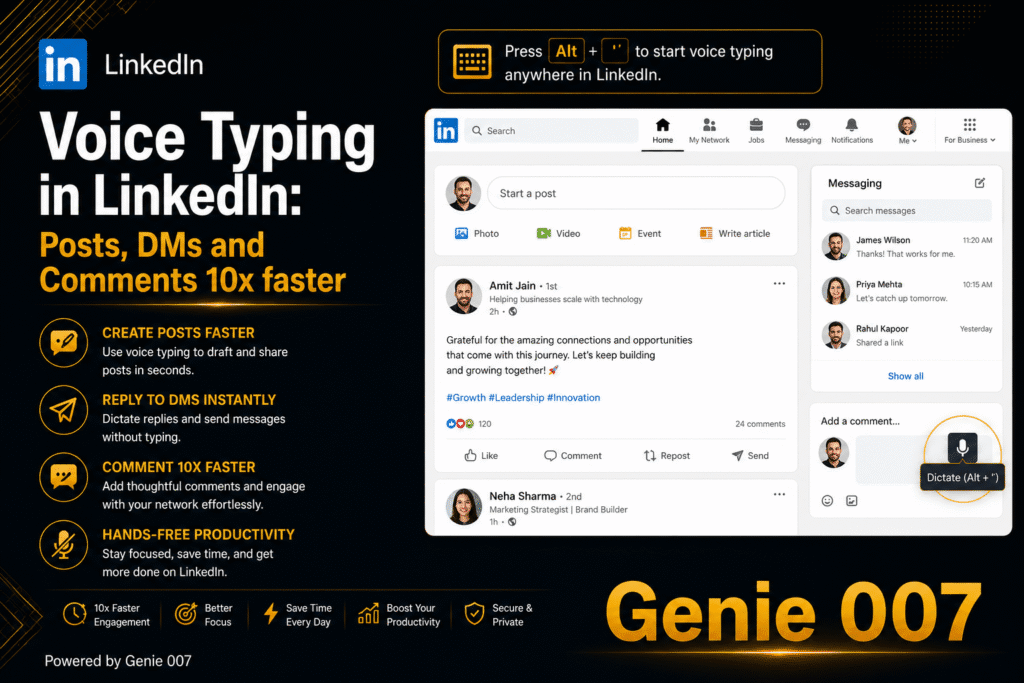
LinkedIn is where professionals build careers, close deals, and share expertise — but creating posts, comments, and messages on the platform takes more typing than most people expect. A single thought leadership post can take 10–15 minutes to draft and polish. Comments that build genuine engagement need to be thoughtful, not one-word reactions. And DMs to prospects or collaborators require a personal touch that templates can’t replicate. That’s why voice typing LinkedIn posts with Genie 007 changes the equation entirely. You speak your ideas naturally, and Genie 007 converts them into polished, professional LinkedIn content — complete with proper formatting, punctuation, and the tone that sounds like you. No typing, no editing, no AI-generated generic filler. Just your thoughts, captured at the speed you think them.
This guide covers how to set up voice typing LinkedIn, the specific workflows where dictation saves the most time, troubleshooting common issues, and how your voice data stays private while you voice typing LinkedIn posts and messages. Whether you post daily or engage primarily through comments and DMs, voice typing makes every interaction faster and more authentic.
Why Voice Typing Matters for LinkedIn Engagement
LinkedIn rewards consistency and depth. The algorithm favours accounts that post regularly, leave thoughtful comments on other people’s content, and respond quickly to messages. But maintaining that level of activity takes time — and typing is the bottleneck. Most professionals type at 40 words per minute. Speaking naturally, you produce 130–150 words per minute. That’s a 3x speed advantage on every piece of content you create.
The impact compounds quickly. A 200-word LinkedIn post takes roughly 5 minutes to type, including pauses to think, correct typos, and restructure sentences. Speaking that same post takes under 90 seconds. If you publish five posts per week, that’s 17 minutes of speaking versus nearly 25 minutes of typing — and the spoken versions are often more authentic because you’re expressing ideas the way you’d explain them in a conversation, not the way you’d write them in a document.
Comments are where the real engagement happens on LinkedIn. Leaving a meaningful comment on someone’s post — one that adds perspective, asks a question, or shares a relevant experience — takes 30–60 seconds to type. With voice to text linkedin input, you speak the comment in 10–15 seconds and move on. Across 20 comments per day, that’s 10–15 minutes recovered. For sales professionals who use LinkedIn comments as a prospecting strategy, this time savings translates directly into more touchpoints with potential buyers.
Direct messages are the highest-converting interaction on LinkedIn, but only when they feel personal. Templates get ignored. Voice typing produces messages that sound like you actually wrote them — because you did, just by speaking instead of typing. A personalised connection request or follow-up message that references someone’s recent post takes 20 seconds to speak and lands with far more impact than a copy-pasted template. When you voice typing LinkedIn posts and messages by voice, the natural rhythm of speech creates content that reads as genuine, not manufactured.
How to Set Up Genie 007 for voice typing LinkedIn
Setting up voice typing LinkedIn posts takes less than two minutes. Genie 007 works as a Chrome extension, so it activates automatically in any text field on linkedin.com — the post composer, comment boxes, message windows, and even the search bar.
Step 1: Install Genie 007
Visit the Chrome Web Store and click “Add to Chrome.” Confirm the permissions, and the Genie 007 icon appears in your Chrome toolbar. The extension is free — no credit card, no trial period, no feature restrictions on the free tier.
Step 2: Open LinkedIn
Navigate to linkedin.com in Chrome and click into any text field: the “Start a post” composer, a comment box beneath someone’s post, or a message thread. You’ll see the Genie 007 microphone icon appear near the text input area, confirming the extension is active and ready.
Step 3: Speak Your Content
Click the microphone icon or use the keyboard shortcut to activate voice input. A visual indicator shows that Genie 007 is listening. Speak naturally — describe your post, comment, or message as if you were explaining it to a colleague. Genie 007 handles punctuation, capitalisation, and formatting automatically. A brief pause of about two seconds finalises the input.
Step 4: Review and Publish
Your spoken content appears in the LinkedIn text field, formatted and ready to post. Review it quickly — accuracy is typically 99.5% — and click Post, Comment, or Send. The entire process takes 10–20 seconds for a standard comment and under two minutes for a full post, compared to 5–15 minutes of manual typing.
Voice Typing LinkedIn Workflows That Save Hours Every Week
The real value of linkedin comments by voice and post dictation shows up in daily workflows. Here are the situations where voice typing delivers the biggest time savings for LinkedIn professionals.
Workflow 1: Morning Post Creation
Many LinkedIn creators follow a daily posting schedule to maintain visibility. The friction of typing a 200–300 word post every morning before starting “real work” causes most people to skip days or publish mediocre content. Voice typing removes that friction entirely.
What you say: “I had an interesting conversation with a client yesterday about hiring senior engineers. They said their biggest challenge isn’t finding technical talent — it’s finding people who can communicate technical decisions to non-technical stakeholders. This got me thinking about how we evaluate candidates. Most technical interviews test coding ability, but almost none test the ability to explain a complex architecture decision to a product manager or CEO. If I were redesigning technical interviews today, I’d add a 10-minute exercise where the candidate explains their most complex project to someone outside engineering. The best engineers I’ve worked with all share this skill.”
What appears in LinkedIn: A thoughtful, personal post with a clear point of view — the kind that generates comments and connections. Speaking it took 40 seconds. Typing it would have taken 4–5 minutes. And because you spoke it conversationally, the tone is authentic and engaging, not stiff or overthought.
Workflow 2: Engagement Through Comments
Strategic commenting is one of the most effective LinkedIn growth tactics. Leaving thoughtful comments on posts by industry leaders, prospects, and peers puts your profile in front of their audience. But typing detailed comments on 15–20 posts per day is exhausting. Voice input makes it sustainable.
What you say: “Really good point about the shift from outbound to inbound sales strategies. I’ve seen this firsthand with B2B SaaS companies where the sales teams that invest in content creation outperform the ones that rely purely on cold outreach. One thing I’d add is that the transition period is painful — you don’t see results from content for 3–6 months, and leadership gets nervous. The companies that push through that period are the ones that win.”
What appears in LinkedIn: A substantive comment that adds value to the original post and positions you as a knowledgeable professional. The original poster is likely to respond, which increases your visibility. This took 20 seconds to speak versus 60–90 seconds to type.
Workflow 3: Personalised Connection Messages and DMs
Generic connection requests get a 5–10% acceptance rate. Personalised ones get 30–50%. The difference is effort — and voice typing makes personalisation effortless.
What you say: “Hi Sarah, I noticed your post about implementing OKRs at a 200-person company — really practical advice, especially the part about keeping team-level objectives to three or fewer. I’m working on a similar rollout at my company and would love to compare notes. Would you be open to a quick chat sometime this month?”
What appears in LinkedIn: A warm, specific message that references the person’s actual content and makes a clear ask. This connection request has a much higher chance of being accepted because it demonstrates genuine interest. Speaking it took 15 seconds. Typing it — including the time to think about phrasing — would take a minute or more.
Workflow 4: LinkedIn Article Drafts and Long-Form Content
LinkedIn’s article and newsletter features allow long-form content that drives sustained traffic. But drafting 800–1500 word articles requires dedicated writing time. With voice typing, you can dictate article drafts during commutes, between meetings, or while taking a walk — turning idle time into content creation time.
What you say: “The biggest mistake I see in quarterly business reviews is treating them as backward-looking report cards instead of forward-looking planning sessions. Here’s the framework I use: spend the first 20 percent of the QBR on results, the next 30 percent on what drove those results, and the remaining 50 percent on what we’re changing for next quarter. This ratio ensures the team leaves with clear action items instead of just a PowerPoint hangover.”
What appears in LinkedIn: The opening section of a substantive article, dictated in 25 seconds. Continue speaking section by section, and a complete article takes 5–8 minutes of speaking versus 30–45 minutes of typing and editing.
Common Problems and Fixes for voice typing LinkedIn
Voice typing works reliably on LinkedIn for most users, but the platform’s interface has a few quirks that can affect the experience. Here’s how to handle the most common issues.
Microphone Icon Not Showing in LinkedIn Post Composer
If you don’t see the Genie 007 microphone icon when you click “Start a post,” the extension may not have permission to run on linkedin.com. Right-click the Genie 007 icon in your Chrome toolbar, select “Manage extension,” and ensure site access is set to “On all sites” or that linkedin.com is explicitly allowed. Refresh the LinkedIn tab and try again.
Comment Box Loses Focus
LinkedIn’s feed loads new content dynamically, which can shift focus away from the comment box you’re typing in. If your dictated text doesn’t appear where expected, click directly into the comment field to ensure the cursor is active before starting voice input. You should see a blinking cursor in the comment box before activating Genie 007.
Post Formatting Not Preserved
LinkedIn supports basic formatting like line breaks and some bold/italic text. When dictating, say “new line” or “new paragraph” to create line breaks. Genie 007’s AI understands these formatting commands and inserts them into your LinkedIn post. For bullet points, say “bullet point” followed by your item. The AI formats the output to match LinkedIn’s supported formatting.
Chrome Microphone Permission Blocked
If Genie 007 can’t access your microphone, Chrome may have blocked permission for the site. Go to Chrome Settings, then Privacy and Security, then Site Settings, then Microphone, and add linkedin.com to the allowed list. Alternatively, click the lock icon in the address bar while on LinkedIn and toggle microphone access to “Allow.”
Voice Input Cuts Off Mid-Sentence
Genie 007 interprets a silence of roughly two seconds as the end of your input. If you tend to pause while gathering your thoughts, try speaking a filler sound or continue at a steady pace. For longer content like posts and articles, you can activate voice input multiple times — each new activation appends text to what’s already in the field.
Privacy and Security for voice typing LinkedIn
LinkedIn profiles contain professional identity information, business connections, and often confidential sales or recruiting conversations. Any tool that accesses LinkedIn content needs to handle data responsibly.
Genie 007 processes all audio locally on your device. When you speak into the microphone, the speech recognition model runs in your Chrome browser — your voice data never leaves your computer. No audio recordings are created, stored, or transmitted to external servers. The only data that enters the LinkedIn text field is the final text output, which follows LinkedIn’s standard data handling.
This local-first architecture means Genie 007 doesn’t access your LinkedIn profile, read your connections list, scan your messages, or interact with LinkedIn’s API in any way. It operates at the browser input level — functionally identical to typing on your keyboard, just faster. The extension doesn’t require LinkedIn login credentials, doesn’t store cookies, and doesn’t track your LinkedIn activity. For professionals in regulated industries like finance, healthcare, or legal, this architecture satisfies GDPR and HIPAA compliance requirements without additional configuration. Read more about the technical approach in our security and privacy guide.
Frequently Asked Questions About voice typing LinkedIn
Can I use voice typing to write LinkedIn posts on mobile?
Genie 007’s Chrome extension works on the LinkedIn website in Chrome browser, which includes Chrome on Android. For iOS, you can access LinkedIn through Chrome or Safari and use the Genie 007 mobile app (coming soon) for voice typing. Currently, the fastest setup is using LinkedIn in Chrome on your desktop or laptop, where the extension works immediately in all text fields — posts, comments, messages, and articles.
Does voice typing work for LinkedIn comments and DMs, or just posts?
Voice typing with Genie 007 works in every text input field on LinkedIn: the post composer, comment boxes, direct message conversations, group discussion replies, article editor, newsletter drafts, connection request messages, and even the search bar. If you can click into it and type, you can dictate into it. The AI adjusts its output based on context — a comment will be concise and conversational, while a post allows for more structured, longer-form content.
Will voice-typed posts sound robotic or AI-generated?
No — and this is one of the key advantages of dictation over AI writing tools. When you dictate a LinkedIn post, you’re expressing your own ideas in your own words. The result sounds like you because it is you, just captured through speech instead of typing. Genie 007 adds punctuation and handles grammar, but the voice, perspective, and personality are entirely yours. This authenticity is what makes voice-typed posts perform well on LinkedIn, where audiences can quickly detect generic, AI-generated content.
How many languages does voice typing support on LinkedIn?
Genie 007 supports 140+ languages with automatic language detection. You can voice typing LinkedIn posts in English, Spanish, French, German, Portuguese, Japanese, Arabic, Hindi, and dozens of other languages without changing any settings. If you switch languages mid-sentence — common for multilingual professionals — Genie 007 detects the transition and handles it correctly. This is especially valuable for LinkedIn users who post in multiple languages to reach different professional audiences.
Is voice typing LinkedIn free?
Yes. Genie 007’s free tier includes full voice typing functionality with no restrictions on LinkedIn or any other website. You get 99.5% accuracy, 140+ language support, context-aware AI processing, and unlimited dictation — all without a credit card. There are no feature gates, no word limits, and no trial periods. The free tier is designed to be genuinely useful, not a limited preview of a paid product.
Start voice typing LinkedIn Today
LinkedIn success depends on consistent, high-quality engagement — and typing is what slows most professionals down. Voice typing removes the friction from posting, commenting, and messaging, making it practical to maintain the level of activity that builds real professional presence.
Start with your next LinkedIn comment. Instead of typing, speak it. Notice how much faster it is, and how the result sounds more natural than what you’d have typed. Then try dictating your next post. Within a day of using voice input, you’ll find yourself engaging more on LinkedIn because the barrier to participation has effectively disappeared.
Explore how Genie 007 works across your full toolkit at our integrations hub, including voice typing for every application on your computer. For details on data handling, read our security and privacy guide.
Try voice typing LinkedIn — Free, No Credit Card
Stop typing every post, comment, and message. Start speaking them. Install Genie 007 from the Chrome Web Store and dictate your way through LinkedIn in the next two minutes. Works in posts, comments, DMs, articles, and every text field on the platform.
Get Genie 007 for Chrome — Free, forever. No credit card. Works on every website, including LinkedIn.
Also read: Voice Typing in Figma
Written by Bill Kiani, founder of Genie 007.