
Why Voice Typing in Asana Changes Everything
If you manage projects in Asana, you already know the drill — dozens of tasks to create, descriptions to fill out, comments to post, and status updates to write. Most project managers spend 30 to 45 minutes per day just typing these routine updates. Voice typing eliminates that bottleneck entirely.
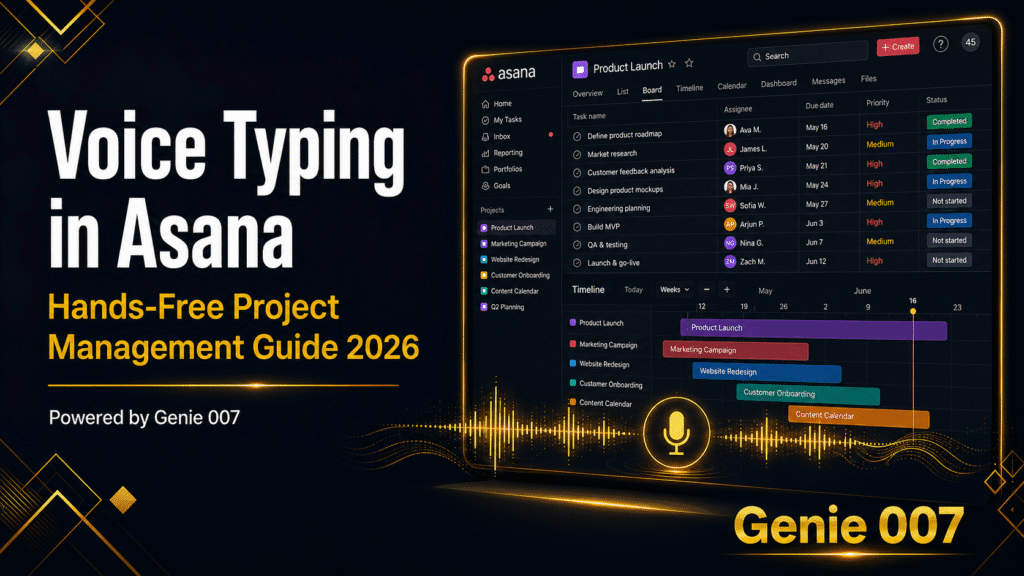
With a browser-based voice dictation tool like Genie 007, you can speak directly into any text field inside Asana. Task titles, descriptions, comments, status updates, and even subtask checklists — all dictated at natural speaking speed. That means roughly 150 words per minute instead of the 40 you get from a keyboard.
This guide walks you through everything you need to set up voice typing in Asana, the specific workflows it accelerates, and how to get the most out of hands-free project management in 2026.
How Voice Typing in Asana Works
Voice typing in Asana is possible because Asana is a web application that runs entirely inside your browser. That makes it a perfect candidate for browser-based voice dictation. Unlike desktop software that requires custom integrations or API connectors, a Chrome extension like Genie 007 simply sits on top of any web page and captures your speech in real time.
When you click into any text field inside Asana — whether it is a task title, a description box, a comment thread, or a custom field — the dictation extension detects the active input and streams your spoken words directly into it. There is no copy-pasting, no separate transcription window, and no delay between speaking and seeing text appear.
What You Can Dictate in Asana
Voice typing works in every text-based area of the Asana browser app. Here is a breakdown of where you will use it most:
Task titles are the fastest wins. Instead of typing “Prepare Q3 marketing budget proposal for executive review,” you simply say it. Genie 007 handles capitalisation and punctuation automatically, so the title lands ready to go.
Task descriptions are where voice typing truly shines. Many Asana users leave descriptions empty because typing detailed context feels like a chore. With dictation, you can speak a full paragraph of context — the background, the deliverables, the acceptance criteria — in under thirty seconds.
Comments and updates keep your team aligned. Instead of hunting and pecking through a status update at the end of the day, you speak it conversationally. “Design review completed. Three revisions requested. Updated mockups due by Thursday.” Done in five seconds.
Subtask creation is another area where dictation speeds things up. You can click into a subtask field, dictate the title, hit enter, and immediately dictate the next one. It feels like reading a checklist aloud — because that is exactly what it is.
Custom fields and forms also accept voice input. If your team uses Asana forms for intake requests, you can dictate responses instead of typing them, which is especially helpful on longer forms with multiple free-text fields.
Setting Up Voice Typing in Asana
Getting started takes less than two minutes. Here is the step-by-step process:
Step 1: Install a browser-based dictation extension. Genie 007 is available as a Chrome extension and works on all Chromium-based browsers including Edge, Brave, and Arc. Visit the Chrome Web Store, search for Genie 007, and click “Add to Chrome.”
Step 2: Grant microphone permission. The first time you activate the extension, your browser will ask for microphone access. Click “Allow.” This is a one-time setup — the permission persists across sessions.
Step 3: Open Asana in your browser. Navigate to app.asana.com and log into your workspace. You do not need to install anything inside Asana itself. The extension operates at the browser level, which means it works regardless of which Asana plan you are on — free, premium, or enterprise.
Step 4: Click into any text field and start dictating. Activate Genie 007 using the keyboard shortcut or the toolbar icon. When the microphone indicator appears, start speaking. Your words appear in the Asana text field in real time.
Step 5: Use voice commands for punctuation and formatting. Say “full stop” or “period” to insert punctuation. Say “new line” to start a new paragraph. Say “comma” to insert a comma. These commands keep your text clean without needing to touch the keyboard.
Five Workflows Where Voice Typing in Asana Helps Most
Voice typing is not just a novelty — it fundamentally changes how quickly you can move through your Asana workflows. Here are the five most impactful use cases.
1. Morning Task Triage
Most project managers start their day by scanning their Asana inbox and triaging tasks. With voice typing, you can open each task, dictate a quick comment (“Moving this to next sprint — blocked by the API integration”), and move on. What used to take 20 minutes of typing now takes five minutes of talking.
The speed advantage compounds quickly. If you triage 15 tasks each morning and save 45 seconds per task through dictation, that is over 11 minutes saved before your first meeting even starts.
2. Sprint Planning and Backlog Grooming
During sprint planning sessions, someone has to capture decisions and update task details in real time. Voice typing makes this painless. As the team discusses a task, the project manager can dictate acceptance criteria directly into the description field. “User should be able to filter results by date range. Dropdown should include last 7 days, last 30 days, and custom range. Default to last 7 days.”
Without voice typing, most teams rely on separate meeting notes that someone then transfers into Asana later — doubling the work. Dictation removes that duplication entirely.
3. Daily Standups and Status Updates
Asana’s status update feature lets you post progress reports to project stakeholders. These updates are critical for visibility but tedious to type. Voice dictation turns a five-minute typing exercise into a 90-second speaking exercise.
Speak your update naturally: “Sprint 14 is on track. We completed the authentication module and the payment gateway integration. Two items are carrying over to Sprint 15 — the notification system and the admin dashboard redesign. No blockers at this time.” Post it and move on.
4. Creating Tasks from Meetings
After every meeting, there are action items. Instead of jotting them down on paper and then transferring them to Asana, you can dictate them directly as tasks while the discussion is still fresh. Open Asana, click “Add task,” and speak: “Follow up with design team on revised wireframes for the checkout flow. Due Friday.” Assign it, set the due date, and the task is live.
This approach is especially valuable for back-to-back meeting days. Rather than accumulating a backlog of tasks to enter later, you capture them in real time.
5. Bulk Task Creation
When you are breaking down a large project into individual tasks, voice typing is dramatically faster than keyboard entry. You can dictate task after task in rapid succession — speak the title, press enter, speak the next title, press enter again. A 30-task breakdown that would take 15 minutes to type can be dictated in under four minutes.
For each task, you can also dictate a one-line description to add context. This small addition of detail pays dividends later when team members pick up tasks and immediately understand what is expected.
Tips for Better Voice Typing in Asana Accuracy
Voice recognition technology has improved dramatically, but there are a few habits that will help you get even better results when dictating in Asana.
Speak in complete phrases. Instead of dictating one word at a time, speak in full sentences or at least complete phrases. The speech recognition engine uses context to improve accuracy, so “prepare the quarterly marketing report” will be transcribed more accurately than “prepare… the… quarterly… marketing… report.”
Use a decent microphone. Your laptop’s built-in microphone works, but a dedicated USB microphone or a quality headset will give noticeably better results, especially in open-plan offices or noisy environments. Even a basic headset with an inline microphone makes a significant difference.
Dictate punctuation explicitly. Until voice commands become second nature, make a habit of saying “period,” “comma,” and “new line” as you dictate. This keeps your text formatted properly and reduces the amount of editing you need to do afterwards.
Review before posting. While dictation accuracy is high — typically above 95 percent with a good microphone — it is worth scanning your text before posting a comment or saving a task. A quick two-second glance catches the occasional misheard word and keeps your Asana workspace professional.
Create custom voice commands for repeated phrases. If you frequently type the same phrases in Asana — “Blocked by external dependency,” “Waiting on client approval,” “Moved to backlog” — set them up as custom voice commands in Genie 007. One trigger word expands into the full phrase, saving even more time.
Voice Typing in Asana vs. Native Voice Features
Asana introduced limited voice recognition features on its iOS app, allowing users to create tasks by recording voice messages that are automatically transcribed. However, this feature is restricted to mobile and only covers task creation — it does not extend to comments, descriptions, status updates, or the web application.
A browser-based dictation tool like Genie 007 fills these gaps completely. It works across every text field in the Asana web app, offers higher accuracy with support for technical and business vocabulary, and provides real-time transcription rather than post-recording processing. You see your words appear as you speak them, which allows for immediate correction and a more natural workflow.
Third-party integrations like DictAutomate and Fireflies offer voice-to-Asana functionality through API connections and automation platforms. These are useful for specific workflows — such as automatically converting meeting transcripts into Asana tasks — but they add complexity and often require paid subscriptions to additional services. For straightforward voice-to-text input inside Asana, a browser extension is simpler, faster, and more versatile.
Privacy and Security for Voice Typing in Asana
When you introduce voice typing into a project management tool, data security becomes an important question — especially for teams handling sensitive information. Genie 007 processes audio locally where possible and uses encrypted connections for any cloud-based processing. Your spoken words are converted to text and delivered to the active text field without being stored, logged, or used for model training.
Asana itself maintains enterprise-grade security with SOC 2 Type II certification, data encryption at rest and in transit, and role-based access controls. Adding a privacy-respecting dictation tool on top of this stack does not weaken your security posture — it simply adds a new input method.
For teams in regulated industries, it is worth confirming that your dictation tool complies with your organisation’s data handling policies. Genie 007 is designed with privacy as a core principle, making it suitable for professional and enterprise environments.
Accessibility Benefits of Voice Typing in Asana
Voice dictation is not only a productivity tool — it is also an accessibility feature. Team members with repetitive strain injuries, carpal tunnel syndrome, or other conditions that make extended typing painful can use Asana fully and comfortably through voice input.
For neurodivergent users who find it easier to organise thoughts verbally rather than through writing, dictation provides a more natural way to contribute to project discussions. Instead of struggling with a blank text field, they can speak their ideas and see them captured accurately in real time.
By enabling voice typing across your Asana workspace, you make your project management process more inclusive — without requiring any changes to your existing workflows or processes.
Getting Started with Voice Typing in Asana Today
Voice typing in Asana is one of those rare productivity improvements that requires almost no learning curve. Install a browser extension, click into a text field, and start talking. The time savings start from your very first dictation.
Your privacy matters. Genie 007 processes all audio locally on your device — no recordings are stored, no data is sent to external servers. For full details, see our security and privacy page.
Whether you are a solo freelancer managing your own task list or a project manager coordinating a 50-person team, voice typing makes every interaction with Asana faster. Task creation, commenting, status updates, sprint planning — all of it becomes as quick as having a conversation.
Try Genie 007 free today and experience the difference that voice typing makes in your Asana workflow. Your keyboard will thank you.
Explore all voice typing integrations on our integrations hub.
Frequently Asked Questions
Does voice typing work in Asana?
Yes. Genie 007 works in any text field in Asana. Install the Chrome extension, click any text input, activate Genie 007, and start speaking. Your words appear instantly with automatic punctuation and formatting.
Is voice typing in Asana accurate?
Genie 007 delivers 99.5% accuracy across 140+ languages. It handles technical terms, proper nouns, and context-specific vocabulary. The AI understands the context of Asana to format output appropriately.
Can I use voice commands in Asana?
Yes. With Genie Mode, you can give high-level commands like “reply professionally” or “summarise this thread” and Genie 007 generates context-aware responses — not just transcription, but complete actions.
Ready to Try Voice-to-Action?
Install Genie 007 free — no credit card required. Works on any website, any text field.
Voice typing in Asana offers a measurable productivity boost for any team. Written by Bill Kiani, founder of Genie 007.