
Why Voice Typing in Trello Belongs in Your Workflow
Voice typing in Trello transforms how you interact with your boards. Trello’s visual board system makes project management intuitive — drag a card, move a column, and your entire team sees the update. But there is one part of Trello that still feels slow: typing. Every card description, every comment, every checklist item requires you to stop what you are doing and type it out. Voice typing changes that equation completely.
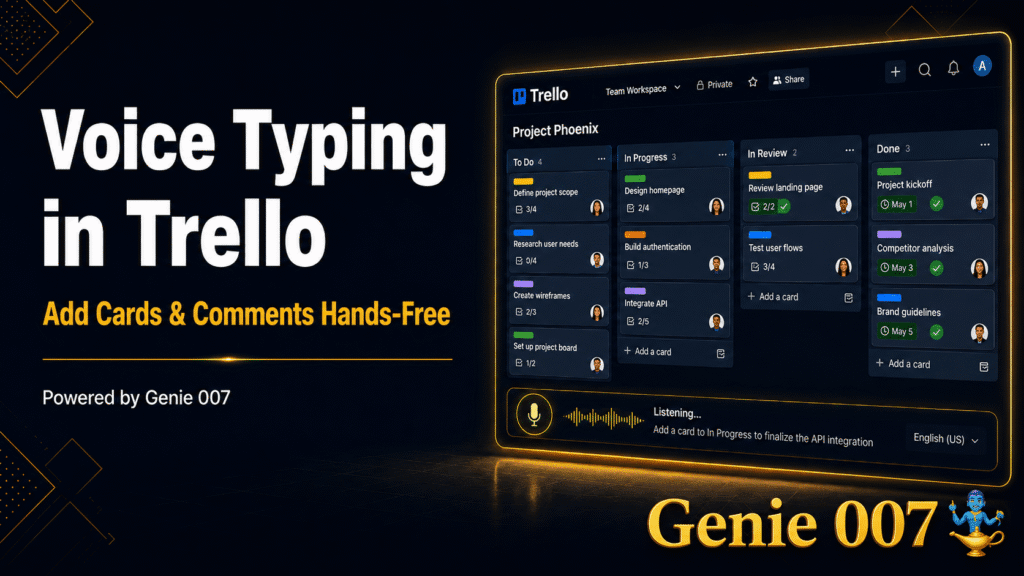
With a browser-based voice dictation tool like Genie 007, you can speak directly into any Trello text field. Card titles, descriptions, comments, and checklist items — all dictated at natural speaking speed. You get roughly 150 words per minute instead of the typical 40 from a keyboard, which means you spend less time typing and more time actually managing your projects.
This guide covers how to set up voice typing in Trello, the workflows it accelerates most, and practical tips for getting accurate dictation every time.
How Voice Typing in Trello Works
Trello runs as a web application inside your browser. This is what makes browser-based voice dictation so effective — a Chrome extension like Genie 007 works on top of any web page, including Trello, without requiring a separate integration or Power-Up installation.
When you click into any text field in Trello — a card title, the description editor, a comment box, or a checklist item — Genie 007 detects the active input field and streams your spoken words directly into it. The transcription happens in real time, so you see your words appear as you speak them. There is no recording step, no processing delay, and no need to switch between applications.
This works across all Trello views: board view, timeline view, calendar view, and table view. Wherever there is a text input, voice typing works.
Every Trello Text Field That Supports Dictation
Because Genie 007 operates at the browser level rather than through an API integration, it works with every text input that Trello presents. Here is where you will use it most:
Card titles are the quickest wins. Instead of typing “Review Q2 marketing analytics and prepare summary for Monday standup,” you say it in three seconds. Genie 007 handles punctuation and capitalisation, so the title is ready immediately.
Card descriptions benefit enormously from dictation. Many Trello users leave descriptions blank because writing them feels like extra work. With voice typing, you can speak a full paragraph of context — the background, the requirements, the definition of done — in under thirty seconds. Cards with proper descriptions reduce back-and-forth questions from team members significantly.
Comments are where collaboration happens in Trello. Voice typing makes it effortless to post updates: “Finished the first draft. Uploaded to the shared drive. Ready for Sarah’s review by Thursday.” That takes five seconds to say, compared to twenty seconds to type.
Checklist items are perfect for dictation. Click into the checklist field, speak the item, press enter, speak the next one. You can rattle off a ten-item checklist in under a minute — something that would take three to four minutes of typing.
Custom fields with text inputs also accept voice dictation. If your Trello board uses custom fields for notes, URLs, or reference information, you can dictate those values instead of typing them.
Setting Up Voice Typing in Trello
The setup process takes less than two minutes and requires no changes to your Trello workspace.
Step 1: Install the Genie 007 Chrome extension. Head to the Chrome Web Store, search for Genie 007, and click “Add to Chrome.” The extension works on all Chromium-based browsers including Edge, Brave, and Arc.
Step 2: Allow microphone access. When prompted, click “Allow” to grant the extension access to your microphone. This is a one-time permission that persists across browser sessions.
Step 3: Open Trello in your browser. Navigate to trello.com and open your board. No Trello Power-Up is needed — Genie 007 works independently of Trello’s own extension system.
Step 4: Click into any text field and activate dictation. Use the keyboard shortcut or click the Genie 007 toolbar icon to start dictating. Your spoken words appear in the Trello text field in real time.
Step 5: Use voice commands for formatting. Say “period” or “full stop” for punctuation, “new line” for paragraph breaks, and “comma” for commas. These simple commands keep your text clean and professional.
Five Ways Voice Typing in Trello Transforms Your Workflow
Voice dictation is not just faster typing — it changes how you interact with Trello throughout your day. Here are the five workflows where the impact is most significant.
1. Daily Card Updates
At the end of each day, many teams expect members to update their active cards with progress notes. This is one of the first things people skip when they get busy because typing updates feels like a chore. Voice typing removes that friction entirely.
Open a card, click into the comments, and speak: “Completed the API integration for the payment module. Running into a CORS issue on the staging server that I will debug tomorrow morning. Overall on track for Thursday delivery.” That is a comprehensive update delivered in eight seconds.
2. Sprint Retrospective Capture
During retrospective meetings, someone typically creates cards in real time to capture what went well, what did not, and action items. With voice typing, the facilitator can dictate directly into Trello while the discussion is happening. No separate note-taking, no post-meeting transcription — the cards are created live as the team talks.
Create a new card, dictate the title “Improve deployment pipeline automation — too many manual steps,” and add it to the Action Items list. The whole process takes three seconds instead of fifteen.
3. Client Feedback Processing
When you receive client feedback — via email, phone, or video call — capturing it in Trello usually means switching between your notes and the board, typing out each piece of feedback as a card or comment. Voice typing lets you dictate feedback directly into Trello while reviewing your notes or even during the call itself.
“Client wants the header font changed to Inter. Logo needs to be 20 percent larger. Remove the testimonials section from the landing page. Add pricing table above the fold.” Four separate pieces of feedback, captured as checklist items in under fifteen seconds.
4. Brainstorming and Ideation Boards
Trello is popular for brainstorming sessions where teams create cards rapidly to capture ideas. Voice typing accelerates this dramatically. Instead of typing each idea, you speak it: “Offer a free trial tier for solo users,” enter, “Partner with productivity YouTubers for demos,” enter, “Build a Zapier integration for automated workflows,” enter. Ideas flow at the speed of thought rather than the speed of typing.
This is particularly valuable in remote brainstorming sessions where the facilitator is creating cards while multiple team members contribute ideas verbally.
5. Bug and Issue Triage
Development teams that use Trello for bug tracking need to create detailed cards quickly — often during meetings or while reproducing issues. Voice typing lets you dictate the bug description, steps to reproduce, and expected versus actual behaviour without slowing down your investigation.
“Login page returns 500 error when email contains a plus sign. Steps to reproduce: go to login page, enter test plus user at example dot com, click submit. Expected: successful login. Actual: server error page. Affects production. Priority high.” A complete bug report dictated in twelve seconds.
Tips for Accurate Voice Typing in Trello
Getting the most out of voice typing in Trello comes down to a few simple habits.
Speak naturally but clearly. You do not need to slow down or exaggerate your pronunciation. Modern speech recognition handles natural speech patterns well. Just speak at a normal conversational pace and enunciate clearly.
Dictate in complete thoughts. Rather than speaking one word at a time, speak in full phrases or sentences. The recognition engine uses context to improve accuracy, so “update the deployment documentation with the new server addresses” will be transcribed more accurately than individual words spoken in isolation.
Use a quality microphone. While your laptop microphone works for basic dictation, a USB microphone or headset dramatically improves accuracy. This is especially important in open offices or shared workspaces where background noise can interfere with recognition.
Set up custom voice commands. If you repeatedly type the same phrases — “Moved to QA,” “Blocked by dependency,” “Ready for review” — configure them as custom voice commands in Genie 007. A single trigger word expands into the full phrase instantly.
Review before saving. A quick glance at your dictated text before hitting save or pressing enter catches the occasional misrecognised word. This two-second habit keeps your Trello board clean and professional.
Voice Typing vs. Trello Power-Ups
Trello’s Power-Up ecosystem includes a Voice Memos feature that lets you attach audio recordings directly to cards. While useful for certain scenarios — such as leaving verbal notes for team members — this is fundamentally different from voice typing. Voice Memos stores audio files; voice typing converts your speech to editable text.
The distinction matters for searchability and usability. Text in card descriptions and comments is searchable, indexable, and readable at a glance. Audio recordings require someone to listen to them — which takes time and cannot be quickly scanned during a board review.
Third-party tools like Google Assistant integrations via Zapier allow you to create Trello cards using voice commands, but these are limited to card creation and do not support editing descriptions, adding comments, or updating checklists. A browser-based dictation extension like Genie 007 covers all of these use cases without requiring an external automation platform.
Privacy and Data Security for Voice Typing in Trello
Trello is trusted by millions of teams for project management, and adding voice typing should not compromise that trust. Genie 007 processes your speech and delivers text to the active input field without storing recordings, logging transcriptions, or sharing data with third parties.
Your audio is processed using encrypted connections, and the resulting text goes directly into Trello’s own input fields — meaning Trello’s existing security controls (encryption, access permissions, board privacy settings) apply to all dictated content exactly as they do to typed content.
For teams with strict data handling requirements, Genie 007’s privacy-first design makes it suitable for enterprise and regulated environments.
Accessibility and Inclusion with Voice Typing in Trello
Voice typing makes Trello more accessible to team members who face challenges with extended keyboard use. People with repetitive strain injuries, carpal tunnel syndrome, or mobility limitations can manage Trello boards fully through voice input — creating cards, adding descriptions, posting comments, and building checklists without touching a keyboard.
This inclusivity extends to neurodivergent team members who may find verbal expression more natural than written composition. Speaking thoughts aloud and seeing them captured in real time removes a barrier that can make text-heavy project management tools feel exhausting.
Start Voice Typing in Trello Today
Voice typing in Trello requires no configuration on the Trello side — no Power-Ups, no API keys, no admin permissions. Install a browser extension, open your board, and start speaking. The productivity gains are immediate and compound with every card you create, every comment you post, and every checklist you build.
Your privacy matters. Genie 007 processes all audio locally on your device — no recordings are stored, no data is sent to external servers. For full details, see our security and privacy page.
Try Genie 007 free today and discover how much faster your Trello workflow becomes when you can speak instead of type.
Explore all voice typing integrations on our integrations hub.
Frequently Asked Questions
Does voice typing work in Trello?
Yes. Genie 007 works in any text field in Trello. Install the Chrome extension, click any text input, activate Genie 007, and start speaking. Your words appear instantly with automatic punctuation and formatting.
Is voice typing in Trello accurate?
Genie 007 delivers 99.5% accuracy across 140+ languages. It handles technical terms, proper nouns, and context-specific vocabulary. The AI understands the context of Trello to format output appropriately.
Can I use voice commands in Trello?
Yes. With Genie Mode, you can give high-level commands like “reply professionally” or “summarise this thread” and Genie 007 generates context-aware responses — not just transcription, but complete actions.
Ready to Try Voice-to-Action?
Install Genie 007 free — no credit card required. Works on any website, any text field.
Install Genie 007 Free →Written by Bill Kiani, founder of Genie 007.