
A voice to text Chrome extension turns your browser into a hands-free writing tool. Instead of typing into every text field — emails, forms, documents, social posts, CRM notes — you speak and the text appears. The best voice to text Chrome extensions in 2026 go further than basic transcription: they add AI that understands context and helps you produce better output from a brief spoken instruction.
This guide covers how voice to text Chrome extensions work, how they compare, and why Genie 007 is the strongest option for professionals who write across multiple platforms daily.
How a Voice to Text Chrome Extension Works
A voice to text Chrome extension integrates with your browser rather than with individual apps. This is the key difference from built-in tools like Google Docs Voice Typing, which only works inside one app.
When you install a voice to text Chrome extension, it runs in the background of your browser. Activate it with a keyboard shortcut or click — and it starts capturing your speech. The captured audio is processed (either on-device or via a cloud API), converted to text, and injected into whatever text field your cursor is in at the time.
This means the same voice to text Chrome extension works in Gmail, Google Docs, Notion, LinkedIn, Salesforce, Twitter, Slack — anywhere you would normally type in Chrome. You are not locked to one app.
What Makes the Best Voice to Text Chrome Extension
Not all voice to text Chrome extensions are equal. These criteria separate genuinely useful tools from frustrating ones.
Accuracy: At 90% accuracy, a voice to text Chrome extension produces 100 errors per 1,000 words. At 99.5%, that drops to 5. The editing time difference is enormous at scale. Look for independently verified accuracy figures, not marketing claims.
Universal text field support: The best voice to text Chrome extension works in every text field on every website — rich text editors, plain text inputs, React components, content editable divs. Some extensions only work in basic HTML inputs and fail in complex web apps like Notion or Salesforce.
Language support: Multilingual professionals need a voice to text Chrome extension that handles multiple languages accurately. Switching languages mid-session, or dictating in one language while producing text in another, requires genuine multilingual AI — not just English with limited foreign language support added on.
Privacy model: Where does your audio go? Cloud-based voice to text Chrome extensions send your speech to external servers. For professionals dictating confidential content — client data, legal documents, financial analysis — local audio processing is the only acceptable option.
AI context layer: Does the extension just transcribe, or does it understand what you are trying to produce? A voice to text Chrome extension with AI context-awareness reads the page you are on and uses that to help you write better output from a brief spoken instruction.
Voice to Text Chrome Extension Comparison: 2026
Here is how the leading voice to text Chrome extensions compare in 2026.
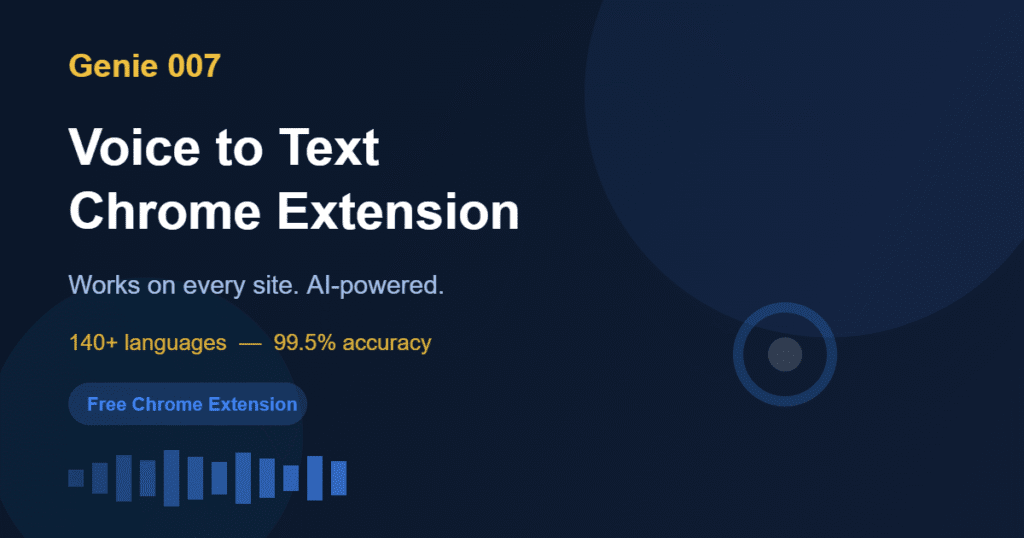
Genie 007 — The most capable voice to text Chrome extension for professionals. Combines 99.5% accurate dictation across 140+ languages with context-aware AI that reads your current page and writes full paragraphs from brief spoken instructions. Works in every text field on every site. Local audio processing. Free to install with paid tiers for heavy usage.
Speechnotes (Chrome Extension) — A dedicated dictation pad that works as a Chrome extension. Solid accuracy for English, basic punctuation commands, exports to Google Docs. No AI layer, no context-awareness, no universal text field injection. Best for: users who want a simple dictation window and copy-paste their output.
VoiceIn — A voice to text Chrome extension that injects dictated text into web page inputs. Works across many sites, reasonable English accuracy, straightforward interface. No AI layer. Paid after a limited free tier.
Chrome’s built-in voice input — Available in Chrome on Android and in some web apps. Not a true voice to text Chrome extension — it is a keyboard feature. Limited to basic transcription, no AI layer, inconsistent cross-site support.
How Genie 007 Works as a Voice to Text Chrome Extension
Genie 007 is a voice to text Chrome extension with two modes: pure dictation and AI-assisted writing.
In pure dictation mode, you press the shortcut and speak. Your words appear in whatever text field you are in — Gmail, Notion, Google Docs, Salesforce, LinkedIn, anywhere. The accuracy is 99.5% across 140+ languages. This is the voice to text Chrome extension experience you expect, done exceptionally well.
In AI-assisted mode, you give a brief spoken instruction instead of dictating word for word. Genie 007 reads the context of the page — the email thread, the document paragraph, the CRM record — and writes the output for you. In Gmail: “Reply professionally, tell them I am interested but need two more weeks.” In Google Docs: “Write a three-sentence summary of this section.” In Salesforce: “Write a follow-up note — they want a demo next Tuesday.” The voice to text Chrome extension becomes a voice-to-action layer across your entire browser.
Audio is processed locally on your device. Your speech never leaves your machine. Nothing is sent to external servers. Nothing is stored or logged. This makes Genie 007 the only voice to text Chrome extension appropriate for professionals handling confidential or sensitive content. Full details at Genie 007 Security & Privacy.
Installing a Voice to Text Chrome Extension: Step by Step
Installing a voice to text Chrome extension takes under two minutes.
Open the Chrome Web Store, search for Genie 007, and click Add to Chrome. Accept the microphone permission when prompted — this is required for any voice to text Chrome extension to function. Once installed, the Genie 007 icon appears in your Chrome toolbar.
Click the icon or use the keyboard shortcut to activate dictation in any text field. On first use, Chrome may ask to confirm microphone access for the active site. Allow it. From that point, your voice to text Chrome extension works across your entire browser session.
The first session takes a few minutes to adjust to your dictation pace. By the second session, most users are producing text faster by voice than they ever were by typing.
Common Problems With Voice to Text Chrome Extensions
Most problems with voice to text Chrome extensions come down to three things.
Microphone not working: Check Chrome settings at chrome://settings/content/microphone. Confirm the microphone is not blocked for your browser. On Mac, also check System Preferences then Security and Privacy then Microphone to ensure Chrome has access at the OS level.
Text not appearing in the right field: Some complex web apps (React components, custom editors) do not respond to standard DOM injection. If a voice to text Chrome extension fails in a specific app, check whether the extension has a compatibility note for that app.
High error rates: Usually an environment problem, not a software problem. Background noise, distance from the microphone, speaking too fast. A pair of in-ear earphones with an inline mic resolves most accuracy issues in noisy environments.
FAQ: Voice to Text Chrome Extension
What is the best voice to text Chrome extension in 2026?
Genie 007 is the best voice to text Chrome extension in 2026 for professionals who need accuracy, AI context-awareness, universal text field support, multilingual capability, and local audio processing for privacy. For basic free dictation without AI, VoiceIn or Speechnotes are decent alternatives for simpler use cases.
Is a voice to text Chrome extension free?
Many voice to text Chrome extensions have free tiers. Genie 007 is free to install and use, with paid tiers for heavier professional usage. VoiceIn has a limited free tier. Speechnotes has a free version with ads. The most capable features — AI context-awareness, multilingual support, local processing — are typically in paid tiers.
Does a voice to text Chrome extension work in all websites?
The best voice to text Chrome extensions work in most websites with text fields. Genie 007 is engineered for broad compatibility and works in Gmail, Google Docs, Notion, Salesforce, LinkedIn, Slack, and most major web applications. Some heavily customised rich text editors may have compatibility limitations.
Is voice to text safe to use in Chrome?
Safety depends on the extension’s audio processing model. Extensions that send audio to cloud servers create privacy exposure. Genie 007 processes all audio locally on your device — your speech never leaves your machine. This makes it the safe choice for professionals dictating confidential content.
Can a voice to text Chrome extension handle multiple languages?
Yes, but accuracy varies by extension. Genie 007 supports 140+ languages at 99.5% accuracy, including cross-language dictation — speak in one language, text appears in another. Most other voice to text Chrome extensions support fewer languages with lower accuracy outside English.
A voice to text Chrome extension is the fastest way to eliminate typing as the bottleneck in your browser workflow. The best tools in 2026 do not just transcribe your speech — they understand what you are trying to produce and help you produce it across every platform you use.
Ready to add a voice to text Chrome extension to your workflow? Install Genie 007 Free → and start writing by voice today.
For a deeper dive on AI-powered dictation across all platforms, see the AI dictation software guide. If you use voice typing specifically in Google Docs, the voice typing in Google Docs guide covers the full built-in workflow.
Written by Bill Kiani, founder of Genie 007.
Related Articles in This Series
- Voice Typing for Writers: How to Draft Your Best Work Faster
- Voice Typing for Students: Study Faster, Write Better, Score Higher
- Voice Typing in Google Docs: The Complete 2026 Guide
- Best AI Dictation Software in 2026: Compared and Reviewed