
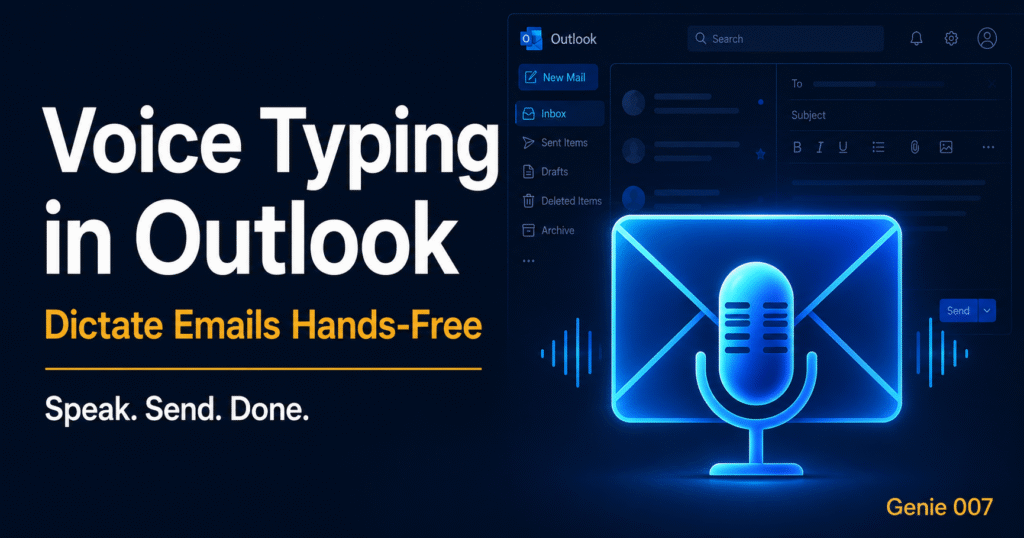
Voice typing for Outlook is one of the fastest ways to cut the time you spend on email. Voice typing for Outlook users — Microsoft Outlook has over 500 million of them — most of them typing every email, reply, and follow-up by hand. Outlook’s built-in dictation works at a basic level, making voice typing for Outlook a popular search, but it types what you say and nothing more. Genie 007 does something fundamentally different: it reads the email you have open and writes a complete, contextually appropriate reply from a five-word spoken command.
That is voice-to-action, not voice-to-text. You do not dictate the full reply. You say “reply professionally agreeing to the meeting but suggesting Thursday instead” and Genie 007 reads the original email, writes a warm professional reply with a specific Thursday suggestion, and places it in the compose window. You review and send. What used to take three minutes of typing takes fifteen seconds. The same capability works across Gmail and is part of the broader AI voice commands approach that is changing how knowledge workers handle email.
Why Use Voice Typing for Outlook?
Email is where most knowledge workers spend the most typing time. The average professional spends 2.5 hours per day on email — and the majority of that time is writing. Voice typing for Outlook compresses that writing time dramatically.
Three situations where voice typing for Outlook makes the clearest difference:
Morning inbox zero. Return from a morning standup to 30 emails that need responses. With Genie 007 active in Outlook, open each email, speak a five-second instruction, get a complete reply written, review, send. Thirty emails in 20 minutes instead of 90.
Long, complex emails. Proposals, summaries, project updates, escalations — emails that require structure and length. Dictate the key points in natural language and Genie 007 produces a properly formatted multi-paragraph email with appropriate sections and professional tone. The kind of email you would have spent 20 minutes carefully writing.
Repetitive email types. Meeting confirmations, follow-ups after calls, thank-you emails, introduction emails. These have predictable structures. With Genie 007 Genie Mode, one short spoken instruction produces a polished version every time — consistent quality regardless of how tired you are at the end of the day. Useful alongside how to dictate emails for a full workflow guide.
How to Set Up Voice Typing for Outlook: Complete Guide
Genie 007 adds voice typing to every version of Outlook — browser, desktop Windows app, desktop Mac app — without configuration inside Outlook itself.
Step 1: Choose your Genie 007 platform. For Outlook in the browser (outlook.com or Outlook Web Access): install the Genie 007 Chrome extension. For the Outlook desktop app on Windows: install the Genie 007 Windows app. For Outlook on Mac: install the Genie 007 Mac app. All three platforms are covered by one Genie 007 account.
Step 2: Open Outlook and start a new email or open an email to reply to. Click the compose area.
Step 3: Activate Genie 007 with your hotkey. For Voice Typing Mode, speak naturally and your words appear in the compose field. For Genie Mode, give a short spoken instruction — “reply professionally accepting the proposal and asking for a kickoff call next week” — and Genie 007 reads the email thread and writes the full response.
Step 4: Review the output. For Voice Typing Mode, typical spoken drafts need minimal editing. For Genie Mode, a 10-second review is usually all that is needed before sending.
Voice Typing for Outlook Workflows: What You Say, What Appears
Workflow 1 — Replying to a meeting request.
You say: “Accept the meeting but ask if we can push it to 3pm instead.”
Genie 007 reads the meeting request email, writes a warm reply accepting with the time change suggestion, including the sender’s name if visible — professional, personalised, done in ten seconds.
Workflow 2 — Following up after a call.
You say: “Send a follow-up email summarising what we discussed: the project brief needs to be revised, Sarah is owning the design, deadline is moved to end of June, I’ll send the revised brief by Wednesday.”
Genie 007 produces a cleanly structured follow-up email with a summary section, owner assignments, and next steps — the kind of email that prevents misunderstandings and makes you look organised.
Workflow 3 — Cold outreach email.
You say: “Write an outreach email to a potential enterprise client in finance, introduce Genie 007, focus on reducing email time for their team, keep it under 150 words, no fluff.”
Genie 007 writes a focused, concise outreach email matching the brief — no boilerplate, no obvious AI filler, ready to personalise and send.
Common Problems with Voice Typing for Outlook (and Fixes)
Outlook’s built-in dictation activates instead of Genie 007. Outlook has a basic built-in Dictate button. Make sure you activate Genie 007 via its hotkey before clicking any Outlook control. Genie 007 operates at the system level and does not conflict with Outlook’s dictation, but activating both simultaneously creates confusion. Use one at a time.
Genie Mode output does not reference the right email thread. Genie Mode reads what is visible on screen. Before using a Genie Mode command, make sure the email you are replying to is open and the original message is visible — not collapsed. The more context Genie 007 can read, the more relevant the reply.
Microphone not activating in the Outlook desktop app. On Windows, check Settings → Privacy → Microphone and ensure the Genie 007 Windows app has permission. On Mac, check System Preferences → Security & Privacy → Microphone.
Privacy: Your Emails Stay Private
Outlook is used for some of the most sensitive business communication that exists — financial negotiations, legal correspondence, personal HR matters, executive strategy. With Genie 007, your email content never leaves your device. Audio is processed locally. No email content, attachments, or metadata is sent to external servers. Genie 007 is GDPR compliant and HIPAA ready — compatible with the security requirements of enterprise Outlook deployments in regulated industries.
This is a critical distinction from cloud-based dictation tools that upload audio for processing. Genie 007 keeps everything on your machine.
Frequently Asked Questions
Does Outlook have built-in voice typing?
Yes — Outlook has a basic Dictate button that converts speech to text. It types what you say with reasonable accuracy but has no AI context-awareness. It does not write emails from a short command or read the thread to generate a contextually appropriate reply. Genie 007 provides the full voice-to-action capability that Outlook’s built-in dictation does not.
Does voice typing for Outlook work on the desktop app?
Yes. Genie 007’s Windows desktop app works with the Outlook desktop application on Windows, and the Mac app works with Outlook for Mac. The Chrome extension covers Outlook Web Access and outlook.com. All three platforms are supported from one account.
How accurate is voice typing in Outlook with Genie 007?
Genie 007 achieves 99.5% accuracy across 140 languages with automatic punctuation, grammar correction, and filler word removal. Output from Voice Typing Mode reads like something you typed carefully, not a raw transcript. In Genie Mode, the written email is produced by the AI layer — accuracy in the traditional sense does not apply because you are not dictating word for word.
Can I use voice typing for Outlook in languages other than English?
Yes. Genie 007 supports 140 languages including automatic mid-sentence language detection. You can speak in any of the 140 supported languages and have emails produced in any target language — useful for professionals who correspond with international clients across multiple languages in the same Outlook inbox.
Will voice typing for Outlook work with Microsoft 365?
Yes. Genie 007 works with all versions of Outlook — Outlook as part of Microsoft 365, standalone Outlook desktop, Outlook Web Access, and outlook.com. Any version of Outlook with a text compose field works with Genie 007.
Voice typing for Outlook turns one of the slowest parts of the working day into one of the fastest. Speak your intent, let Genie 007 write the email, review in seconds, send. Hundreds of emails per month that used to require careful typing now happen at the speed of thought.
Install Genie 007 Free → Add voice typing to Outlook today. No credit card required.
Written by Bill Kiani, founder of Genie 007.