
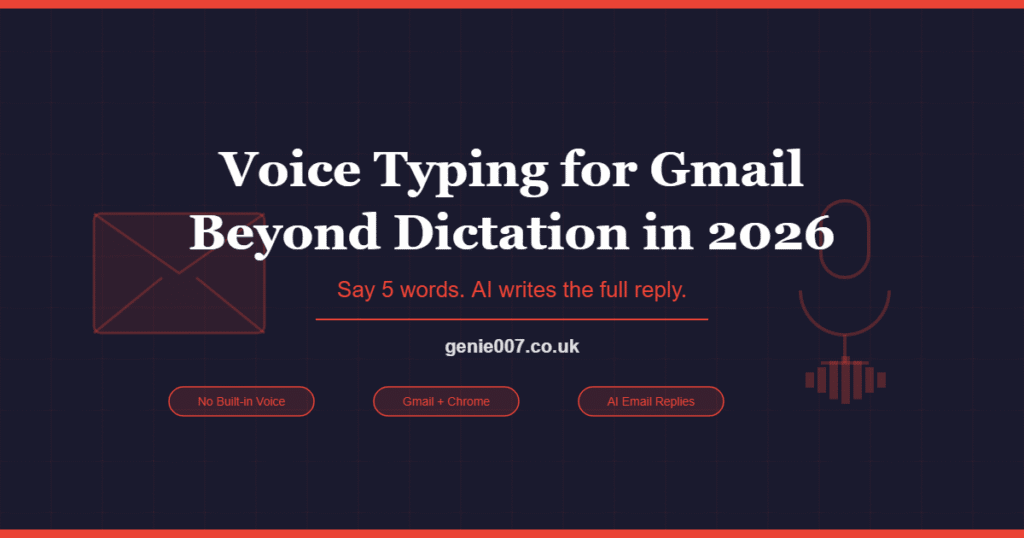
Voice typing for Gmail is not built into the product — Gmail has no native speech-to-text feature, unlike Google Docs, which has had one for years. If you want to speak your emails rather than type them, you need a third-party tool. In 2026, options range from basic dictation that transcribes every spoken word, to Genie 007’s Genie Mode, which reads the email thread you are looking at and writes a complete, polished reply from a five-word voice command. This guide covers both approaches, who each suits, and how to get started in under a minute.
Why Use Voice Typing for Gmail?
The average person types around 40 words per minute. Speaking runs at roughly 150 words per minute — more than three times faster. For anyone sending more than a handful of emails a day, that gap adds up to real time saved. A 200-word email that takes five minutes to type takes under two minutes to dictate, and less than 30 seconds with Genie Mode, since you are giving an instruction rather than composing every sentence yourself.
Speed is one reason. Physical strain is another. Repetitive typing is a known contributor to wrist, hand, and shoulder discomfort — particularly for people who spend most of their working day at a keyboard. Switching to voice for email means your hands are doing significantly less work without any reduction in output. For anyone managing a heavy inbox, dictating email replies is one of the most immediate changes you can make.
The third reason is inbox momentum. Many people delay replying to emails not because they don’t know what to say, but because composing a careful response takes mental effort and time. Voice to action changes that equation. When you can look at an email, say “Reply professionally, thank them, and confirm I’ll review by Friday,” and have a complete draft appear in seconds, the friction of getting to inbox zero drops considerably. You stay in reading flow rather than switching to composition mode for every reply.
The Two Types of Voice Typing for Gmail
Basic Dictation
Basic dictation tools transcribe whatever you say, word for word. You speak the entire email: punctuation, formatting, every sentence. Tools in this category for Gmail include Voice In, which is among the better-known speech-to-text Chrome extensions, and Willow, which offers a desktop app for Mac and Windows. Voice In has around 700,000 users and costs $60 per year; it uses the Google Speech API and provides no AI features — what you say is what appears. Willow similarly handles basic dictation across apps including Gmail.
Basic dictation is useful when you know exactly what you want to say and want to get it written faster than typing allows. The limitation is that you still do all the thinking and composing — the tool just converts speech to text. If the email requires any degree of polish or structured thought, you are still doing that work; you are just doing it out loud. For short, direct messages that is fine. For anything more complex, it can be slower than typing once you account for corrections and editing.
Voice to Action — Genie Mode in Genie 007
Genie 007’s Genie Mode works differently. You do not dictate the email. You say what you want the email to achieve — and Genie 007 reads the email thread you are currently viewing, understands the full context, and writes a complete, well-structured reply. The distinction matters: you are giving an instruction to an AI that understands context, not narrating text to a transcription engine.
A practical example: you open a reply from a supplier about delayed delivery. Instead of composing a professional response yourself, word by word, you say “Reply professionally, acknowledge the delay, and ask for a revised delivery date.” Genie 007 reads the thread, drafts a reply that references the specific context, and places it in the compose window. You review it, adjust if needed, and send. The entire process takes under 20 seconds. That is voice-to-action — not voice-to-text.
| Feature | Basic Dictation (Voice In, Willow) | Genie Mode — Genie 007 |
|---|---|---|
| What you say | Every word of the email | A short instruction (5–10 words) |
| Context awareness | None — transcribes only | Reads the full email thread |
| Output quality | Raw transcription | Polished, context-aware draft |
| AI features | None | Full AI composition |
| Accuracy | Variable (Google Speech API) | 99.5%, 140+ languages |
| Platforms | Chrome (Voice In); Mac/Windows (Willow) | Chrome extension, Windows app, Mac app |
| Pricing | Voice In: $60/yr; Willow: varies | Free tier + premium plans |
| Works in Gmail | Yes | Yes |
How to Set Up Voice Typing for Gmail with Genie 007
Setup takes under a minute. You do not need to reconfigure Gmail or change any account settings. Genie 007 works on top of Gmail through the Chrome extension or the desktop app, whichever you prefer.
Here are the exact steps:
- Step 1: Install the Genie 007 Chrome extension from the Chrome Web Store, or download the Windows or Mac desktop app from genie007.co.uk. No credit card required.
- Step 2: Open Gmail in Chrome as normal. Log in to your account.
- Step 3: Click Compose to write a new email, or open an email and click Reply.
- Step 4: Click in the email body field so your cursor is inside it. This tells Genie 007 where to place the output.
- Step 5: Activate Genie 007 using your chosen shortcut (set during installation, or click the extension icon in your toolbar).
- Step 6: Choose your mode. Use Voice Typing Mode if you want to dictate every word. Use Genie Mode if you want to give a short instruction and have AI write the email.
- Step 7: Speak. In Voice Typing Mode, speak naturally and punctuation is added automatically. In Genie Mode, say your instruction — Genie 007 reads the thread and writes the reply.
That is the full setup. There is nothing else to configure. The extension reads whichever Gmail thread is on screen when you activate it, so it always has the context it needs.
Gmail Voice Workflows with Genie 007
The following are real examples of what you say and what Genie 007 produces. All Genie Mode examples assume Genie 007 has read the current email thread before generating the reply.
Workflow 1 — Acknowledging receipt professionally
You say: “Reply professionally acknowledging receipt and saying I’ll review by Friday.”
What appears: A complete, professional reply — addressed by name, confirming receipt of the email, stating you will review the content and respond fully by Friday, with an appropriate sign-off. No further editing needed before sending.
Workflow 2 — Following up after a call
You say: “Write a follow-up email for our call last week asking for their decision.”
What appears: A structured follow-up that references the call, summarises the agreed next step, and asks clearly for their decision or timeline. Written in a direct, professional tone without filler phrases.
Workflow 3 — Summarising a thread
You say: “Summarise this email thread in three bullet points.”
What appears: Three concise bullet points capturing the key facts, decisions, and outstanding items from the thread — useful before forwarding internally or briefing someone who was not on the original chain.
Workflow 4 — Declining politely
You say: “Draft a declining email, polite but firm.”
What appears: A brief, considered decline — thanking the sender, declining clearly without ambiguity, and closing the conversation politely. No long explanations, no unnecessary apologies.
Workflow 5 — Forwarding with a note
You say: “Forward this to Sarah with a note that it needs urgent review.”
What appears: A short forwarding note addressed to Sarah, flagging the urgency, summarising why the email requires her attention, with the original thread ready to send on. The note is written for you — you just review and forward.
Voice Typing Mode works equally well for these same scenarios if you prefer to compose the email yourself but faster. You say every word, Genie 007 transcribes with 99.5% accuracy and automatic punctuation, across 140+ languages. You can dictate in one language and, using Genie Mode, have the reply written in another — useful for international correspondence.
Voice Typing for Gmail on Mobile
On Android and iOS, Gmail mobile uses the keyboard’s built-in voice button — the microphone icon that appears on the Android Gboard or the iOS keyboard. This triggers the phone’s own speech recognition, not a dedicated Gmail feature. It handles basic dictation but has no awareness of the email thread you are replying to, and produces raw transcription with no AI composition.
The Genie 007 mobile app is coming soon. When available, it will bring Genie Mode to Gmail on mobile — meaning the same voice-to-action capability you get on desktop will work on your phone. Until then, mobile users can use the phone keyboard voice button for basic dictation, or use Genie 007 on desktop for anything requiring AI-assisted composition.
For now, if you are working across devices, the most practical approach is to handle structured email composition at your desk using Genie 007 on Chrome or the Windows/Mac app, and use the phone keyboard voice button for brief, informal replies when mobile.
Common Problems and Fixes
Most issues with voice typing for Gmail come down to three things: microphone permissions, cursor focus, and mode selection. Here is how to address each one.
Microphone not working: Chrome needs microphone permission for Genie 007 to function. Click the lock icon in the address bar next to the Gmail URL, find Microphone in the permissions list, and make sure it is set to Allow rather than Block or Ask. If you changed it from Block, reload the page before trying again. On Windows and Mac, also check that your system has granted Chrome microphone access in your operating system privacy settings.
Text not appearing in the email field: Genie 007 places output wherever your cursor is. If the cursor is not in the Gmail compose window when you activate the extension, the text will go somewhere else or not appear at all. Always click inside the email body field before activating. If you activated first, click in the body field, then speak again.
Wrong mode selected: Voice Typing Mode and Genie Mode produce different results. If you say “Reply professionally” in Voice Typing Mode, Genie 007 will transcribe those two words — it will not write a reply. Make sure you select Genie Mode before giving an instruction, and Voice Typing Mode when you want word-for-word transcription. The mode selector is clearly visible in the Genie 007 interface once activated.
Genie Mode not reading the thread: Genie Mode reads the email thread visible on screen. If you are in a new Compose window with no prior thread, Genie 007 will draft from your instruction alone — which still works well, but it cannot reference a previous email it cannot see. For replies, always open the reply window with the original thread visible rather than composing in a separate window.
Privacy and Your Gmail Emails
When you use Genie 007 for Gmail voice dictation, audio is processed locally on your device. Your voice recordings are never stored, and your emails are never stored or sent to external servers. This matters particularly for anyone using Gmail for work — legal correspondence, client communication, healthcare, or finance.
Genie 007 is GDPR compliant and HIPAA ready, which means it meets the privacy standards required by European data protection law and US healthcare regulations. The product does not build user profiles from email content, does not train models on your data, and does not retain any content beyond the current session.
If your organisation has data handling policies that restrict which tools can access email content, Genie 007’s local processing architecture means the email thread is read on your device — not uploaded to a cloud service. For full technical detail on how data is handled, see the Genie 007 security and privacy page.
Frequently Asked Questions
Does Gmail have built-in voice typing?
No. Gmail has no native voice typing feature. Google Docs has a built-in voice typing tool under Tools > Voice typing, but this functionality does not extend to Gmail. If you want to use voice typing for Gmail, you need a third-party tool such as Genie 007. This has been the case since Gmail launched and has not changed in 2026.
How do I dictate emails in Gmail?
Install the Genie 007 Chrome extension or desktop app. Open Gmail, click Compose or Reply, click inside the email body field to place your cursor there, then activate Genie 007. Choose Voice Typing Mode to dictate every word, or Genie Mode to say a short instruction and have AI write the email from the thread context. Both modes work in any Gmail text field.
What is the best voice typing tool for Gmail?
For basic dictation, Voice In is the most established option — 700,000 users, Chrome-only, $60 per year, no AI features. For AI-assisted email composition by voice, Genie 007 is the stronger choice. Its Genie Mode reads the email thread and writes context-aware replies from short instructions, which is a meaningfully different capability from transcription alone. Genie 007 also works as a Windows app and Mac app, not just in Chrome.
Can AI write my Gmail replies by voice?
Yes, with Genie 007’s Genie Mode. You say a short instruction — for example, “Reply professionally, thank them, and ask about the timeline” — and Genie 007 reads the email thread on screen and writes a complete, polished reply. You review and send. You do not dictate the email word by word; you describe the outcome and the AI produces the draft. This is what distinguishes voice-to-action from voice-to-text.
Is voice typing in Gmail private and secure?
With Genie 007, yes. Audio is processed locally on your device, not sent to a cloud service. No voice recordings are stored after your session ends. Email content read by Genie Mode is used only to generate the reply in that moment — it is not retained, indexed, or used to train models. Genie 007 is GDPR compliant and HIPAA ready. See the full security and privacy documentation for technical details.
Stop typing emails word by word. Install Genie 007 Free → Say what you need — AI writes the full reply in Gmail, on Mac, Windows, or Chrome.Written by Bill Kiani, founder of Genie 007.
Related Articles in This Series
- Voice to Action: AI That Executes Your Intent
- Best Dictation Software for Mac 2026
- Best Dictation Software for Lawyers in 2026
- AI Voice Commands: Context-Aware AI That Acts
If your team uses Outlook instead of Gmail, Genie 007 works identically — the full guide to voice typing for Outlook covers the exact same setup steps.
If your team uses Microsoft instead of Google, everything in this guide applies — the setup for voice typing for Outlook is identical and Genie 007 works in both.