
Voice typing in Slack is one of the most practical ways to cut the time you spend on internal messaging. Slack has 32 million daily active users â and most of them type every single message by hand, slowly, in the same text field they have used for years. There is no built-in voice typing in Slack. But Genie 007 adds it in two minutes, across every channel, DM, and Slack workspace you use.
Table of Contents
More than just dictation: Genie 007’s Genie Mode reads the context of your Slack conversation and acts on your intent. Open a thread, say “reply professionally to this message,” and a complete, tone-appropriate Slack reply appears ready to send. Voice-to-action in your inbox â the same capability we cover in our guide to AI voice commands. For similar workflows in email, see voice typing for Gmail.
Why Use Voice Typing in Slack?
Three situations where voice typing in Slack makes a real difference to how fast you work:
Long updates in busy channels. Status updates, project summaries, async standup messages â these are often multiple paragraphs of structured content. Typing them is slow. Speaking them is four times faster, and Genie 007 produces clean, formatted text without the filler words and half-sentences of raw dictation.
Handling a flood of DMs. When you return from a meeting with 30 unread DMs, responding to each one individually by typing is a grind. Activate Genie 007 on each conversation, say “reply acknowledging this and saying I will pick it up this afternoon,” and a polished reply is written in seconds. Repeat across the inbox. The speed difference compounds fast. This is the same approach that works for voice dictation for sales teams handling high message volume.
Keeping up with voice notes from mobile. Many people send Slack voice notes from mobile but have to type responses from desktop. With Genie 007, you respond to voice notes with voice â say your reply, have it converted to polished text, and send. No more switching modes.
How to Set Up Voice Typing in Slack with Genie 007
Slack does not have a built-in voice typing feature. Genie 007 works at the system level â it adds voice typing to any text field in any app or website, including Slack in the browser and the Slack desktop app.
Step 1: Install the Genie 007 Chrome extension for Slack in the browser, or the desktop app for Mac or Windows if you use the Slack desktop app.
Step 2: Open Slack and click the message input field of any channel or DM.
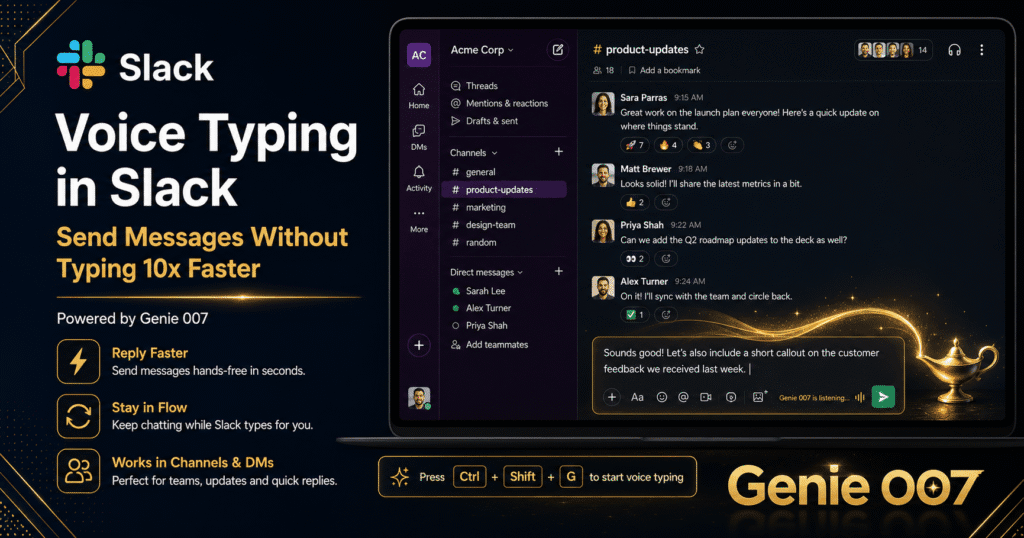
Step 3: Activate Genie 007 with your hotkey. Speak your message. Your words appear in the Slack message field in real time, properly punctuated and formatted.
Step 4: For Genie Mode: instead of dictating the full message, give a short command. Say “reply to this asking for the deadline and offering to help with the design” â Genie 007 reads the Slack thread visible on screen and writes a contextually appropriate response.
Step 5: Review and hit Enter to send. Most voice-typed Slack messages need zero editing. For Genie Mode outputs, a quick five-second review is good practice.
Slack Voice Workflows: What You Say, What Appears
Workflow 1 â Async standup update
You say: “Yesterday finished the landing page copy, today working on the product explainer video script, no blockers.”
Genie 007 writes: A properly formatted standup update with Yesterday, Today, and Blockers clearly separated â ready to paste into your standup channel.
Workflow 2 â Replying to a complex thread
You say: “Reply professionally acknowledging the concern and saying we will schedule a call this week to discuss the options.”
Genie 007 reads the thread and writes: A warm, professional reply that references the specific concern raised and proposes a call â without you having to re-read the entire thread to draft a response.
Workflow 3 â Channel announcement
You say: “Write an announcement for the team channel that the product demo is rescheduled to Thursday 3pm, link to the calendar invite.”
Genie 007 writes: A clearly formatted channel announcement with the key info structured and a placeholder for the calendar link â ready to post in seconds.
Common Problems with Voice Typing in Slack (and Fixes)
Text appears in the wrong field. Click directly inside the Slack message input before activating Genie 007. Slack has multiple input fields on screen â the message compose box, the search bar, thread reply boxes. A deliberate click before speaking solves this completely.
Genie Mode output does not reflect the thread context. Genie Mode reads the visible content on screen. For best results, scroll the Slack thread so the relevant messages are visible before giving the Genie Mode command. The more of the conversation Genie 007 can read, the more relevant the reply.
Microphone not activating in Slack. Check browser or desktop microphone permissions. On Mac: System Preferences â Security & Privacy â Microphone. On Windows: Settings â Privacy â Microphone. Ensure Genie 007 is listed and enabled.
Words transcribe incorrectly for technical Slack workspace terms. Add team names, project codenames, and internal jargon to Genie 007’s custom vocabulary list. Once added, they transcribe accurately every time.
Privacy: Your Slack Messages Stay Private
Slack conversations often contain confidential business information â project details, client names, internal strategy. When you use voice typing in Slack with Genie 007, your audio is processed locally on your device. No recordings are stored. No Slack content is sent to external servers. Genie 007 is GDPR compliant and HIPAA ready â important for teams in regulated industries where messaging confidentiality is required.
Frequently Asked Questions
Does Slack have built-in voice typing?
No. Slack does not have a native voice-to-text dictation feature in its desktop or browser app as of 2026. On mobile, you can use your phone’s keyboard microphone for basic dictation into Slack’s text field. For full voice typing in Slack on desktop â with AI context awareness â you need a system-level tool like Genie 007.
Can I use voice typing in the Slack desktop app?
Yes. Genie 007’s desktop app for Mac and Windows works with the Slack desktop application. Click any Slack message field, activate Genie 007, and speak. The experience is identical in both the browser and desktop versions of Slack.
Is voice typing in Slack safe for confidential business conversations?
With Genie 007, yes. Audio is processed locally â it never leaves your device. No Slack messages, thread content, or workspace information is sent to external servers. This is fundamentally different from cloud-based dictation tools that upload audio for processing. Full details at our security and privacy page.
How is voice typing in Slack different from Slack’s existing audio messages?
Slack audio messages are voice recordings sent as audio files â the recipient has to play them back. Voice typing converts your speech to text immediately, so the message appears as regular text in the channel. Recipients read it instantly without playing anything. Much faster for information exchange in busy channels.
Will voice typing in Slack work with huddles or calls?
Voice typing in Slack with Genie 007 works in text fields â the message compose box, thread replies, channel descriptions, and DMs. It is separate from Slack Huddles, which are audio/video calls. During a Huddle, you can still use Genie 007 to type messages in other Slack channels simultaneously without affecting the call audio.
Voice typing in Slack removes one of the biggest daily drains on knowledge workers â constant, slow, reactive typing. Speak your messages, let Genie 007 write them cleanly, and spend less time in your inbox.
Install Genie 007 Free â Add voice typing to Slack today. No credit card required.
Written by Bill Kiani, founder of Genie 007.