
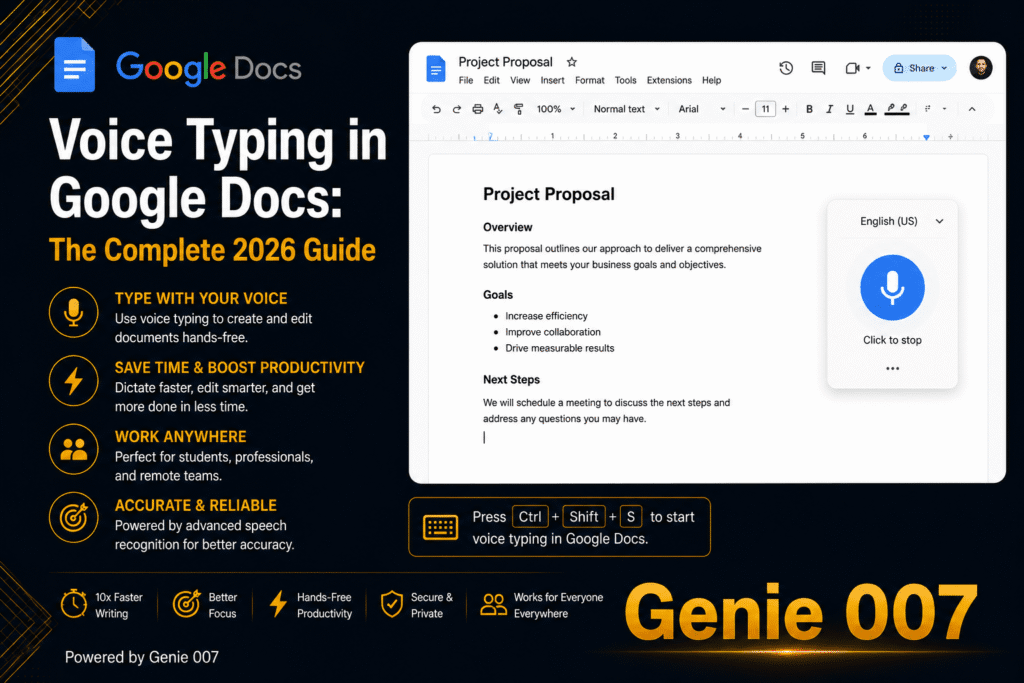
Google Docs has a built-in voice typing feature — and it’s one of the most frustrating tools in the Google Workspace. It only works in Chrome on desktop. Google docs voice typing is a feature many rely on, but Genie 007 takes it further.
It requires an active internet connection. It struggles with punctuation, formatting commands, and anything beyond basic English dictation.
And when it mishears you, the correction process is clunky enough to wipe out any time you saved by speaking in the first place. If you’ve tried Google Docs voice typing and given up, you’re not alone.
But the problem isn’t voice typing — it’s Google’s implementation.
Voice typing Google Docs with Genie 007 replaces all of those limitations with a voice typing tool that works in any browser, handles 140+ languages, processes speech locally for privacy, and integrates smoothly with the Google Docs interface you already know.
This guide covers the specific limitations of Google Docs’ built-in voice typing, how Genie 007 solves each one, workflows for document writing, editing, and collaboration, and why external voice typing produces better results in Google Docs than Google’s own tool.
What’s Wrong with Google Docs Voice Typing Built-In
Google Docs introduced voice typing years ago, and while it was impressive at launch, its limitations have become increasingly frustrating as voice technology has advanced elsewhere.
Chrome-only on desktop. Google Docs voice typing only works in the Chrome browser.
If you use Firefox, Safari, Edge, or Brave — or if your company mandates a specific browser — you can’t use it. Genie 007 works in every browser because it operates at the system level, not as a browser-specific feature.
Limited language support. While Google supports multiple languages, the accuracy drops significantly outside of English.
Accented English, code-switching between languages, and specialised vocabulary in other languages produce unreliable results. Genie 007 supports 140+ languages with consistent accuracy because its AI model understands multilingual context.
Cloud-dependent processing. Google’s voice typing sends your audio to Google’s servers for processing. This means it requires a stable internet connection, introduces latency, and sends everything you dictate through Google’s infrastructure.
For business documents containing sensitive information — financial projections, client data, legal drafts — this raises privacy concerns. Genie 007 processes all audio locally on your device, so nothing you dictate ever leaves your computer.
Poor punctuation and formatting. Google’s voice typing requires you to speak punctuation commands (“period,” “comma,” “new paragraph”), which breaks the natural flow of dictation and requires you to think about formatting while composing content.
This guide explores google docs voice typing in depth, comparing the built-in tool with Genie 007.
Genie 007’s AI model handles punctuation automatically based on context, so you can speak naturally and the text appears properly formatted.
No cross-application support. Google’s voice typing only works in Google Docs.
If you also write in Gmail, Google Sheets, Slack, Notion, or any other application, you need a different solution for each. Genie 007 works in every text field on every website and desktop application — including all of Google Workspace.
Setting Up Google Docs Voice Typing with Genie 007
Setting up voice typing for Google Docs with Genie 007 takes under a minute.
Step 1: Install Genie 007
Visit the Chrome Web Store and click “Add to Chrome.” The extension installs instantly and activates automatically on every website — including docs.google.com.
Step 2: Open Google Docs
Navigate to any Google Docs document. Click where you want to type. You’ll see the Genie 007 microphone icon available.
Click it or use the keyboard shortcut, speak your text, and watch it appear in the document. That’s the entire setup — no configuration, no permissions to grant, no settings to adjust.
Step 3: Write by Voice
Genie 007 works in every part of Google Docs — the main document body, comments, headers, footers, the document title, and even the search-and-replace dialog. Anywhere you can type, you can dictate.
Google Docs Voice Typing Workflows
Workflow 1: First Draft Writing
The fastest way to write a first draft in Google Docs is to speak it.
Voice dictation lets you get ideas out of your head and into the document at the speed of thought, without the friction of typing slowing down your creative process.
What you say: “The quarterly revenue report shows a 23 percent increase in subscription revenue compared to Q3, driven primarily by enterprise tier upgrades.
Three major accounts — Acme Corp, TechStart, and GlobalHealth — upgraded from Professional to Enterprise during October, contributing an additional 180 thousand in annual recurring revenue.
Churn remained flat at 4.
2 percent, which is below our 5 percent target. The marketing team’s ABM campaign targeting mid-market companies produced 47 qualified leads, 12 of which are now in active sales cycles.”
What appears in your document: A well-structured paragraph with proper numbers, company names, and business terminology — dictated in 30 seconds instead of the 90 seconds it would take to type.
For long documents like reports, proposals, and strategy memos, voice dictation cuts writing time by 60–70 percent.
Workflow 2: Document Editing and Comments
Google Docs’ commenting system is central to collaborative workflows.
Voice dictation makes leaving detailed, constructive comments fast enough that you’ll actually do it — instead of leaving vague notes like “needs work” because typing a thorough comment feels like too much effort.
What you say (in a comment): “This section needs stronger data to support the claim about market growth. Can you add the Gartner or Forrester projection for 2027?
Also, the second paragraph repeats the point made in the introduction — consider cutting it and jumping straight to the competitive analysis. The tone in the last paragraph shifts too formal compared to the rest of the document.”
What appears as your comment: Specific, actionable feedback that helps the author improve the document. Speaking this took 15 seconds.
Typing it would take 40 seconds — which is why most Google Docs comments are one-line afterthoughts instead of useful editorial guidance.
Workflow 3: Meeting Notes and Agendas
Google Docs is the default meeting notes tool for many teams. Voice dictation lets you capture discussion points, action items, and decisions as they happen — far faster than typing during a meeting.
What you say during a meeting: “Sarah will follow up with the legal team about the contract amendment by Friday. The product launch date is confirmed for March 15th.
Marketing needs the final asset list by end of next week. James raised concerns about the API rate limiting — engineering will investigate and report back at the next standup.”
What appears in your meeting doc: Clean, structured notes with names, dates, and specific action items — captured in real time without taking your attention away from the conversation.
Voice dictation during meetings is one of the highest-value use cases because it lets you participate fully while still maintaining accurate records.
Workflow 4: Multilingual Documents
For teams that work across languages — international companies, translation workflows, multilingual content creation — Genie 007’s 140+ language support is significant. Google’s built-in voice typing has limited multilingual capability and can’t handle language switching within a single dictation session.
What you do: Dictate a paragraph in English, then switch to Spanish for the translated version, then add notes in French — all in the same document, all by voice, without changing any settings.
Genie 007’s automatic language detection handles the transitions smoothly.
Google Docs Voice Typing vs Genie 007: Key Differences
Browser compatibility. Google: Chrome only. Genie 007: Every browser (Chrome, Firefox, Safari, Edge, Brave, Arc) plus desktop applications.
Internet requirement. Google: Requires active internet connection. Genie 007: Processes speech locally on your device — works offline and with no latency.
Privacy. Google: Audio sent to Google servers. Genie 007: All processing happens on your device. No audio data leaves your computer.
Language support. Google: Supports multiple languages but with variable accuracy. Genie 007: 140+ languages with consistent AI-powered accuracy and automatic language detection.
Punctuation. Google: Requires spoken commands (“period,” “comma”). Genie 007: AI handles punctuation automatically from natural speech.
Scope. Google: Only works in Google Docs. Genie 007: Works in every text field on every website and desktop application — Google Docs, Gmail, Sheets, Slides, Notion, Slack, and everything else.
Privacy for Google Docs Voice Typing Users
Google Docs often contains sensitive business information — financial data, strategic plans, client details, legal documents, and HR records. The voice typing tool you use should handle this data with the same security as the documents themselves.
Genie 007 processes all speech locally on your device. No audio recordings are created, stored, or transmitted to any server. The only output is text in your Google Docs document, which is protected by Google’s own security infrastructure.
Your spoken words never leave your machine — only the resulting text enters Google Docs. For full details, read the security and privacy guide.
Frequently Asked Questions About Google Docs Voice Typing
Does Genie 007 work with Google Docs on mobile?
The Genie 007 Chrome extension works on desktop browsers. For mobile Google Docs, your device’s built-in voice keyboard (iOS or Android) provides voice input. The Genie 007 desktop application covers all computer-based Google Docs workflows.
Can I use voice typing in Google Sheets and Google Slides too?
Yes. Genie 007 works in every Google Workspace application — Docs, Sheets, Slides, Gmail, Calendar, and Meet chat. Any text field in any Google application supports voice input through Genie 007.
Will voice-typed text trigger Google Docs’ spell check and grammar suggestions?
Yes. Voice-typed text appears in Google Docs exactly like typed text. All of Google Docs’ built-in features — spell check, grammar suggestions, Smart Compose, and formatting — work normally with voice-typed content.
Does it work with Google Docs offline mode?
Yes. Since Genie 007 processes speech locally on your device, it works even when Google Docs is in offline mode. You can dictate into your document without an internet connection, and the text will sync when you reconnect.
Start Google Docs Voice Typing with Genie 007 Today
Google Docs’ built-in voice typing was a good idea limited by bad execution — Chrome-only, cloud-dependent, and disconnected from the rest of your workflow.
Genie 007 delivers what Google’s tool promised: fast, accurate voice typing that works everywhere in Google Docs, in any browser, in 140+ languages, with your audio staying private on your device.
Try it on your next document: install Genie 007, open Google Docs, and speak your next paragraph instead of typing it.
The difference in speed and comfort is immediate — and once you experience writing by voice, typing long documents feels unnecessarily slow.
Explore how Genie 007 works across your full workflow, including voice typing for every application and the full integration ecosystem. For privacy details, read our security and privacy guide.
Try Google Docs Voice Typing with Genie 007 — Free
Better than built-in. Works in every browser. 140+ languages. Install Genie 007 from the Chrome Web Store and upgrade your Google Docs voice typing.
Get Genie 007 for Chrome — Free, forever. No credit card. Works on every website including all of Google Workspace.
Written by Bill Kiani, founder of Genie 007.