
If you want to know how to dictate on iPhone, Apple builds a capable dictation tool directly into iOS — no separate download, no Siri command required. It works inside every app on your phone, wherever a keyboard appears. This guide covers enabling it, getting reliable accuracy, fixing common faults, and — for those who want to go further — moving from literal transcription to finished content without the manual editing step.
What iOS Dictation Actually Is (and Is Not)
Apple’s built-in feature, commonly called iOS dictation, is not the same as Siri. Siri is a voice assistant: you give it a command — “set a timer”, “call Mum” — and it acts on your behalf. Dictation is a voice keyboard: tap the microphone icon at the bottom of the keyboard, speak, and your words appear as typed text wherever your cursor sits — whether that is a text message, a Notes entry, a Google search bar, a WhatsApp chat, or any other text field in any app.
On iPhone XS and later running iOS 16 or above, most dictation is processed on-device. That means it is fast, works without an active internet connection for many languages, and does not transmit your audio to Apple’s servers for everyday use. For unusual proper nouns, highly technical vocabulary, or certain languages, a brief cloud connection may be used. According to Apple’s official iPhone dictation documentation, you can also combine typing and dictation in the same session — the keyboard stays visible during dictation so you can switch between speaking and tapping at any moment.
How to Dictate on iPhone: Enabling iOS Dictation Step by Step
Enabling dictation takes under a minute, and you only need to do it once.
- Open the Settings app.
- Tap General, then Keyboard.
- Scroll to Enable Dictation and toggle it on.
- Tap Enable Dictation in the confirmation prompt that appears.
Once enabled, a microphone icon appears on the bottom row of the Apple keyboard — typically to the left of the space bar. Tap it once to begin speaking; your words appear in real time. Tap it again to stop. The microphone stays active until dismissed, so you can speak at length without holding anything down. If you use a third-party keyboard such as Gboard, the icon may not appear — switch back to the Apple keyboard in Settings.
Adding Languages to iOS Dictation
iOS dictation supports more than 60 languages. To add one, go to Settings > General > Keyboard > Dictation Languages and select your preference. If you regularly write in two languages — English and French, for instance — both can be active simultaneously and iOS will attempt to detect which you are speaking based on context.
Tips for Better Accuracy
A few consistent habits produce noticeably cleaner transcripts. Speak at a measured, natural pace rather than rushing — the recognition model handles conversational speech well but can lose track under rapid fire delivery. Hold the phone 15 to 20 centimetres from your mouth in a reasonably quiet environment. Say punctuation aloud where precision matters: “full stop”, “comma”, “question mark”, “new paragraph”. To insert an emoji, say “heart emoji” or “thumbs up emoji” and iOS converts the phrase to the character. In quiet settings iOS auto-punctuates reliably; in noisy ones, spoken punctuation commands give you cleaner first drafts.
iPhone Dictation Not Working? Six Fixes That Actually Help
When the microphone icon disappears or dictation stops producing text, one of six issues is almost always responsible. The table below maps symptom to cause and fix.
| Symptom | Most Likely Cause | Fix |
|---|---|---|
| Microphone icon missing from keyboard | Third-party keyboard active, or dictation disabled | Switch back to the Apple keyboard; toggle Enable Dictation off and on in Settings > General > Keyboard |
| Dictation starts but no text appears | Language mismatch or no internet on older devices | Check Settings > General > Keyboard > Dictation Languages; connect to Wi-Fi or mobile data |
| Enable Dictation toggle is greyed out | Screen Time restriction blocking the feature | Settings > Screen Time > Content and Privacy Restrictions > Allowed Apps — enable Dictation |
| Dictation stalls after a few words | Audio processing cache corrupted | Hard restart: press and release Volume Up, press and release Volume Down, then hold the Side button until the Apple logo appears |
| Transcription is wildly inaccurate | Wrong active language selected | Confirm the correct language is set under Settings > General > Keyboard > Dictation Languages |
| No audio captured at all | Blocked or faulty microphone | Open Voice Memos and record a short test clip; if silent, remove any case covering the microphone port and disconnect Bluetooth headsets that may be capturing audio instead |
If none of the above resolves the problem, reset the keyboard dictionary as a final step: Settings > General > Transfer or Reset iPhone > Reset > Reset Keyboard Dictionary. This clears learned words and autocorrections but does not touch any other data on the device.
Advanced iOS Dictation Techniques Most People Skip
Rich text formatting by voice. In Apple Notes and several other editors, you can say “bold [word]”, “make [phrase] italic”, or “underline [word]” and iOS applies the formatting without you touching the screen. This is particularly useful when dictating structured notes with key terms you want to highlight.
Dictation works in every app, not just Apple’s. Because dictation is a keyboard-level feature, it is available wherever the keyboard opens — WhatsApp, Slack, LinkedIn, Gmail, Instagram, any productivity tool you use. There is no per-app configuration; if a text field exists and the keyboard is open, the microphone icon is there.
Hands-free navigation beyond typing. If you need to operate the entire phone without touching the screen — for accessibility or simply because your hands are occupied — iOS Voice Control is a separate and more powerful feature found at Settings > Accessibility > Voice Control. It allows you to tap buttons, scroll, and navigate menus entirely by voice. Voice Control and standard dictation work independently and can be used alongside each other.
The Ceiling of Built-In iPhone Dictation
Apple’s dictation is a transcription engine. It captures what you say, word for word, and outputs a faithful record of your speech. That is genuinely useful — but it means the quality of the final text depends entirely on how well you can compose and deliver complete, correctly-phrased sentences out loud, in real time, with no pause to reconsider.
For a short text or a quick note to yourself, this is not a problem. For anything longer or more considered — a professional email, a LinkedIn reply, a client message that requires a specific tone — the transcript approach starts to create more work than it saves. You dictate, read it back, edit the awkward phrasing, dictate corrections, read again. You can see the speed maths behind this in a detailed comparison of dictation vs typing speed, which looks at where voice input genuinely outpaces the keyboard and where it does not.
The deeper issue is that plain transcription captures your words, not your intent. When you want to write a thoughtful reply to a colleague, you often know the outcome you want before you know the exact sentences to use. A literal transcription tool cannot bridge that gap. For a grounded look at how voice typing works under the hood — why accuracy fluctuates and where the technology reaches its limits — that guide explains the mechanics clearly.
Going Far Beyond Siri: Think-to-Text on iPhone
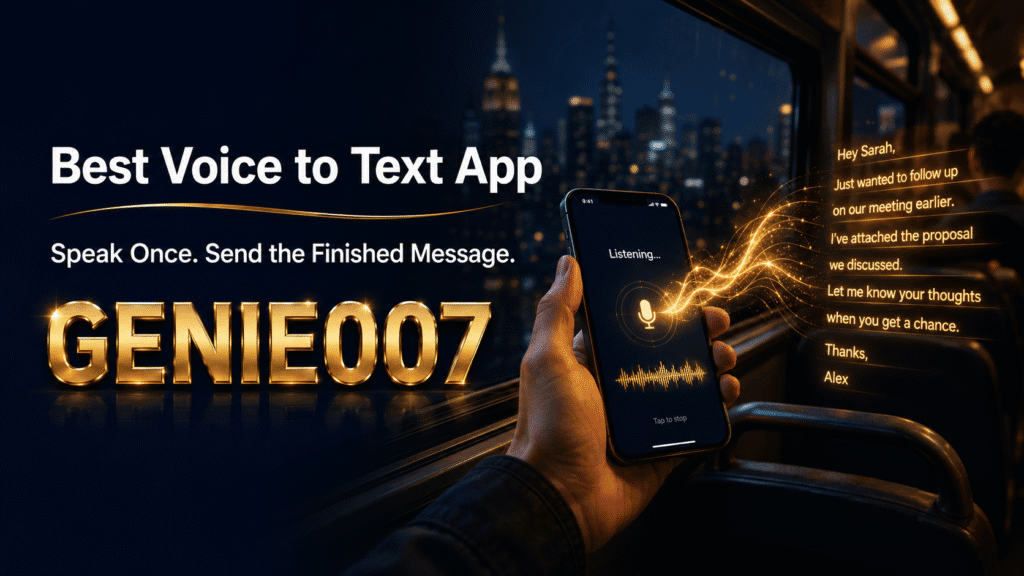
This is where Genie 007 offers something materially different from both Siri and Apple’s keyboard dictation. Rather than transcribing your words literally, Genie 007 is built on the concept of think-to-text: you share your thoughts — rough, incomplete, in whichever order they arrive — and it produces the finished content you were trying to write. The gap between what you say and what you need to send is closed by the AI, not by you.
Suppose you have a client meeting tomorrow and need to send a preparation email. With Apple dictation, you would need to deliver something close to the final email as you speak, then tidy it afterwards. With Genie 007, you might say: “Email to Marcus, meeting prep, confirm agenda — three points: quarterly numbers, hiring plan, Q3 budget sign-off — professional tone, keep it brief, two short paragraphs.” From that, Genie 007 generates a complete, polished email. No editing required.
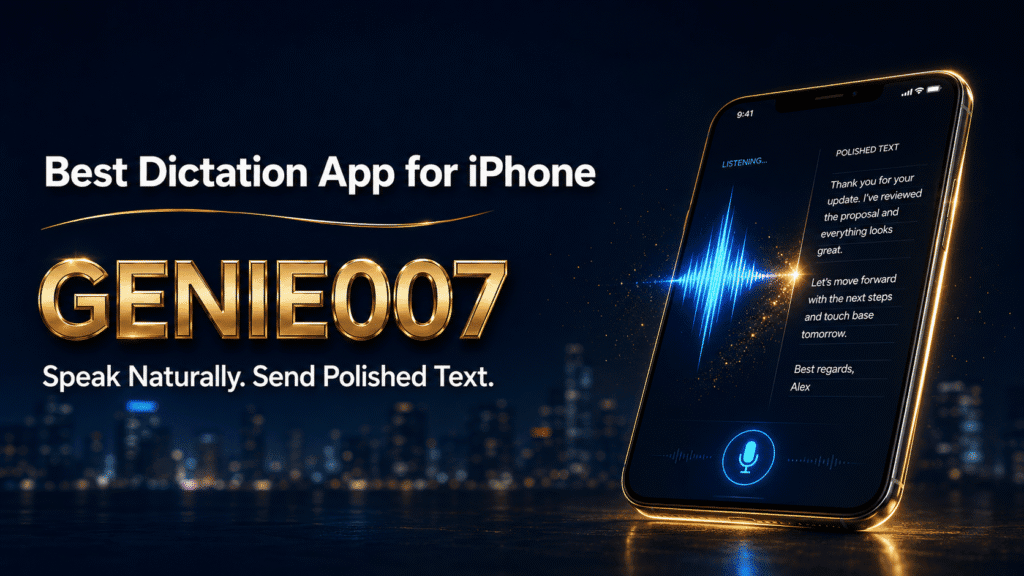
The Genie 007 mobile app brings this capability to iPhone and Android, and your account works consistently across every platform. The writing style preferences and voice commands you establish on your phone carry through to your Windows machine, Mac, and browser extension — the same account, the same quality of output, no reconfiguring between devices. If you are evaluating the best dictation app for iPhone, the distinction between raw transcription and intent-driven voice writing is the key question to answer for your own workflow. One produces words; the other produces what you meant to say.
Genie 007 also covers over 140 languages with live translation built in — speak in English and receive a polished message in French, Spanish, or another language without a separate translation step. For the everyday workflow in action, the talk-to-type guide shows how this looks in practice across common communication tasks.
Frequently Asked Questions
How do I enable dictation on my iPhone?
Go to Settings, tap General, then Keyboard, and toggle Enable Dictation on. A microphone icon will appear on the bottom row of your iPhone keyboard in every app that accepts typed text. Tap it once to start speaking and tap it again to stop. It activates immediately with no further setup and supports more than 60 languages via the Dictation Languages setting.
Why is my iPhone dictation not working?
The most common causes are: dictation is disabled in Settings > General > Keyboard, a third-party keyboard has replaced the Apple keyboard, or a Screen Time restriction is blocking the feature. Toggling Enable Dictation off and back on resets it in most cases. If dictation starts but produces no text, check your internet connection and verify the correct language is selected. A hard restart — Volume Up then Volume Down then hold Side button — clears most temporary audio processing faults.
What is the difference between Siri and iPhone dictation?
Siri is a voice assistant: you direct it to carry out an action — send a message, play a song, set an alarm — and it acts on your behalf. Dictation is a voice keyboard: it converts your speech into typed text inside whichever text field is active on screen. Both rely on microphone input, but dictation is for writing text inside apps, while Siri handles instructions directed at the phone itself. The two features are independent and you can use both according to what a task requires.
Try Genie 007 Free
If Apple’s built-in dictation is the starting point, Genie 007 is what comes next — turning rough spoken thoughts into polished emails, LinkedIn posts, and messages in moments, on your iPhone, your laptop, or inside your browser.
Download Genie 007 free — available for Windows, Mac, mobile and as a browser extension. No credit card required.
Written by Bill Kiani, founder of Genie 007.