

Table of Contents
If you want to talk to your computer and actually get things done, this guide is for you. You’ve probably already talked to your computer. Maybe you said “Hey Siri, set a timer” or asked Alexa to play music. Those interactions worked — within their narrow scope. But then you said something work-related, something that required real understanding — and the system either misunderstood you, said it couldn’t help, or returned a list of web search results.

The frustration with voice assistants isn’t that talking to computers doesn’t work. It’s that the computers haven’t been listening properly. In 2026, that has changed — but only for a specific category of tools. This article explains what those tools are, why they work when others don’t, and how to actually get things done by talking to your computer.
If Windows built-in dictation misbehaves, here is how to fix Windows 11 voice typing.
Talk to Your Computer and Get Things Done: Why It Works Now
Voice assistants have been around since 2011. For fifteen years, the promise has been the same: talk naturally, get help naturally. The fundamental problem isn’t speech recognition accuracy — that’s now genuinely excellent. The problem is that most voice systems operate without context and without execution capability.
Ask Siri to “summarise the email from David and draft a reply saying I’ll be there Thursday” — at best, it opens your email app. The system isn’t broken because it couldn’t hear you — it’s broken because it has no idea what email you’re talking about, can’t read it, and can’t draft and place a reply. We cover this architecture problem in detail in Why Your Voice Assistant Is Useless at Work.
Voice Commands for Productivity: Three Things That Have to Be True
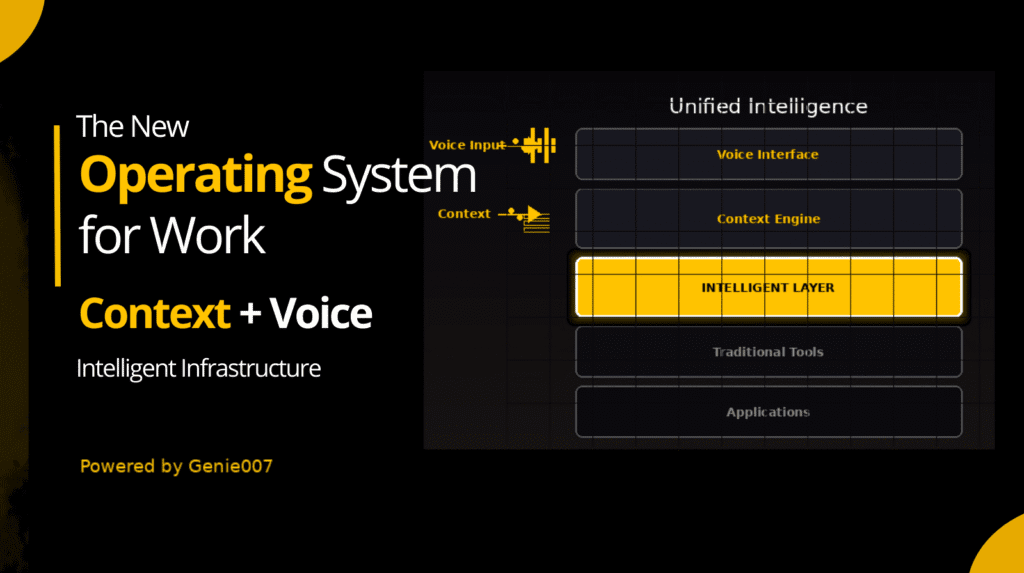
For talking to your computer to actually get things done, three capabilities must be present simultaneously:
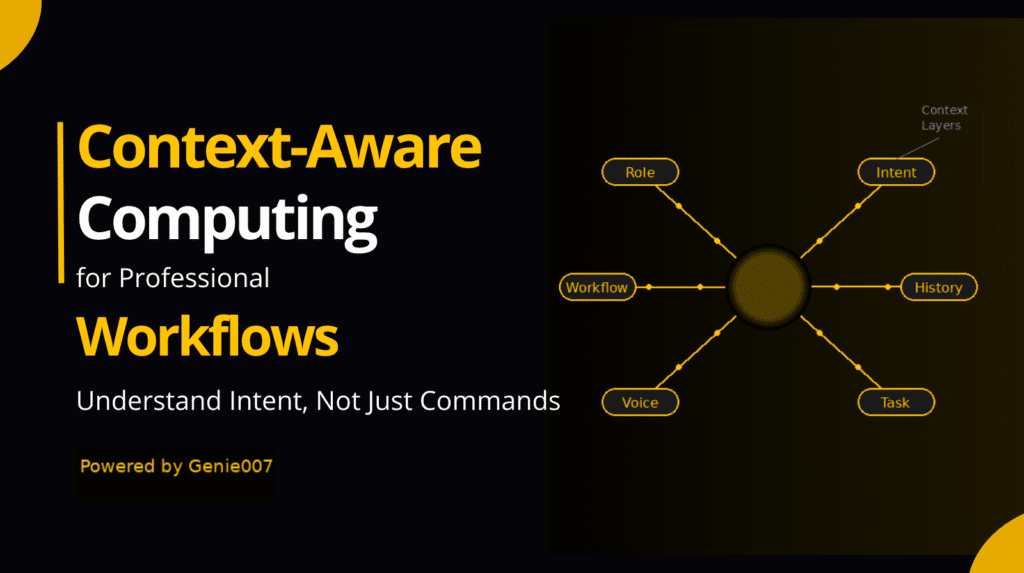
Context reading: The system needs to know what you’re currently doing — what tab is open, what document you’re viewing, what email thread you’re reading. Without this, every command requires a paragraph of explanation.
Intent understanding: The system needs to understand what you want to achieve, not just transcribe what you said. “Reply to this” means different things in Gmail vs. Slack vs. LinkedIn. Natural language understanding — real understanding, not keyword matching — is what separates functional voice AI from useless voice AI.
Action execution: The system needs to take the action inside the app where you need it done. Not suggest how you could do it. Not generate text to copy elsewhere. Open the reply window. Place the draft. Update the database. Send the message. Genie 007 is the first consumer-accessible tool to combine all three at browser level.
What You Can Actually Get Done by Talking to Your Computer
Communication
- “Reply to this email saying I’ll have it done by end of day Friday”
- “Forward this to the team and add a note saying we need to discuss on Thursday’s call”
- “Write a Slack message to the #design channel asking if the new mockups are ready”
- “Draft a LinkedIn post about today’s product launch — keep it punchy, end with a question”
Research and Synthesis
- “What are the three main points in this document?”
- “Find the latest pricing for Notion’s business plan and compare it to Confluence”
- “Summarise this Slack thread — what decisions were made?”
Content and Documents
- “Add a section to this Notion page summarising today’s meeting”
- “Make this paragraph shorter and more direct”
- “Create a new Google Doc called ‘Q3 Review’ with sections for Results, Learnings, and Next Steps”
Multi-Step Tasks (Agent Mode)
- “Read the brief from Sarah, draft a project proposal based on it, and send it to her for review”
- “Find three competitors to our product, open their pricing pages, and put a comparison table in a new Google Sheet”
- “Go through my inbox and flag anything from clients that hasn’t been replied to in more than two days”
None of these required typing. None required carefully crafted prompts. You just said what you wanted, and the work happened. For more examples, see Voice Commands That Actually Do Things.
Genie Mode vs. Agent Mode
Genie Mode is for single-context, in-the-moment tasks. You’re in Gmail, you have an email open, you say what you want done. Fast, immediate, no setup. This is what you use for 80% of daily interactions.
Agent Mode is for multi-step goals that span time or applications. Describe an objective; the AI works through the steps autonomously — navigating between tabs, reading from one app and acting in another. Use this for research tasks, cross-app workflows, and anything that normally takes 10 minutes of manual tab-switching.
Practical rule: if the task takes more than one step or involves more than one app, use Agent Mode. If it’s a single action in your current app, Genie Mode is faster. Read more about both in Replace Your Keyboard With Your Voice.
Your First Week: Voice to Text Productivity in Practice
Day 1–2: Use it exclusively for email replies. Every time you need to reply, speak it instead of type it. Get used to “reply to this saying…” and letting the AI handle the draft.
Day 3–4: Add Slack and messaging. Any Slack reply, any social post — speak it. This is where voice starts feeling faster than typing.
Day 5–7: Start Agent Mode for one multi-step task per day. Pick something that takes you 5–10 minutes of manual work — a research task, a cross-app update — and let Agent Mode handle it from a voice command.
By the end of week one, most users are at 50–60% voice for their work interactions. By week four, 70–80%.
The Human Side of Voice-First Work
Typing has always been a translation layer — you have a thought, you convert it to keystrokes, the system receives characters. Speaking removes the translation. You think something and it happens.
For people who are naturally verbal — who think by talking, who are more articulate in conversation than in writing, who have dyslexia, ADHD, or motor impairments — this isn’t just a productivity gain. It’s a fundamentally different and better experience of working with technology. For more on this, see How to Use AI at Work Without Being a Prompt Engineer.
Frequently Asked Questions
How is this different from Siri or Google Assistant?
Siri and Google Assistant are system-level assistants — OS commands, factual questions, device settings. They can’t read what’s in your Gmail or Slack. They can’t execute multi-step browser workflows. Genie 007 operates at browser level, where your work actually happens.
Does it work on Windows and Mac?
Yes. Genie 007 is a Chrome extension — works anywhere Chrome runs: Windows, Mac, and Chromebook.
What happens to my voice data?
Audio is processed locally on your device — converted to text intent on your computer before anything is sent anywhere. Raw audio never leaves your machine. GDPR and HIPAA compliant.
What if I’m not fluent in English?
Genie 007 supports 140+ languages with high recognition accuracy. Switch languages within the same session — built for global knowledge workers.
Related Reading
- Why Your Voice Assistant Is Useless at Work — The problem with Siri, Alexa, and Google Assistant
- Voice Commands That Actually Do Things — What real voice-to-action looks like
- How to Use AI at Work Without Being a Prompt Engineer — Getting value from AI without the friction
- Replace Your Keyboard With Your Voice — Going fully voice-first for knowledge work
- Best AI Productivity Tools 2026 — The full landscape of useful AI tools
According to research from Gartner, voice-enabled AI tools are among the fastest-growing productivity solutions for workplace professionals.
The Bottom Line
Talking to your computer and actually getting things done isn’t a future promise — it’s available now, but only with tools built around context-reading, intent understanding, and action execution. The voice assistants you’ve tried before weren’t the right tools. They heard you but couldn’t act on what you said.
Voice-to-action changes that equation completely. When the AI knows what you’re looking at, understands what you need, and executes it inside your apps — talking to your computer stops feeling gimmicky and starts feeling like the most natural way to work.