
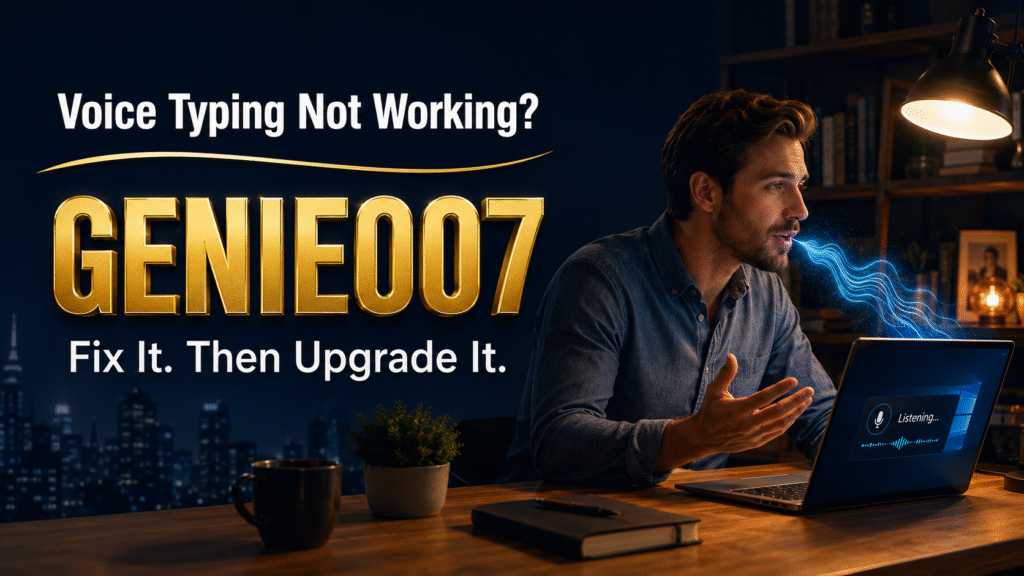
Windows 11 voice typing not working mid-sentence is one of the most common complaints in the Microsoft Q&A forums, and the fix is usually quicker than the frustration suggests. Most cases trace back to a handful of things: an unselected microphone, a privacy toggle, a missing language pack, an app quietly blocking dictation, or confusion between voice typing and Windows 11’s separate Voice Access tool. This guide covers each cause with the exact setting to check, why voice typing keeps stopping windows users mid-flow, and a faster option than any built-in Microsoft tool for daily use.
Windows 11 Voice Typing Not Working? Start With These Checks
Before digging through Device Manager, run through the list below in order. Microsoft’s own voice typing troubleshooting page covers most of these, and they resolve the majority of cases without a reinstall or driver update.
If the issue is specific to Microsoft Word rather than Windows-wide, see our dedicated guide on how to dictate in Word and what causes the Dictate button to disappear.
If your voice typing is working correctly again and you want to compare every free speech to text option on Windows 11, see our full roundup of every built-in Windows 11 dictation tool tested.
| Symptom | Likely cause | Where to fix it |
|---|---|---|
| Win+H does nothing | Voice typing launcher switched off, or another app has grabbed the shortcut | Settings > Time & language > Typing |
| Mic icon opens but no text appears | Wrong input device selected, or input level too low | Settings > System > Sound > Input |
| “Needs access to your microphone” message | Microphone access blocked system-wide or per-app | Settings > Privacy & security > Microphone |
| Works in Word, fails in other apps | Online speech recognition disabled, or that app lacks mic permission | Settings > Privacy & security > Speech |
| Dictation starts but words are missing or garbled | Enhanced Speech Recognition language pack not installed | Settings > Time & language > Language & region |
| Stops the moment you press a key | Expected behaviour, not a fault — see below | N/A |
Roughly half of the reports on Microsoft’s support forums trace back to the first two rows: the wrong microphone selected in Sound settings, or an app that was never granted microphone access. Both take under a minute to check, so start there first.
How to Fix Windows 11 Voice Typing, Step by Step
Once you’ve narrowed down the likely cause, work through the matching fix below.
Win+H Does Nothing When You Press It
Open Settings, then Time & language, then Typing, and make sure the “Voice typing launcher” switch is on — a separate toggle from the feature itself that’s easy to miss. If it’s already on, check whether another app has claimed the Win+H shortcut; some older utilities and system tray tools intercept keyboard shortcuts before Windows can act on them, so close background apps and try again. Finally, confirm the Touch Keyboard and Handwriting Panel Service is running via Win+R, then services.msc.
Voice Typing Keeps Stopping Windows Mid-Dictation
This isn’t a bug. Windows 11 voice typing is built for short bursts of dictation into a single field, not continuous hands-free control, so pressing Enter, Tab or an arrow key, or clicking into another window, ends the session by design. If you need dictation that survives editing and navigation, Voice Access (covered below) is the tool built for that job. If sessions end even without touching the keyboard, a corrupted language pack registration is often the cause — removing and reinstalling your dictation language under Language & region usually clears it.
It Works in One App But Not in Another
Voice typing depends on Microsoft’s online speech recognition service, so check Settings > Privacy & security > Speech and confirm Online speech recognition is on. Then check the specific app has microphone permission under Settings > Privacy & security > Microphone — Windows grants access per app, so Word can work fine while a browser tab is silently blocked. Some web apps also don’t expose a proper text field for voice typing to attach to — a limitation of that site, not Windows.
No Text Appears After You Speak
Open Settings > System > Sound > Input and confirm the microphone you’re using is selected, then check the input volume isn’t near zero. Built-in laptop microphones are the usual culprit in a noisy room — see our guide on dictation in noisy places for positioning and settings that help. If the input level looks fine, run the Recording Audio troubleshooter under Settings > System > Troubleshoot > Other troubleshooters, and update your audio driver if Windows Update hasn’t pushed a recent one.
Voice Typing vs Voice Access: The Confusion Behind “Windows Dictation Not Working”
A large share of people who search windows dictation not working are actually hitting a mismatch between two different features, not a fault in either. Voice typing (Win+H) is a lightweight dictation tool: it converts speech to text in whatever field has focus and does nothing else. Voice Access is a full accessibility feature that can open apps, click buttons, scroll pages and dictate text, processing speech on-device rather than sending audio to Microsoft’s servers — so it also works offline.
According to Microsoft’s Voice Access FAQ, the two tools are intentionally separate: voice typing is the fast option for a single text box, while Voice Access suits anyone who wants to run more of their PC by voice, including dictating without losing control the moment they touch the keyboard. If dictation drops out whenever you edit or navigate, you likely want Voice Access, not a fix for voice typing.
Where Windows 11’s Built-in Dictation Hits a Wall
Once everything above works, it’s worth being honest: this is a transcription tool, not a writing tool. Voice typing writes down exactly what you say, filler words included; every comma or paragraph break must be spoken as a command or added back by hand. A Stanford University study found speech-based text entry ran at roughly three times the speed of typing — 161 words per minute by voice versus 53 by keyboard, with fewer errors. Windows 11 voice typing gives you that raw speed, but not the clean-up time back.
There’s also the app-by-app inconsistency covered above, the online-only accuracy dependency, and the fact that voice typing has no memory of how you write. It won’t learn your usual sign-off, shift tone between a Slack message and a client email, or turn a rambling voice note into tidy bullet points — it just types what it hears, one field at a time.
A Faster Option: Genie 007 for Windows
This is the gap Genie 007 closes. Instead of transcribing your words literally, Genie 007’s Genie Mode listens for what you mean and produces the finished message — a LinkedIn post, a cold email, a Slack reply — properly formatted and matched to the tone that platform needs, without a spoken punctuation command. Its Voice Typing mode handles everyday dictation with automatic punctuation and formatting in your own writing style, so you stop saying “comma” altogether.
Genie 007 also doesn’t care which app has focus. It works inside Gmail, Outlook, LinkedIn, Slack, Teams, Notion and dozens of other apps on the same Windows app, so you’re not troubleshooting mic permissions app by app the way you are with voice typing. Speak in one language and get polished text in another with live translation across 140+ languages, all processed in-browser and on-device with zero data retention. Compare it in the best dictation software for Windows in 2026, see the tech in how voice typing works, or follow setup steps in voice typing on Windows 11: full setup guide. Chrome-specific faults get their own fix in our Chrome voice typing troubleshooting guide. Plans start at £5 a month on the pricing page, free trial, no card required.
FAQ
Real questions people ask alongside these fixes, answered directly below.
Why is Windows 11 voice typing not working after a recent update?
Post-update failures are usually a language pack that didn’t reinstall cleanly, or the “Voice typing launcher” toggle resetting to off. Check Settings > Time & language > Typing first, then Language & region to confirm Speech recognition still shows as installed for your dictation language, reinstalling it if not.
Why does Win+H voice typing keep stopping on its own?
Voice typing ends the session when you press Enter, Tab or an arrow key, or click away from the text field, because it’s built for short dictation bursts rather than continuous control. If you need dictation that survives editing and navigation, Voice Access is the Windows 11 feature designed for that.
What’s the difference between Voice Typing and Voice Access in Windows 11?
Voice Typing (Win+H) only converts speech to text in the field you’re focused on and needs an internet connection for its online speech service. Voice Access can additionally open apps, click, scroll and navigate your whole PC by voice, and runs its recognition on-device, so it also works without an internet connection.
Does Windows 11 voice typing work offline?
No — standard voice typing relies on Microsoft’s online speech recognition service, so it stops working without an internet connection. If offline dictation matters to you, Voice Access uses on-device recognition and continues to function without a network connection.
Why does voice typing work in Word but not in my browser?
This is almost always a permissions issue rather than a fault with Word or Windows generally. Check Online speech recognition is enabled under Settings > Privacy & security > Speech, then confirm your browser has microphone access under Settings > Privacy & security > Microphone — some web pages also don’t expose a text field that voice typing can attach to.
If you’re also trying to understand why WSR disappeared in the first place, our full guide explains what happened to Windows Speech Recognition and what replaced it.
Once voice typing is working again, you can use it in any Office app — including spreadsheets. See our dedicated guide on how to dictate in Excel for cell-by-cell data entry without touching the keyboard.
Try Genie 007 Free
If chasing Windows settings has fixed the fault but you’re still typing “comma” and “full stop” out loud, Genie 007 replaces that whole workflow with dictation that punctuates, formats and sounds like you automatically.
Download Genie 007 free — available for Windows, Mac, mobile and as a browser extension. No credit card required.
Written by Bill Kiani, founder of Genie 007.
Small teams who need shared credits and a self-serve admin portal will find a full breakdown of options in our guide to AI voice assistants for small business.
If built-in voice typing keeps letting your team down, our guide to dictation software for small business explains what to look for in a reliable paid alternative.
If you run into microphone or recognition issues during your dictation sessions, the troubleshooting steps here resolve the most common setup problems authors encounter — see also our guide on how to dictate a book for the full workflow.
For dyslexic writers who rely on dictation to bypass spelling challenges, a reliable setup is especially important — our guide to voice typing for dyslexia explains how to build a workflow that sticks.
Once your voice setup is working, the next step is getting the most from it — see our full guide on how to type faster, including the voice techniques that go beyond built-in tools.