
Voice typing in Google Docs is one of the most underused features in the entire Google Workspace suite. It is built in, it is free, and it works right now without downloading anything. If you are still typing everything you write in Google Docs, you are leaving a serious speed advantage unused.
This guide covers how voice typing in Google Docs works, how to get the most out of it, and when a tool like Genie 007 is worth using instead for AI-powered writing across your entire browser.
How to Enable Voice Typing in Google Docs
Voice typing in Google Docs is available in Chrome browsers on desktop. On mobile, it works through your phone’s built-in keyboard microphone rather than the dedicated voice typing feature.
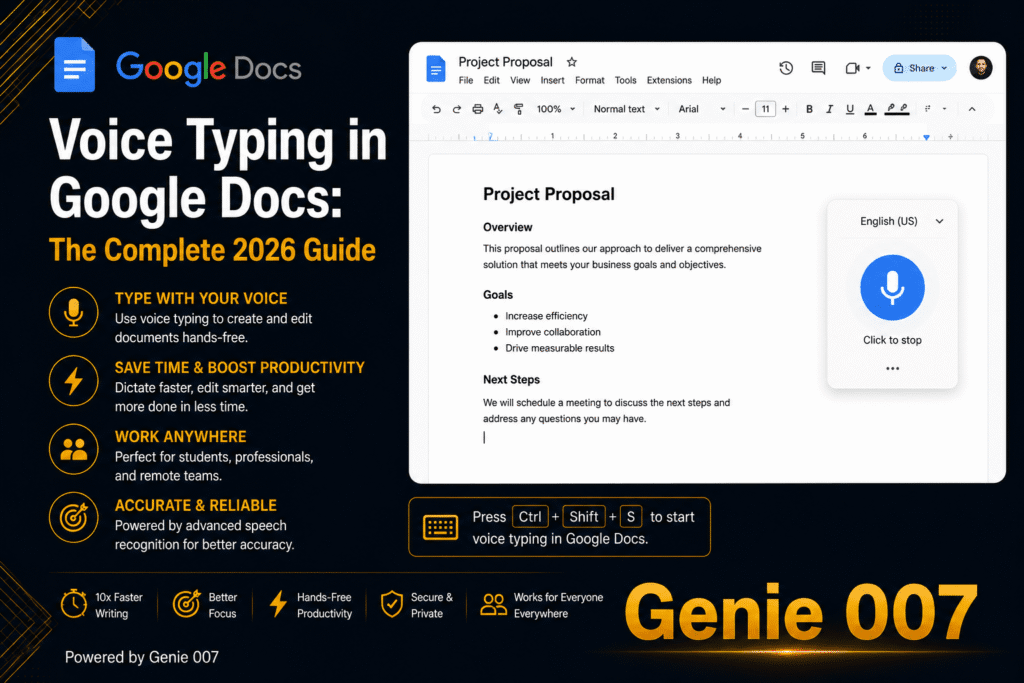
To start: open a Google Doc in Chrome, click Tools in the top menu, then click Voice typing. A microphone icon appears on the left side of your document. Click it to begin. It turns red when active. Speak normally — your words appear in real time.
That is the complete setup. No account changes, no extensions, no additional permissions beyond your microphone.
Voice typing in Google Docs automatically handles common punctuation if you say the words: “period”, “comma”, “question mark”, “exclamation point”, “new line”, “new paragraph”. You can also say “select all”, “bold”, “italics”, and basic formatting commands to control the document without touching the keyboard.
Voice Typing in Google Docs: What Works Well
Voice typing in Google Docs performs well for a specific range of tasks. Understanding where it excels helps you use it effectively.
First draft writing: Long-form content — blog posts, essays, reports, letters — benefits enormously from voice typing. You dictate at roughly 130 words per minute compared to typing at 40. A 1,000-word first draft takes under 10 minutes by voice versus 25 minutes by typing.
Brainstorming and note-taking: Dump your raw ideas by speaking without stopping to organise. Voice typing in Google Docs captures your stream of thought faster than typing can. Organise and structure the output afterwards.
Meeting notes: Open a Google Doc and speak key points, decisions, and action items immediately after a meeting while your memory is fresh. The speed of voice captures more than typing would.
Dictation in other languages: Google Docs voice typing supports multiple languages. Switch the language in the voice typing panel dropdown before recording.
Limitations of Voice Typing in Google Docs
Voice typing in Google Docs is genuinely useful, but it has limits that matter for regular users.
It only works in Chrome on desktop — not Firefox, Safari, Edge, or mobile browsers. It is transcription only: it converts speech to text literally. There is no AI layer that understands context, infers intent, or helps you produce better output from a brief instruction.
It does not work outside Google Docs. If you switch to Gmail to write an email, or to Notion for a note, or to any other tool, voice typing in Google Docs does not follow you. You are back to typing.
Background noise degrades accuracy more quickly than modern AI-powered tools. In a noisy environment, the error rate climbs noticeably.
For users who write primarily in Google Docs and want basic dictation, the built-in tool is perfectly adequate. For users who write across multiple platforms or want AI assistance on top of dictation, it falls short.
How Genie 007 Improves Voice Typing in Google Docs
Genie 007 works directly inside Google Docs — not as a replacement for the built-in tool, but as a significantly more capable alternative that adds an AI layer on top of dictation.
Instead of dictating word by word, you give Genie 007 a brief instruction and it writes the paragraph. In a Google Doc, you press the activation shortcut and say: “Write an introduction explaining how voice typing saves time for professionals — keep it punchy, under 60 words.” Genie 007 reads your document context and writes the paragraph. That is voice-to-action, not just voice-to-text.
Genie 007 works in every text field in every browser tab — Google Docs, Gmail, Notion, LinkedIn, Slack, any site with a text field. The same AI follows you across your entire browser workflow. Voice typing in Google Docs is one context; Genie 007 covers all of them.
Genie 007 supports 140+ languages at 99.5% accuracy. For multilingual writers, cross-language dictation is supported — speak in one language, text appears in another. The accuracy holds across all major languages, including less common ones that Google Docs struggles with.
All audio processing happens locally on your device. Nothing is sent to external servers. Nothing is recorded. This matters for users working on confidential documents — client reports, legal drafts, financial analysis. Full details at Genie 007 Security & Privacy.
Voice Typing in Google Docs vs Genie 007: Which to Use
Both tools have a place. Here is how to decide which fits your workflow.
Use Google Docs built-in voice typing if: you write exclusively in Google Docs, you want zero setup, you need basic dictation only, and you are on Chrome desktop. It is free and functional for pure transcription.
Use Genie 007 if: you write across multiple tools (Gmail, Notion, Slack, LinkedIn, Google Docs), you want AI that understands context and writes paragraphs from brief instructions, you need 140+ language support with 99.5% accuracy, or you require local audio processing for privacy. Genie 007 also works in Edge, Firefox, Arc, and other browsers — not just Chrome.
Many users run both: Google Docs voice typing for rapid long-form dictation within a document, and Genie 007 for AI-assisted writing across all other platforms.
Tips for Better Accuracy With Voice Typing in Google Docs
Voice typing in Google Docs works best with a few simple habits.
Speak at a steady pace rather than rushing. Slower, deliberate speech produces cleaner text with fewer corrections. You gain speed from the 130 wpm floor, not from rushing beyond your natural speaking pace.
Use punctuation commands rather than adding them in post-edit. Saying “comma” and “period” as you go keeps the text clean and structured without a second editing pass.
Use a directional microphone or in-ear earphones with an inline mic if you are in a space with background noise. Background speech degrades accuracy more than ambient sound like air conditioning or traffic.
Leave revision for after the draft. Do not stop mid-paragraph to fix errors. Dictate the full section, then make corrections. Interrupting dictation for corrections breaks your speaking rhythm and slows the overall process.
FAQ: Voice Typing in Google Docs
Is voice typing in Google Docs free?
Yes. Voice typing in Google Docs is completely free and built into every Google account. You access it through Tools then Voice typing in the Google Docs menu on Chrome desktop. No subscription, no extension, no additional setup required.
Does voice typing in Google Docs work on mobile?
The dedicated voice typing feature is only available on Chrome desktop. On mobile, you can use your phone keyboard’s built-in microphone button to dictate into Google Docs, but it uses your phone’s speech recognition rather than Google Docs’ own voice typing system.
How accurate is voice typing in Google Docs?
Voice typing in Google Docs reaches approximately 90–95% accuracy for clear English speech in a quiet environment. That is roughly 50–100 corrections per 1,000 words. Genie 007 reaches 99.5% accuracy across 140+ languages, meaning roughly 5 corrections per 1,000 words.
Can I use voice typing in Google Docs in other languages?
Yes. Voice typing in Google Docs supports multiple languages. Before you start recording, open the language dropdown in the voice typing panel and select your language. Accuracy varies by language — common European languages perform well, but accuracy for less common languages can be lower than English.
Why is my voice typing in Google Docs not working?
The most common reasons voice typing in Google Docs stops working: you are not using Chrome browser (it only works in Chrome on desktop), your microphone permissions are blocked in Chrome settings, or you are in a browser tab that is not an active Google Doc. Check chrome://settings/content/microphone to confirm microphone access is allowed for docs.google.com.
Voice typing in Google Docs is one of the easiest productivity wins available to any knowledge worker. Enable it today, spend one session adjusting to dictation pace, and you will be producing first drafts in a third of the time you spend typing them.
Want AI on top of dictation — across every tool, not just Google Docs? Install Genie 007 Free → and experience context-aware voice writing across your entire browser.
For students using Google Docs as their primary writing tool, see the voice typing for students guide. If you use voice typing for professional correspondence, the voice typing for email guide covers that workflow in full.
Written by Bill Kiani, founder of Genie 007.
Related Articles in This Series
- Voice Typing for Writers: How to Draft Your Best Work Faster
- Voice Typing for Students: Study Faster, Write Better, Score Higher
- Best AI Dictation Software in 2026: Compared and Reviewed
- Best Voice to Text Chrome Extension in 2026 — Full Comparison
Further Reading
If you also use Notion, the guide to voice typing in Notion covers the full setup. For team messaging, see voice typing in Slack.
If you also use Notion for notes and project management, the guide to voice typing in Notion covers the full setup. For team messaging, see voice typing in Slack.