
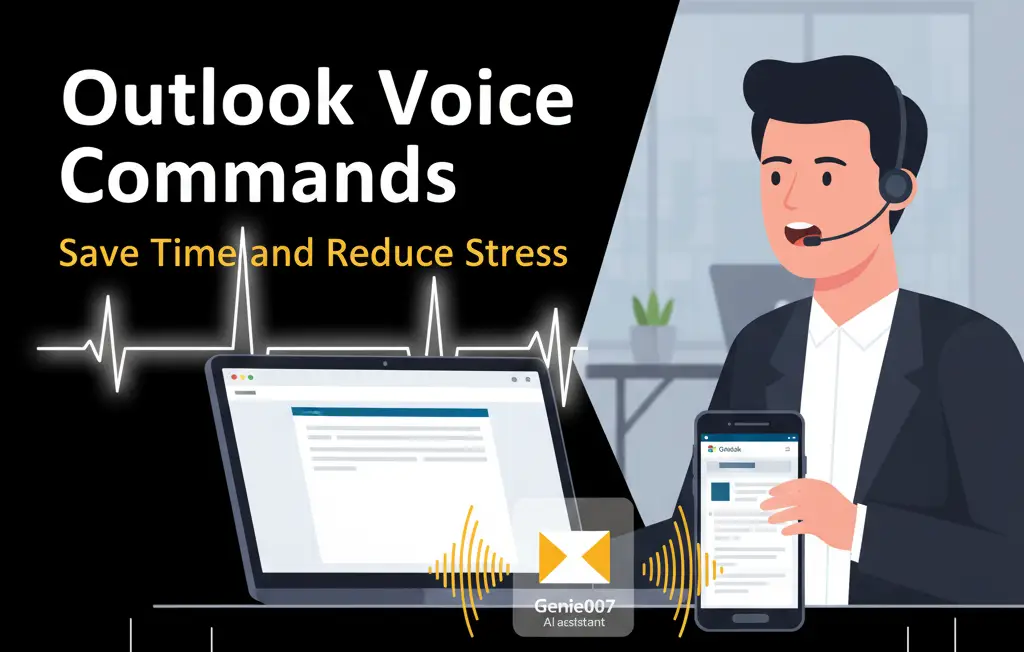
In today’s fast-moving digital workplace, context switching, overflowing inboxes, and back-to-back meetings can quietly consume hours each week. Outlook voice commands in Microsoft Outlook give you a faster, more natural way to act on email, calendar, and task information without reaching for your keyboard. Paired with Genie 007 an intelligent voice AI assistant you can compose, triage, schedule, search, and follow up with remarkable accuracy and speed. This guide explains what Outlook voice commands are, why they matter, and exactly how to get the most out of them with Genie 007, including a practical setup walkthrough and a data-backed productivity comparison.
What Are Outlook Voice Commands?
Outlook voice commands are spoken instructions that let you control core Outlook actions hands-free. Instead of clicking through menus or typing keywords, you simply say what you want to happen compose a message, find a thread, schedule a meeting, or move a message to a folder and Outlook interprets the command and executes it. Modern voice experiences combine automatic speech recognition (ASR) with natural language understanding (NLU) to interpret intent (“Schedule a 30-minute sync with Jordan next week”), extract entities (attendees, date/time, duration), and perform the requested action.
New to voice input in Outlook? Start with our guide on how to dictate in Outlook before moving on to advanced voice commands.
At a practical level, Outlook voice commands can help you:
- Compose, reply, and forward emails using dictation with formatting, punctuation, and @mentions.
- Search your mailbox semantically (e.g., “Find the latest proposal from Priya with attachments”).
- Create calendar events, accept or decline invites, and propose new times.
- Flag messages, set categories, and move email to folders for clean inbox hygiene.
- Create and check tasks or reminders tied to emails for lightweight follow-up workflows.
Unlike basic dictation tools, the best Outlook voice commands understand context. If you are inside a message, “archive this” applies to the current thread; if you’re in the calendar, “show Friday morning” filters your view. With Genie 007 layered on top, you also gain cross-app awareness, richer command syntax, and personalized shortcuts that adapt to your preferences over time.
Benefits of Outlook Voice Commands
Voice AI is not just about novelty, it addresses real constraints of knowledge work. According to research, typing and clicking are slower than speaking for many tasks, and the cognitive load of navigating ribbon menus and nested settings adds friction. By externalizing intent through speech, you cut micro-delays and reduce the repetitive motion that contributes to fatigue. Here are the most meaningful advantages teams report after adopting Outlook voice commands with Genie 007:
- Speed and throughput: Speaking averages 130–160 words per minute versus 40–60 for typing. For routine updates and common replies, this yields tangible time savings.
- Lower cognitive load: Saying “Schedule a project stand-up for 9:30 AM tomorrow, 15 minutes, add Aisha and Ken” is simpler than clicking through multiple calendar fields.
- Better ergonomics: Reducing sustained typing and mousing helps limit strain, supporting healthier daily habits and accessibility for a wider range of users.
- Consistent organization: Rules-based voice actions “Move all newsletters to Reading Later,” “Flag invoices for Finance” keep inboxes tidy without manual drag-and-drop.
- Fewer context switches: Voice lets you capture tasks, decisions, and appointments while you’re still thinking about them, avoiding lost momentum.
For managers, Voice AI can also standardize team workflows. You can define a vocabulary (“urgent,” “ready-to-send,” “needs-review”) and map it to labels, folders, or follow-up timers so everyone processes messages the same way. When combined with Genie 007’s personalization, individuals still get flexibility custom shortcuts and preferred phrasing without sacrificing consistent outcomes.
How Genie 007 Maximizes Outlook Voice Commands Productivity
Genie 007 augments Outlook’s native voice capabilities with domain-aware understanding, error handling, and automations that minimize rework. Rather than acting only on literal commands, Genie 007 infers context and fills gaps intelligently. If you say, “Follow up with the design team next week,” Genie 007 can ask a quick clarifying question (which day?) or apply your defaults (Tuesday, 10:00 AM, 20 minutes, Teams link) if you’ve set them.
Key ways Genie 007 improves your Outlook experience:
- Natural dictation with smart formatting: Auto punctuation, bulleting, and paragraph breaks; verbal commands like “new paragraph,” “bold project name,” or “insert numbered list.”
- Rich search and summarization: “Summarize yesterday’s customer emails,” “Show unread messages from legal since Friday,” or “What did we decide about the Q4 discount?”
- Calendar automations: Time-zone awareness, conflict detection, auto-insert of conferencing links, and preferred durations and locations.
- Reusable voice shortcuts: Create named macros like “daily triage,” “send status,” or “invoice follow-up” that chain multiple actions in one phrase.
- Cross-app awareness: Bring in notes, to-dos, or CRM context so emails and invites are populated with accurate, up-to-date details.
In short, Genie 007 turns voice into a dependable, repeatable system. It reduces correction cycles (fewer typos, less formatting cleanup) and transforms common routines triage, scheduling, follow-ups into quick, reliable flows you can trust.
Step-by-step Guide to Using Genie 007
Step 1: Install Genie 007
Download Genie 007 from the official website and complete the guided setup. Grant microphone permissions, run the short audio check to calibrate for your voice, and sign in to connect your Outlook account. If your organization uses tenant-level permissions, your admin may need to approve the app once.
Step 2: Enable Voice Access in Outlook
Open Outlook (desktop or web) and confirm microphone access is allowed by your OS and browser. In Outlook settings, ensure dictation/voice features are enabled. In Genie 007, toggle Outlook integration to “On,” then test a simple command like “Create new email.”
Step 3: Learn Core Commands
Start with high-impact actions and add nuance as you go: “Compose email to David about the budget update,” “Search for the offer letter from HR,” “Schedule a 1:1 with Lina next Thursday at 4 PM,” “Move this thread to Clients > Renewals,” “Flag this for Friday.”
Step 4: Dictate and Format Efficiently
Use natural speech and inline directives: “Hi team comma new paragraph Here’s the latest milestone update colon new line 1 period backend API complete new line 2 period QA in progress end list.” Then say “bold ‘milestone update’” or “insert screenshot below” if supported.
Step 5: Organize Your Inbox with Routines
Create repeatable shortcuts like “morning triage” to scan unread, archive newsletters, surface urgent senders, and create follow-up tasks. For project work, try “tag as Finance and move to Approvals.”
Step 6: Tune Preferences
In Genie 007 settings, set default meeting lengths, conferencing links, preferred times, working hours, and recipient groups (e.g., “core team”). This reduces back-and-forth and helps Genie 007 auto-complete details you frequently omit.
Productivity Comparison Chart
Based on typical office workflows, teams that adopt Outlook voice commands for voice-first triage and scheduling often realize noticeable throughput gains within the first two weeks. The chart below compares estimated productivity for three approaches: Traditional (keyboard/mouse), a Generic Voice tool with basic dictation, and Outlook voice commands with Genie 007 featuring contextual understanding and shortcuts. While exact results vary by role and volume, users commonly report faster inbox zero, clearer follow-up habits, and fewer scheduling errors.
FAQs
Is Genie 007 compatible with my Outlook version?
Genie 007 supports Outlook 2016, 2019, Microsoft 365, and Outlook on the web. For best results, keep Office and your browser updated. Enterprise environments may require an admin consent flow your IT team can approve the integration globally or per user.
Your privacy matters. Genie 007 processes all audio locally on your device — no recordings are stored, no data is sent to external servers. For full details, see our security and privacy page.
How accurate is the voice recognition?
In quiet environments with a standard microphone, users typically experience above 95% dictation accuracy. Accuracy improves as Genie 007 adapts to your voice and vocabulary. If you work in a noisy space, consider a headset mic and enable noise suppression in settings.
Does this work on mobile?
Yes. Genie 007 supports both desktop and mobile workflows so you can dictate on the go, triage quickly between meetings, and schedule follow-ups immediately after calls. Feature availability can vary by platform; check the app notes for specifics.
Is my data secure?
Genie 007 uses enterprise-grade encryption in transit and at rest. Voice data is processed according to strict privacy standards, and organizational policies such as data residency and retention can be configured by administrators.
Do I need an internet connection?
An internet connection is recommended for the best recognition quality and access to cloud features such as cross-device sync and smart summaries. Some limited functions may work offline depending on your OS capabilities.
For official Outlook support and features, visit Microsoft’s Outlook help center for detailed guidance. For productivity research, check this study on workplace efficiency. For related content, explore our guide on Gmail voice commands to optimize your entire email workflow.
Frequently Asked Questions
How does voice typing compare to keyboard typing?
Most people type at 30-40 WPM but speak at 130-150 WPM. Voice typing with Genie 007 is 3-4x faster with 99.5% accuracy.
Does Genie 007 work on any website?
Yes. Any text field — Gmail, Slack, Notion, LinkedIn, GitHub, Google Docs, and hundreds more.
Is voice dictation private?
Genie 007 processes all audio locally. No recordings stored or sent externally. GDPR compliant, HIPAA ready.
Ready to Try Voice-to-Action?
Install Genie 007 free — no credit card required. Works on any website, any text field.
Install Genie 007 Free →Using Gmail instead of Outlook? See our Gmail voice typing setup guide.
Written by Bill Kiani, founder of Genie 007.