
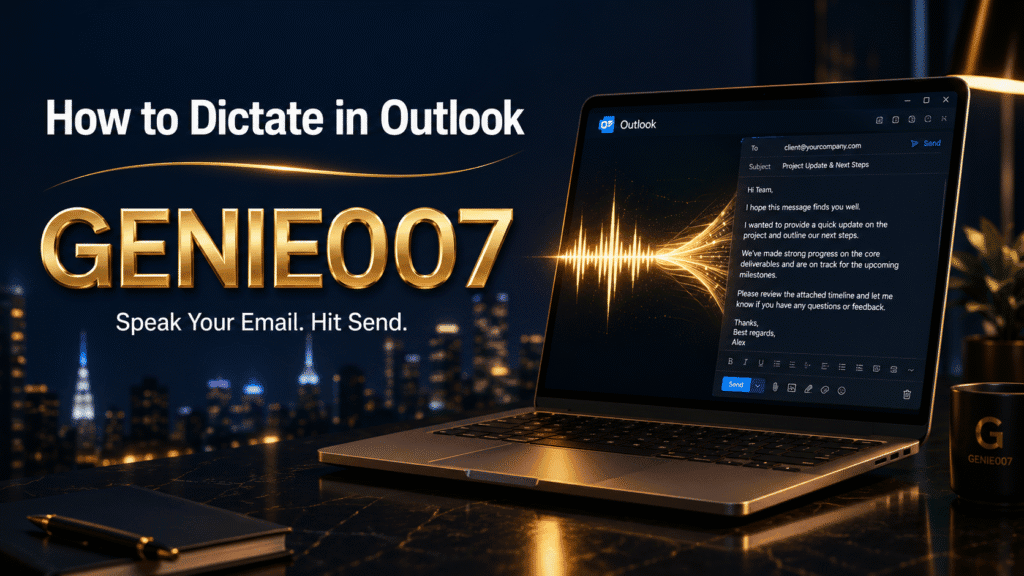
If you’ve ever typed the same three-line reply twice because Outlook lost your train of thought, you already know why dictation is worth ten minutes of setup. Outlook has a built-in Dictate button that turns speech into text right inside the message body, with no extra software to install. This guide covers exactly how to dictate in Outlook on new Outlook for Windows, classic Outlook, Outlook on the web and Outlook for Mac, the voice commands you need for punctuation, and what changes on mobile. It also covers where plain Outlook speech to text runs out of road, and what a lot of busy inboxes are switching to instead.
How to Dictate in Outlook (Step-by-Step)
Outlook’s Dictate feature ships with Microsoft 365 subscriptions across New Outlook for Windows, classic Outlook, Outlook on the web and Outlook for Mac. It needs a working microphone and a stable internet connection, because the speech is processed in Microsoft’s cloud rather than on your device. The core steps are the same everywhere: open a new message or a reply, click into the body of the email, then find and select Dictate.
If you want the same voice typing workflow in the desktop app, our guide on how to dictate in Word covers the built-in Dictate feature and its limitations.
Once the microphone icon turns on and starts listening, just talk. Text appears as you speak, and you can pause and resume without losing your place — tap the mic icon again, or use the keyboard shortcut Alt plus the backtick key to pick dictation back up mid-email.
New Outlook for Windows and Outlook on the Web
In new Outlook for Windows and in Outlook on the web, start a New Email or open a reply, click inside the message body, then open the Message tab on the ribbon and select Dictate. The button highlights and starts listening within a second or two on most connections. Speak your email, then select Dictate again to stop.
Classic Outlook (Desktop, Microsoft 365)
Classic Outlook — the traditional desktop app that ships with a Microsoft 365 subscription — uses the same Message tab and Dictate button. If you don’t see it, check File, then Options, then General, and make sure “Enable services” is switched on, since Dictate stays hidden when that setting is off. You’ll also need to be signed in with a Microsoft 365 account rather than a one-time-purchase copy of Office, because perpetual licences such as Office 2019 or 2021 don’t include Dictate at all.
Outlook for Mac
On a Mac, sign in to Microsoft 365, open a new message or reply, go to Message, then Dictate, and start speaking. The keyboard shortcut is Option plus F1. Mac dictation shares the same underlying language list and punctuation commands as Windows, so anything you learn on one platform carries over to the other.
| Platform | Dictate available? | Notes |
|---|---|---|
| New Outlook for Windows | Yes | Message tab, ribbon button |
| Classic Outlook (desktop) | Yes | Requires “Enable services” switched on |
| Outlook on the web | Yes | Same Message tab location |
| Outlook for Mac | Yes | Shortcut: Option + F1 |
| Outlook mobile (iOS/Android) | Indirect | Dedicated Dictate button retired; uses phone keyboard mic |
Adding Punctuation While You Dictate in Outlook
Outlook speech to text isn’t just transcription — you can speak punctuation and formatting commands and Outlook will insert the matching character. Say “comma”, “full stop”, “question mark”, “new line” or “new paragraph” and Outlook drops in the right punctuation or line break as you keep talking, so you rarely need to stop and reach for the keyboard.
Dictate currently covers more than 50 languages, including several English variants — UK, US, Australian, Canadian and Indian English are all fully supported, with UK English available by default for many British Microsoft 365 tenants. A further set of languages sit in preview, which Microsoft’s own documentation notes may have lower accuracy or more limited punctuation commands, so it’s worth checking your language’s status before relying on it for anything client-facing.
Dictating Emails in Outlook on Mobile
If you’re trying to dictate emails in Outlook on your phone, the experience is different from desktop. Microsoft retired the dedicated in-app Dictate button from Outlook for iOS and Android in September 2024, reasoning that both operating systems already ship with capable voice typing built into their own keyboards.
In practice, that means you tap the microphone icon on your iPhone or Android keyboard while the cursor sits inside the Outlook message body, and speak. iOS Dictation or Android’s keyboard voice typing handles the transcription, not Outlook itself. It works, but you lose Outlook’s own punctuation commands and get whatever accuracy and language support your phone’s keyboard happens to offer instead.
Where Plain Dictation Hits a Wall
Outlook’s Dictate button is genuinely useful, and the underlying idea is sound: speech is a much faster input method than a keyboard. A Stanford University study found that speaking text messages was around three times faster than typing them on a phone keyboard — 161 words per minute by voice versus 53 by keyboard — with over 20% fewer errors. Outlook’s Dictate feature gives you access to roughly that same speed advantage for email.
The catch is that it’s still transcription, not composition. Dictate writes down what you literally say — filler words, false starts and all — then leaves you to go back and tidy tone, structure and formatting by hand. It only lives inside Office apps, needs a live internet connection and a Microsoft 365 subscription, and every “comma” or “new paragraph” you speak still has to be a conscious command rather than something that just happens automatically. For a two-line reply that’s fine. For a longer, more considered email, the kind where you’re thinking out loud and want the messy version cleaned up for you, plain dictation runs out of road fast.
Voice to Text Outlook Email: The Genie 007 Upgrade
This is exactly the gap Genie 007 is built to close. Instead of transcribing your words literally, Genie 007’s Genie Mode listens to what you mean and writes the email you actually intended — properly punctuated, formatted, and matched to the tone the message needs, without a single “comma” or “new paragraph” command. Ramble through a reply the way you’d explain it to a colleague, and Genie Mode hands back a polished, professional email ready to send.
Genie 007 also works everywhere your writing happens, not just inside Outlook — Gmail, LinkedIn, Slack, Teams and dozens of other apps and websites, using the same voice, the same personal writing style and the same privacy-first, on-device processing throughout. That’s a meaningful step up from voice to text in Outlook email alone, because your dictation habit stops being tied to one inbox. Talk in one language and get polished text in another with live translation, or dictate a whole thread of replies back to back without touching the keyboard once.
For a deeper walkthrough of Outlook-specific setup, see our guide to voice typing for Outlook, and for the full list of spoken commands that save the most time, read Outlook voice commands that save time and reduce stress. If dictating across every account you own is the goal, our guide on how to dictate emails and our piece on voice typing for email cover the wider picture, and what is think-to-text explains the idea behind Genie Mode in full. Genie 007 runs natively on Windows, which covers most Outlook desktop users, with plans from £5 a month on the pricing page.
FAQ
Real questions people search about Outlook’s Dictate feature, answered directly below.
Why is the Dictate button greyed out in Outlook?
The Dictate button is usually greyed out because you’re not signed in to a Microsoft 365 subscription, you’re offline, or your cursor is sitting in the To or Subject field instead of the message body. Check File, then Options, then General, and confirm “Enable services” is switched on, update Outlook to the latest version, and make sure Windows has granted Office permission to use your microphone.
Can I dictate emails in Outlook on my phone?
Yes, but not through a dedicated Outlook button — Microsoft retired the standalone Dictate feature from Outlook mobile in September 2024. Instead, tap into the message body and use your phone’s own keyboard microphone, iOS Dictation or Android’s keyboard voice typing, which handles the speech-to-text conversion for you.
What languages does Outlook’s Dictate feature support?
Outlook’s Dictate feature supports more than 50 languages, including UK, US, Australian, Canadian and Indian English, alongside French, German, Spanish, Italian, Japanese, Chinese and Hindi as fully supported languages. A wider set of additional languages are available in preview, with Microsoft noting these may have lower accuracy or reduced punctuation command support.
Does Outlook dictation need an internet connection?
Yes. Outlook’s Dictate feature processes your speech in Microsoft’s cloud rather than on your device, so it needs a stable internet connection to work at all, and it will grey out or fail silently the moment your connection drops.
Is Dictate free in Outlook?
Dictate is included with an active Microsoft 365 subscription rather than sold as a separate add-on, so if you already pay for Microsoft 365 you have access to it at no extra cost. It isn’t available in one-time-purchase versions of Office such as Office 2019 or 2021.
The Dictate button works across the entire Office suite — if you enter data into spreadsheets too, here’s how to use the same voice tools to dictate in Excel without switching input methods.
Try Genie 007 Free
If Outlook’s built-in Dictate has shown you how much faster speaking is than typing, Genie 007 is the next step — think-to-text that turns your rambling voice notes into finished emails across Outlook and everywhere else you write.
Download Genie 007 free — available for Windows, Mac, mobile and as a browser extension. No credit card required.
Written by Bill Kiani, founder of Genie 007.
For businesses looking to roll voice typing out team-wide, our guide to the AI voice assistant for small business covers the Teams plan that lets your whole office dictate in Outlook and beyond.
If you manage a small team and want a solution that works across every app and website rather than just Outlook, our buyers guide to dictation software for small business covers the full picture.
Authors who also dictate professional emails will find that the microphone positioning and pacing techniques in our book dictation guide apply directly to dictating in Outlook.